Guide to using Pinterest Pin templates in Canva and how to make them stand out
Pinning images to Pinterest is one of the easiest ways to market your blog (and it’s free). Pinterest has consistently been my #2 source of traffic (after Google). If you’re introverted like me, it’s the best way to market your blog without feeling ‘salesy’. Plus you can do it from behind your screen without having to show your face like on other social media platforms.
Pin images versus images on your site: what’s the difference?
Throughout this post you’ll see me reference ‘pinnable images’ and ‘pinterest pin templates’ a lot. That’s because you shouldn’t be pinning just photos to Pinterest. You need to pin photos that are optomised for Pinterest, and include your blog URL.
I can’t be bothered adding my blog URL to every single photo I post, and I think it’s annoying for the reader too. I prefer to take photos at landscape orientation but portrait orientation images stand out more on Pinterest. So I make separate images for each of my blog posts (sometimes they’re a collage of multiple images), add them at the end of the post. Those images are the ones I pin to Pinterest. I also use one of them as the main feature image for the blog posts.
By pinnable images I mean images like this:

What software should you use to make Pinterest Pins?
I use and recommend Canva. I used to use Photoshop 10 years ago when I thought it was the best software and insisted on using it for everything because of how expensive it was. But there’s been plenty of new software released since then. I use Canva for making my pinnable images and Affinity Publisher to make my printables (although I’ve also dabbled in Microsoft Word, Microsoft Excel, Google Sheets and Microsoft Powerpoint).
I use Canva to make my pinnable images because unlike other software:
- I don’t have to use up storage on my own computer, the file are stored within Canva itself
- I can have multiple pages / templates in the one ‘document’ in Canva (the limit is 500), so I can easily duplicate and make multiple designs in the one document, copy and paste etc. without having to flick between different tabs and documents
- Speed – even with 500 pages / templates in the one ‘document’ in Canva, things load quickly
- The auto resizer tool is handy when downloading (I mention more on this later in the post)
- There’s a large enough variety of fonts already in Canva (even if you only have the free version) and you can search for the style of font you need e.g. bold, sans serif etc.
- I like Canva’s free and paid stock images
- Canva has ‘frames’ which work similar to a clipping mask in Photoshop. But in Canva there’s only one frame / layer so all you need to do is drag and drop (faster than using clipping masks in Photoshop)

Some of the pinnable images I’ve been making lately using a mix of my own photos and stock photos
Free versus paid pin templates
When I decided to ‘revamp’ my Pinterest pin templates I looked at other people’s pins on Pinterest (I tried to search different niches not just my own niche so I’d get some fresh ideas), free templates in Canva and paid templates I saw elsewhere. Both free and paid had some good options but I ultimately decided I wanted a different aesthetic to both the free and paid templates I was seeing, so drew some inspiration from those, but made my own templates.
If you have no prior graphic design experience, don’t have time to make your own templates or simply don’t want to, then pre-made pin templates are a good place to start.
Should you use stock photos in your Pinterest Pins?
I shared a tutorial way back in 2016 on how I make my Pinterest Pins in Canva. Back then I mostly made pinnable images with text only and my signature rainbow stripe background. I only made pinnable images with my own photos.
In that post I said I would never use stock photos but… over the past few months I’ve started experimenting with using stock photos in addition to pins with text only and the rainbow stripe, plus pins with my own photos. I can see how bloggers with information / factual topics would need stock photos to break up wordy blog posts, but I take my own photos for my blog content anyway so only ever used those.
I will admit that sometimes a stock photo/s make the pin look more professional, especially since the stock photos seem to have perfect lighting and I’m not good with arty angles when I take photos.
So I do think stock photos have a place in your pinnable images, but I wouldn’t use stock photos for every image.

What size should you make Pinterest Pins?
The ‘optimal’ size of Pinterest pins has changed over the years. The current recommendation from Pinterest themselves, is 1000 pixels wide x 1500 pixels high and an aspect ratio of 2:3.
I’ve also had success with pins that are 576 pixels wide x 2478 pixels high (I can usually squeeze 3 – 4 images plus text onto these), and they’re ideal for a planner roundup post like this one with the best planners for school and college students.
I’m concerned about storage space and loading times on my blog, so if I’m making a pinnable image for a topic that isn’t evergreen, I usually reduce the size down to 750px x 1,125px. You can do this easily in the resizer menu in Canva (you’ll need Canva pro), before you download the image (after clicking the ‘share’ button in the top right corner).

You can also compress the image to reduce it’s file size. I use compressjpeg.com for this (it’s free).
How to use templates to speed up your workflow
I’m using my own Pinterest pin templates as examples in the video below, but most of the tips I share in the video could be used if you’re designing your own pins from scratch as well. I also have more tips for making pins farther down this post.
If you’d like a copy of my pin templates, here are the links:
- Set 1: Etsy shop, Online store
- Set 2: Etsy shop, Online store
To enlarge the screen of the video, click the square icon in the bottom right hand corner of the video (it will say ‘full screen’ when you hover your mouse over the icon).

Subscribe to my YouTube channel for more planner videos
How to make your Pinterest pins look different
If you spend a bit of time researching the types of pins people are posting on Pinterest you’ll probably start to see the same free Canva stock images appearing. Here are some ways to make your pins look different:
- Crop 1/3 to 1/2 of the stock image off and replace with a colored rectangle (that you put text on top of)
- Zoom in on the image so it looks slightly different
- Add a transparency filter to make the stock photo less prominent
- Change the keywords you’re using when searching for stock photos in Canva, so different stock photos appear in search
- Avoid favoriting / starring stock photos in Canva to force you to find and use different ones
- Depending on the design, consider using multiple shades of the one color, instead of just one color for the entire image
- Pair a cursive font with a sans serif (block / simple font)

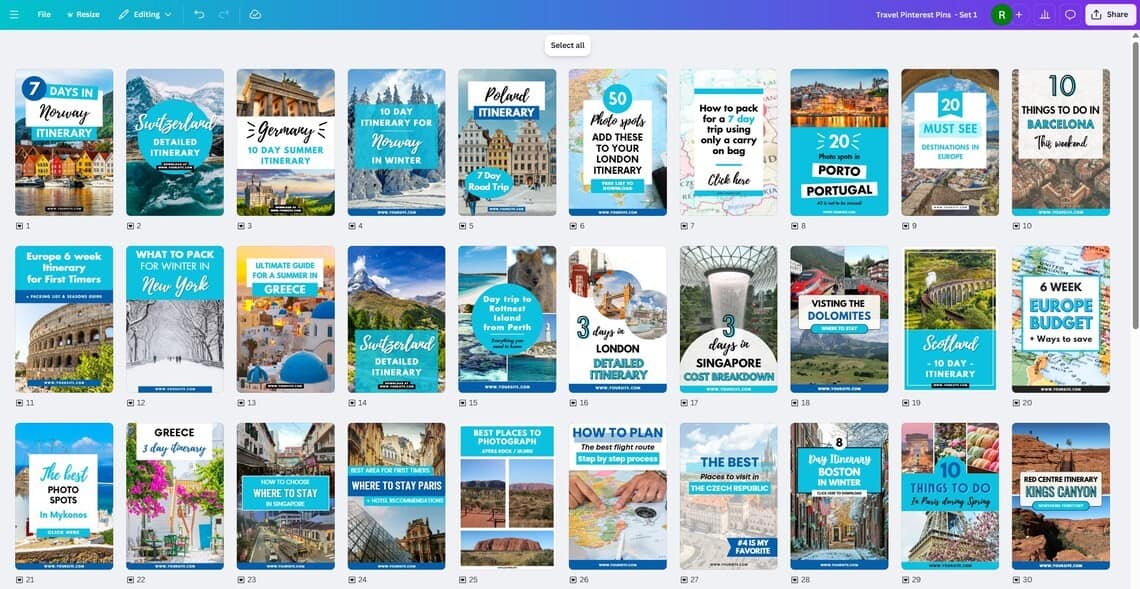
Here are some different Pinterest pins. You’ll see I experimented with:
- Different fonts
- Putting fonts on angles
- Using a colored font to make the main subject of the blog post stand out to the reader
- If it’s a ‘top 10’ type post, including the number in a circle with a colored background
- Mix of bold and non-bold fonts
- Adding a call to action ‘click here’
I also always make sure I include my blog URL somewhere on the image (usually at the bottom) so nobody can steal my image and claim it as their own, and if for some reason the link back to my blog was somehow lost from the image, then the URL is there to help people find my content.

What colors should you use for your Pinterest Pins?
You’ll notice the templates I made use a lot of pink. Pinterest releases trending colors each year, but they frequently recommend red. But to me, red looks quite harsh when you use a lot of it in an image.
For my niche (planning + printables), I’m mainly targeting women and pink grabs their attention. It’s also the color I notice a lot of other bloggers in my niche using on their pins, and when I’m browsing on Pinterest, pink grabs my attention.

I also like to use my rainbow stripe background as the colors pop and stand out in Pinterest search results.

Fonts
I’ve experimented with many fonts over the years and now switch between about 20 fonts. That may sound like a lot but some fonts look better in uppercase letters only, some don’t have bold font styles, some pair well with other fonts but don’t look so good on their own. So once you start experimenting you’ll probably end with a small collection of fonts you like to use.
Years ago I used to use less than 5 fonts because I was worried about staying ‘on brand’, but as the online world gets more crowded, I don’t think branding matters as much on Pinterest as it does on other platforms.
To save you time, I include a list of all the fonts I’ve used in my Pinterest pin templates.
Related post: 40 of the best cursive fonts for making printables
Type of Pinterest Pins
Some popular types of pins you could consider making for your content:
- Infographic
- Free download (with an image or computer image)
- Lists (where you share a few from the list then add a call to action like ‘click here for the rest’)
- Numbered lists e.g. 7 favorite dot grid markers for bullet journaling
- The best of ______
- The ultimate guide to ______
- Collage or gift guide
- Struggling with? Learn how to _____
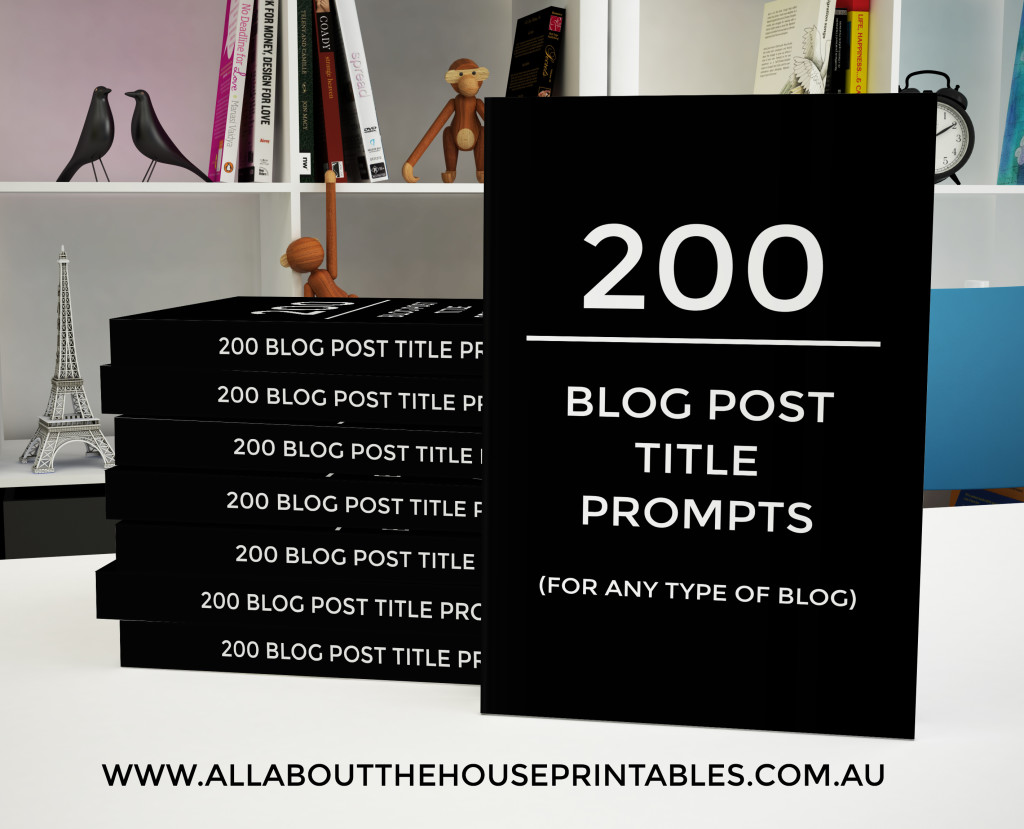
I have an ebook with my blog post title prompts (there are 200) – many of these can be recycled for titles for your Pinterest pin images and used for any niche. I made it so long ago it still has my old business name on it but I still use it to this day, the content is still relevant.
What about AI tools that make Pinterest pins for you?
I’ve tried a few of these, including the one within Tailwind (the tool I use to schedule my Pinterest pins). But the results were terrible! Fonts all over the place, things not aligned properly, terrible color and font choice – they looked awful and required a lot of manual editing to make them look semi-ok. I didn’t want to have to do that each time, I wanted my own template so I could do it much faster. Plus if I wouldn’t click on the image then other people probably aren’t going to either. So no, I don’t use or recommend AI tools that make Pinterest Pin images for you.
How to hide Pinterest images on your blog
If you want to upload multiple images for Pinterest into a blog post, You can use the Tasty Pins plugin. I’m undecided if I’ll invest in this or not. It’s quite pricey (the cost is in American dollars so the price for me being in Australia, is much higher than the advertised price) and I’d really like to avoid yet another subscription.
I’m concerned that if I cancel the subscription, what will happen to my images? It may or may not produce an error page and it would just be yet another life admin hassle I don’t have time to deal with. So for now I just show the pinnable images to readers but put them at the bottom of the blog post so they’re out of the way.
Naming pinterest pins
I include keywords in the name of the pin, in the alternative text section (the ‘alt text’ section when you upload the image in Wordpress), on the pin image itself and within the pin description. I try and put the most important keywords that I think people will be searching for in the first few words.
I used to add comma’s to separate keywords but now I don’t, because more combinations of words which create long tail keywords, provides more opportunity for people to find my content.
Keywords versus written captions
Before I upload images to my blog, I rename them with multiple keywords in the file name. This will automatically appear as the title of the image in Wordpress, I then copy and paste that text into the ‘alt text’ section of an image file in Wordpress.

The ‘alt text’ is what will be automatically be populated when yourself or someone else pins your image to Pinterest. Lately I’ve been experimenting with using tailwind’s ghostwriter tool and using a paragraph of actual sentences which contain the keywords, versus only using captions that have the keywords. I couldn’t find much information about this online so I’m interested to see if what I do with the pin descriptions actually helps my content show up more in search results.

Use different titles for each pin for the same blog post
How many pinnable images should you make per blog post? I’ve seen various recommendations but this is what I do:
- Evergreen like planning tips then = 3+ pinnable images
- Planner review for popular brand that I know people are searching = 2+ pinnable images
- Post that is really for my regular blog readers and isn’t content someone is likely searching on Google for = 1 image
Then I go back and add more images if the post is popular. For example, my post where I talk about how to color code your planner is one of my most popular blog posts ever and now has 8 different pinnable images that show my Pinterest pin ‘evolution’.
If It’s a topic I wrote about years ago (I’ve been blogging since 2016!), then I check my analytics, go back and usually create 2 – 3 new pins. I also do this for blog posts that used to be popular but have gotten less popular over the years and need a refresh on the Pinterest feed.
I’ve been using chatGPT to generate keyword ideas as I found myself just using the same keywords over and over.
Does marketing on Pinterest actually work?
I think so! Pinterest has always been my 2nd biggest referrer to my blog (after Google). So more views and more importantly, clicks on my pins and then through to my website, is always a good thing.
Here’s a snapshot of the last 90 days since I made and have been using the Pinterest pin image templates (combined with pinning 5 – 7 pins per day).

How many times a day do you need to pin?
I’ve been doing quite a bit of research into this over the past few months and people either don’t want to say (unless you buy their Pinterest course which I don’t think I need), or I’ve seen recommendations of between 15 – 25 pins per day.
15 x 365 = 5,475 pins – that’s a lot of pins!
I typically pin each image to about 5 Pinterest boards (sometimes it’s more, sometimes it’s less, depends on the topic). Do you need to make 5,475 pins? No! If you pin the same image to 5 boards then you would only need… approx. 1000 pins.
That’s a little overwhelming to me so I decided to just start with 50 different pin designs. It wasn’t quite enough variety and certain topics need longer titles, or subtitles etc. so I made another 50 pin designs. Now I can pick and choose and always have a good template on hand for any type of blog post.
Note: I also read somewhere on Pinterest that apparently there’s a 200,000 maximum pin limit per Pinterest account. I wonder if anyone has ever actually max’d that out…

How to schedule your pins
I use Tailwind. I like that I can bulk schedule multiple pins at once and it tells me how many pins are scheduled for each day. It would be super annoying if I had to manually keep a tally of how many times I’ve pinned, Tailwind automatically tells me if I’m not pinning enough.
I can schedule the same pin to go to different boards at different frequencies (I usually choose monthly so there’s a good rotation of content).
Tailwind is a paid tool but I think it’s one of the better value tools that are worth investing in for your blog.
Tailwind tells me when I need to schedule more pins!

Download my Pinterest Pin templates
To save time, I created Pinterest pin templates. You can see how I customised some of them to suit my blog content with a mix of my own as well as stock images.
I ended up creating so many pins that I have 2 sets of Pinterest Pin templates (50 templates in each collection), which I’ve made available in my store if you want to try them too. In the video earlier in this post I walk you through how to customise the templates. Both templates include a mix of designs and different types of pins (infographic, collage, top 10 etc.)
- Set 1: Etsy shop, Online store
- Set 2: Etsy shop, Online store

You can quickly change the colors and fonts in the template to suit your brand.
Click on whatever font you’d like to cutomise. Select a different one in Canva then select ‘change all’. Anywhere the original font was used, will be updated across the entire document to the new font you chose with just that one click!

You can do the same thing to quickly change the colors too:

Here are some of the Pins I’ve made using the templates:

I hope you found this post helpful!
More blogging resources
- How to keep blog post ideas organized and color coded using Microsoft Word (plus, download a copy of my template for free!)
- How to clean up & organize your digital files
- Monthly blog post planning using sticky notes (my 6 step process)