How I Use Microsoft Outlook to Plan My Work Week and Manage My Time
If you’ve been following my blog for a while (or even since the very beginning in 2016!) you may have noticed over the years that my weekly spreads were a bit sparse on weekdays, or that I didn’t even use a weekly planner to plan my week. The reason for this is that I don’t use one planner for work and personal. I have a day job and keep all of my work tasks completely separate.
Related: 52 Planning Systems in 52 Weeks
I’ve actually had this post sitting in my drafts folder for years, and for some reason it just kept getting pushed down the posting schedule until I completely forgot about it until I stumbled across it the other day. When I went back and re-read it I realized that years later, I’m still using the same method to organize my work week.
I actually don’t use any paper, sticky notes, notepads or paper planners for organizing my work tasks. While I love to use pen and paper for my personal tasks, I don’t use any at work.
I have a lot of things on my desk already, piles of building plans, documents etc. I work in the construction industry and there’s so many finer details that I miss if I don’t print drawings, it’s just easier to review them on paper. So I don’t want even more paper on my desk.
I have a job where I’m in the office I’d say 30% of the time, at home for about 40% of the time and out and about at different job sites the other 30%. I already have to take plenty of paperwork with me to job sites that I have to carry around and markup with notes while also trying to take photos. I don’t want to be lugging a planner or notebook around as well.
So what do I do instead?
I have a completely digital system using 2 simple tools that you can already access for free:
- The notes app on iPhone
- Microsoft Outlook
You could using the reminders app that comes pre-installed on iPhone but the way I use Microsoft Outlook negates the need to do that.
Why I use Microsoft Outlook
There are so many project management tools out there now, it’s a bit exhausting trying to choose one. I don’t like using apps on a small phone screen. I also don’t like tools where I have to funnel down into multiple sub menus and when it takes multiple clicks to find the information I need. I want something that’s simple and where I can see everything in one go.
Here are the main reasons why I use Outlook:
- Contrary to the weekly spreads I’ve been posting lately where I plan my personal life (basically just working off different types of to do lists and not assigning tasks to days), I do assign tasks to a specific time on my workdays. I can schedule a task or appointment in Outlook and a reminder will pop up on my computer screen and work phone 15 minutes before, 30 minutes before (whatever interval I choose).
- It’s free
- I can see everything all in one place
- Other people can see what I’m working on and my availability (my status on Teams changes to red if I have something in my calendar)
- People external to the organization use Microsoft Outlook so any meetings they arrange automatically appear in my diary
- Quick and simple to use
- I can see when other people are available versus when I’m available which makes it easy to schedule meetings
- I can color code
- I can easily rearrange tasks by dragging and dropping them to a different spot in the week
- Don’t need to switch between an internet browser if using a tool like Google Calendar, Trello, Monday.com etc. and Outlook – I can just click between buttons within Outlook itself
- I can open Outlook on my phone and check my calendar when I’m at job sites arranging future inspections
- It’s how the company I work for prefers to schedule meetings / check your availability
- I can switch between daily, weekly and monthly views to see what is coming up and schedule things far in advance
- It only requires one click in the calendar and I can start typing – it’s fast to add tasks
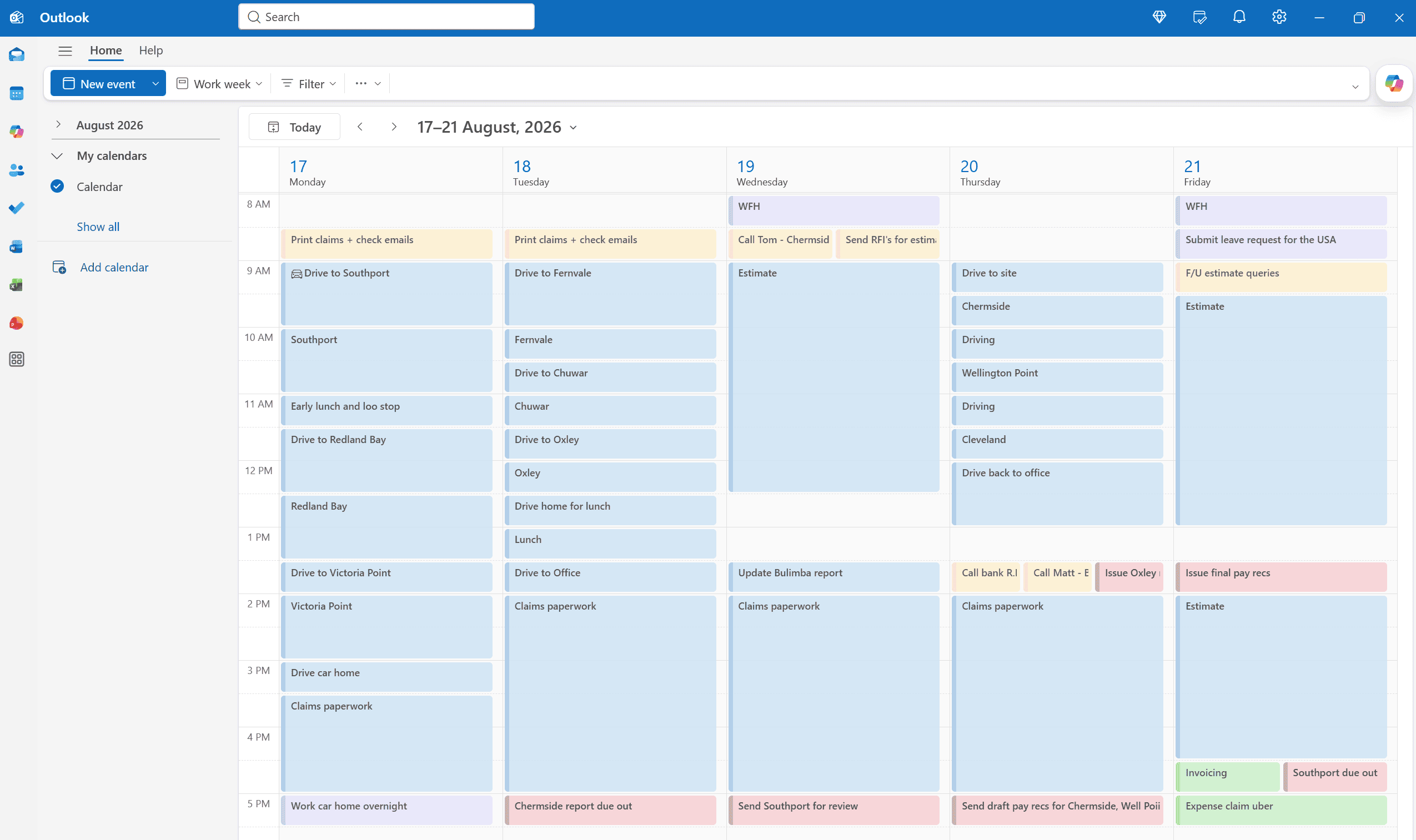
My workplace has a shared calendar where I can see where everyone else in the office is. I only put the main things in the shared calendar (site inspections, if I have meetings that are out of the office). Otherwise if everyone put every meeting on the shared calendar it would get very clogged. Which is why I have my own calendar for myself where I can go as detailed as I like.
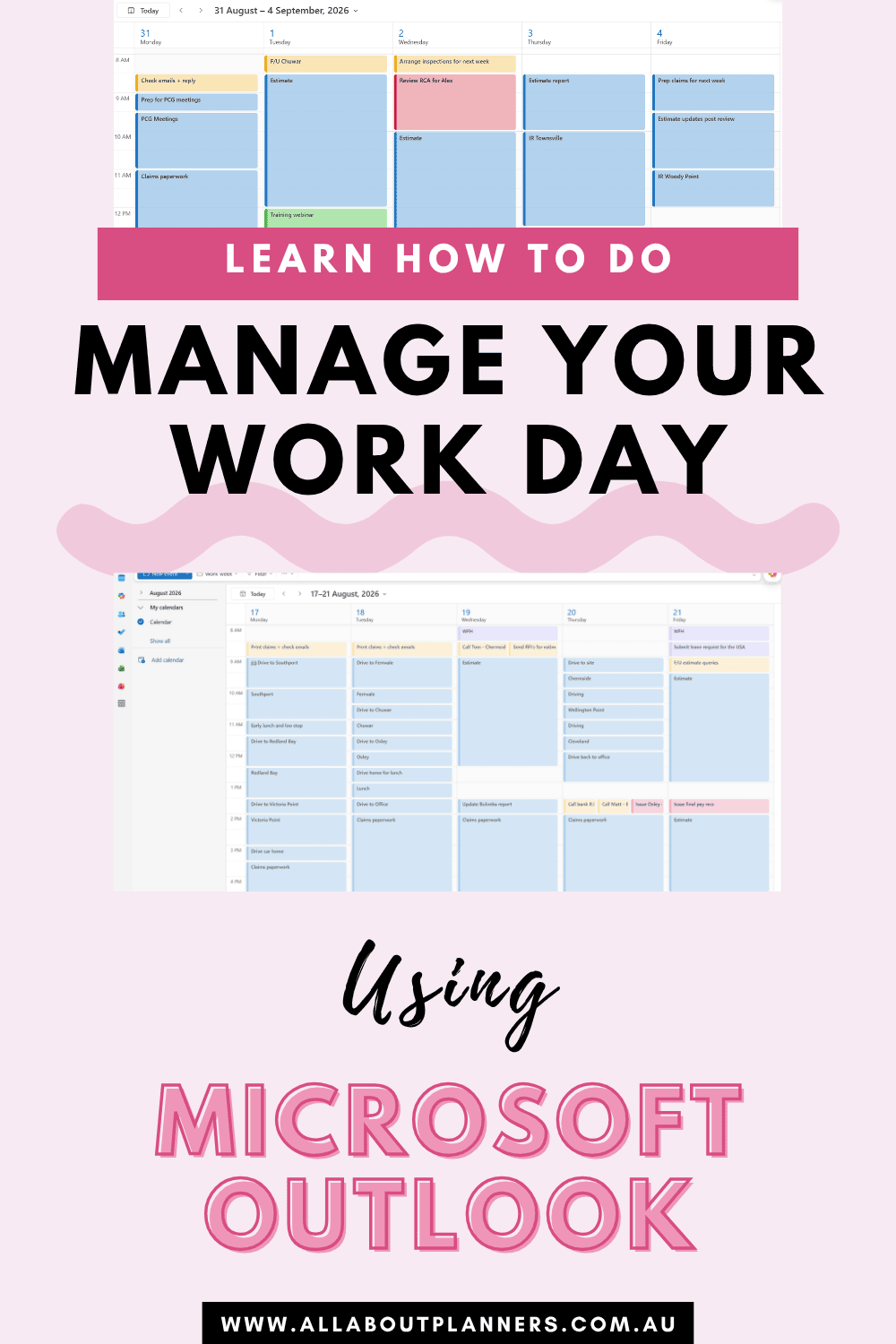
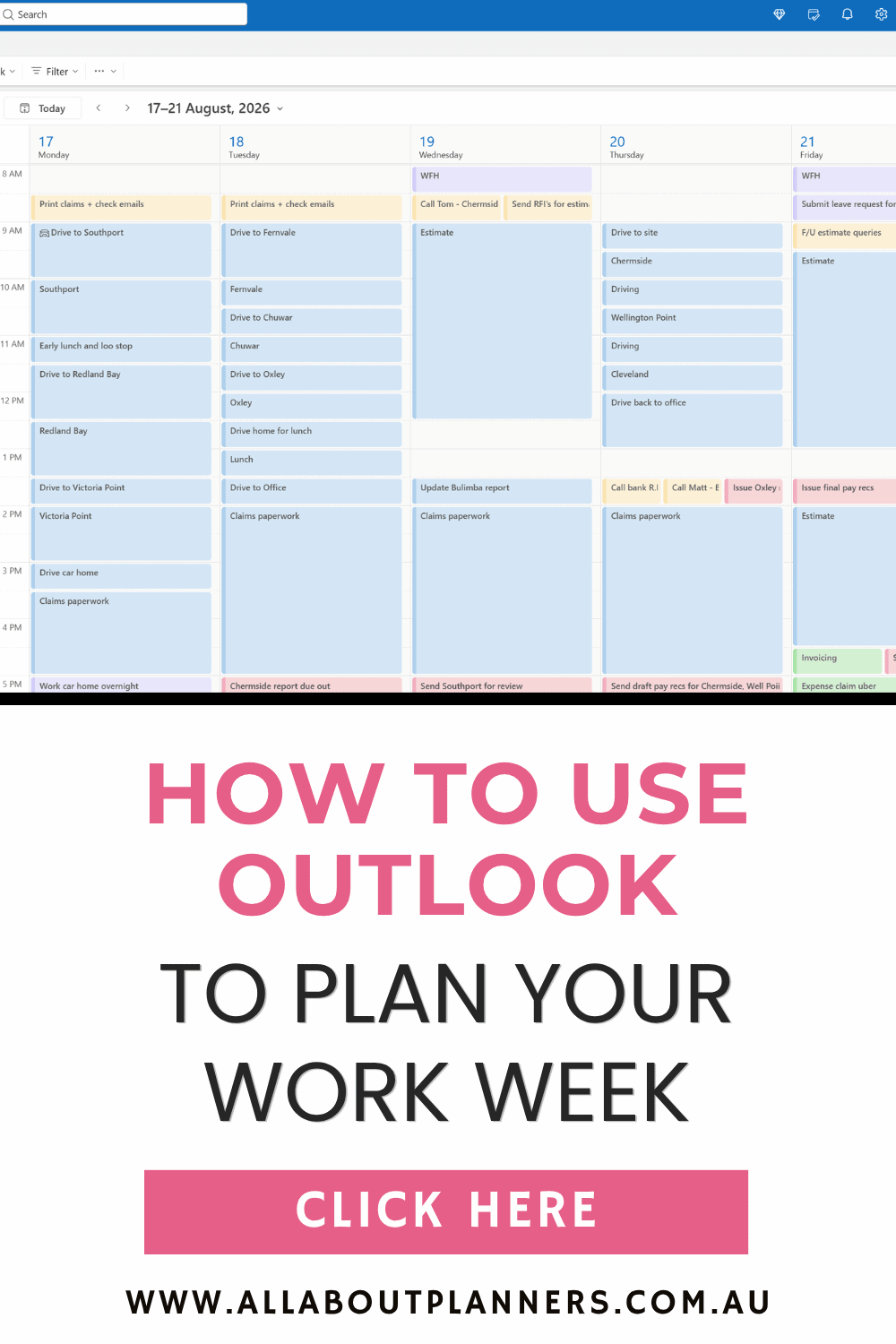
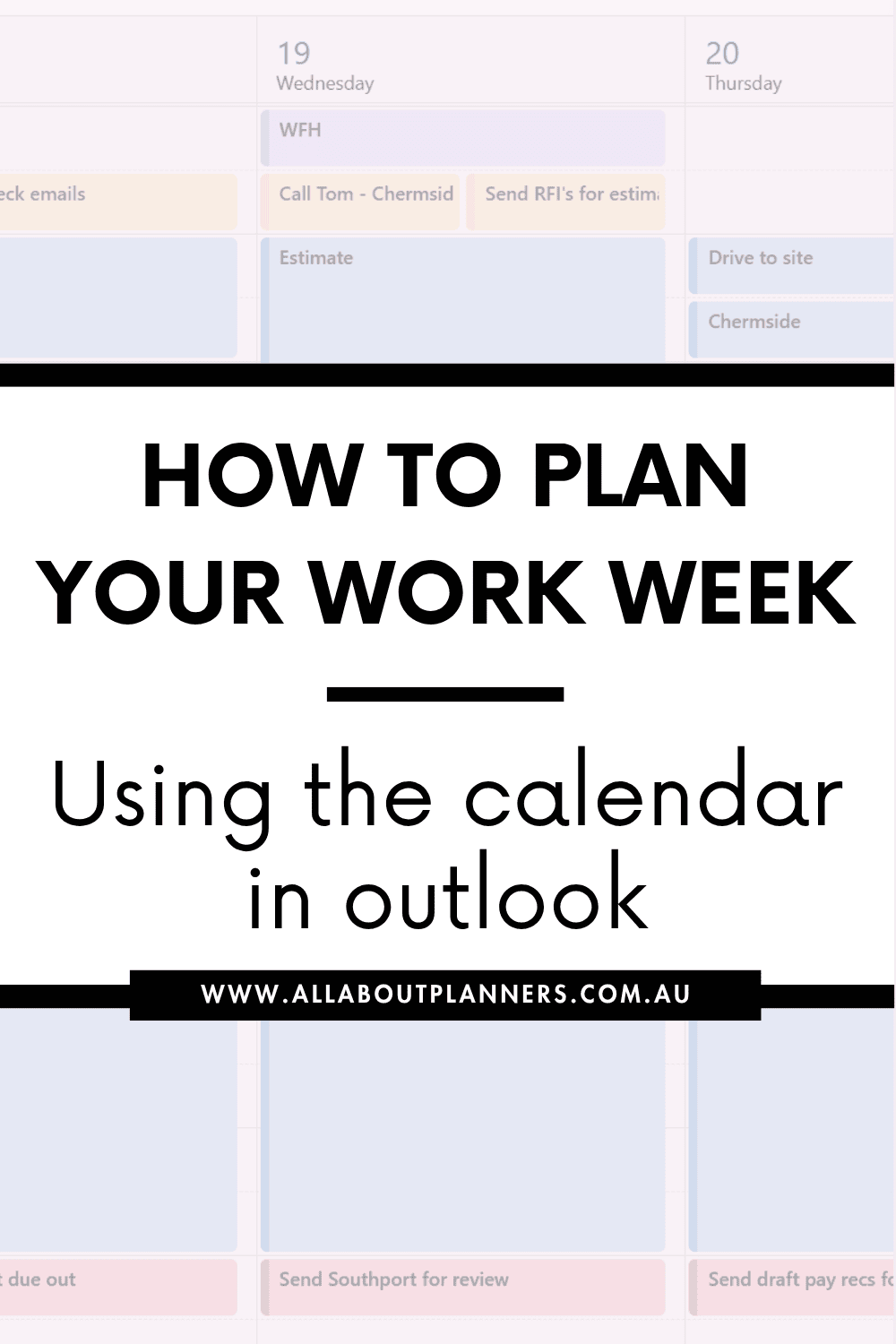
Since I obviously won’t share confidential work stuff online, I’ve re-created a past work week in the calendar that comes free with Hotmail.
To enlarge the screen of the video, click the square icon in the bottom right hand corner of the video (it will say ‘full screen’ when you hover your mouse over the icon).

Subscribe to my YouTube channel for more planning related videos
Color Coding
This is my system:
Red = Due out today (most important tasks)
Blue = Tasks that need to get done. I use blue for this as it’s the default category color in Outlook
Yellow = Follow ups such as
- Reports I need to remind my boss to review so I can issue them
- Queries on a project I’m waiting responses for
- Fee proposal requests from clients etc.
- People I need to follow up with (e.g. if I’ve delegated a task to another team member)
Green = Reminders. I used to use this for a recurring reminder each week to do my timesheets, But now I work for a company that doesn’t require me to complete them 🙂
I now use it for recurring reminders to send my invoicing to the accounts team and other non-billable tasks such as training webinars and reminder to log my CPD points.
Purple = Annual leave, appointments, work social events and to mark my WFH days.
I record all of my work from home days in outlook – makes it so much easier for tax time
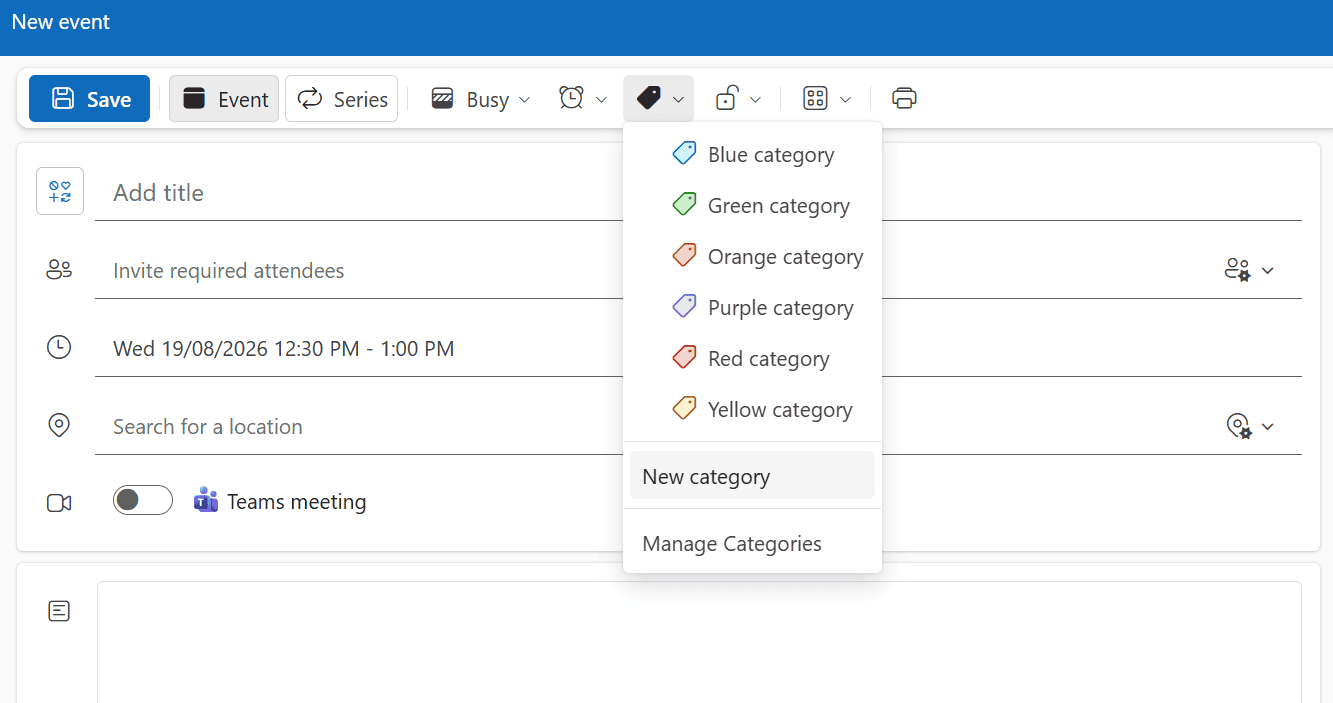
The colors above are default colors in Outlook. You can choose more colors by clicking on ‘new category’ which will give you multiple shades of pink, purple, blue, green etc. But if you have too many colors it starts to become a bit meaningless and unnecessarily time consuming to add tasks so I just use the default colors.
Once you add an appointment into Outlook, you can double left click and a pop up window will appear where you can add extra notes. These are not visible unless you double click on the task to see details – kind of like in Tello. I mainly use this if I’m drafting an email but I’m not ready to send it. I’ve had too many instances where I saved the email to drafts but then it disappeared.
It’s also good for drafting project briefing notes to send to another team member. It’s basically placeholder notes that get copied and pasted, and then the task eventually gets deleted.
Related post: 50 Category Ideas for Color Coding Your Planner
Scheduling tasks
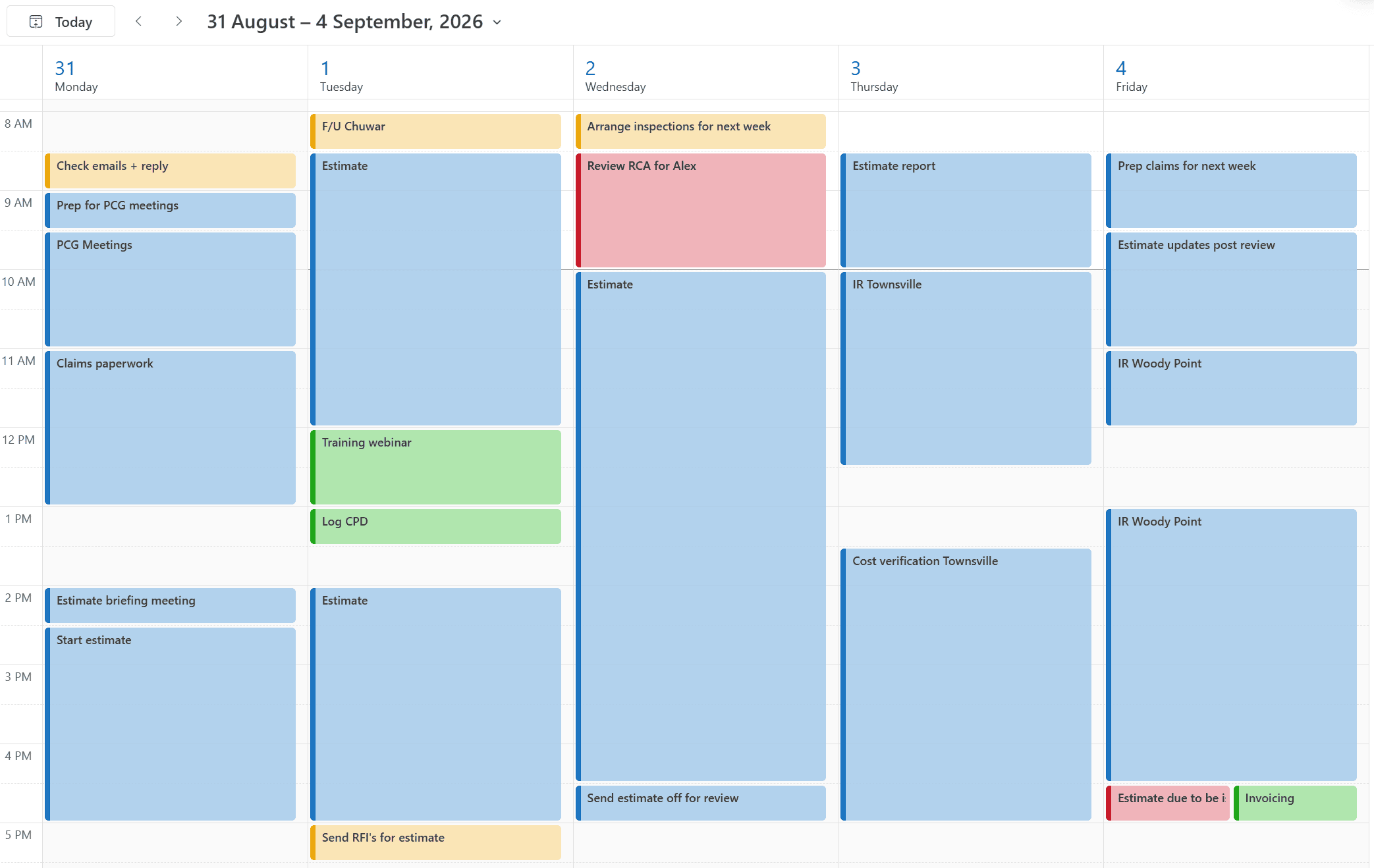
- I work backwards from the deadline and add unofficial due dates for each stage: finish the estimate, have the estimate reviewed, make any updates post review and then the due date. This helps me allocate the appropriate time to tasks, provide sufficient warning to the peer reviewer, and things get issued on time
- At the start of the day I review my inbox, see if I need to rearrange any tasks, then start in the order they have been scheduled
- After I finish a task, I refer back to the calendar to see what’s next
- If a task went overtime I can just drag the appointment’ down to the time it ended. That way at the end of the week I can see what actuality happened. I started this habit when I had to do timesheets as it made doing them at the end of the week a lot faster
- I should work on a first in first out (FIFO) basis, but there are some instances (repeat clients, bigger fees, good relationship with the client, they actually need it urgently aren’t just saying it’s urgent, one off favour to try and win more work with the client etc.), so I take it as it comes and there’s no set system. I’m continually adjusting and re-prioritizing tasks throughout the day
- Outlook’s default is 30 minute increments. You can change the start times to say 10:15am instead of 10am, but I just do everything in 30 minute blocks. If there’s reminders I’ll stack a few in one of the 30 minute increments.
I think it would be handy if Outlook had a general to do list section underneath each day in the after business hours section where I could add things that need to be done but not at a set time. As Outlook doesn’t have this function, I just add reminders after 5pm to create the list.

Descriptions
Every project at the company I work for is assigned a job number. I used to use the job numbers as my description but they’re 8 digits long and subtasks within the projects also have their own unique number code. It became too difficult to remember all of the project numbers. The project name in the work system is typically the street address so I typically just put the suburb in the description.
I use abbreviations such as F/U for follow up. I added the / as someone saw my calendar one day and was like what is FU?!
WFH = work from home
I don’t use folders
I run a lot of my own projects and also oversee projects that other people in the office are working on. I know some people swear by folders and have super organized inboxes, but I’ve never actually filed anything into a folder in Outlook ever.
I just don’t see the point, it’s ‘busy’ work in my opinion.
Because I don’t file anything I can just search the job name, number or person and all of the emails come up, it’s very quick to find what I’m looking for.
Filing emails only works if you stay on top of filing – if some are filed and some aren’t filed, it creates more work trying to find the email.
Sometimes I work on multiple projects for the same client, I want to see everything for that client when I search my inbox as sometimes there’s a precedent set on one project, that needs to be applied to their other projects.
… So I just rely on the search function in Outlook.
Outlook view
I like to see emails on preview mode not list mode. Frustratingly, the company I work for doesn’t have a proper client onboarding system where they can upload files, it’s all sent via email. Clients can be unorganized and send things over multiple emails rather than just sending files in one email or via a Dropbox or other file sharing link. Since I don’t usually drop what I’m working on to read / file / address an email as it comes in, by having the email on preview mode I can quickly skim read, see if it’s urgent and if not, come back to the email later.
I know you can turn notifications off so that you don’t get the email pop up on your screen but sometimes I’m waiting on information from a client to finalise a report. I might also be in the middle of preparing an estimate and a client sends me revised drawings. If I don’t check the email I could be wasting time continuing to work off now outdated drawings.
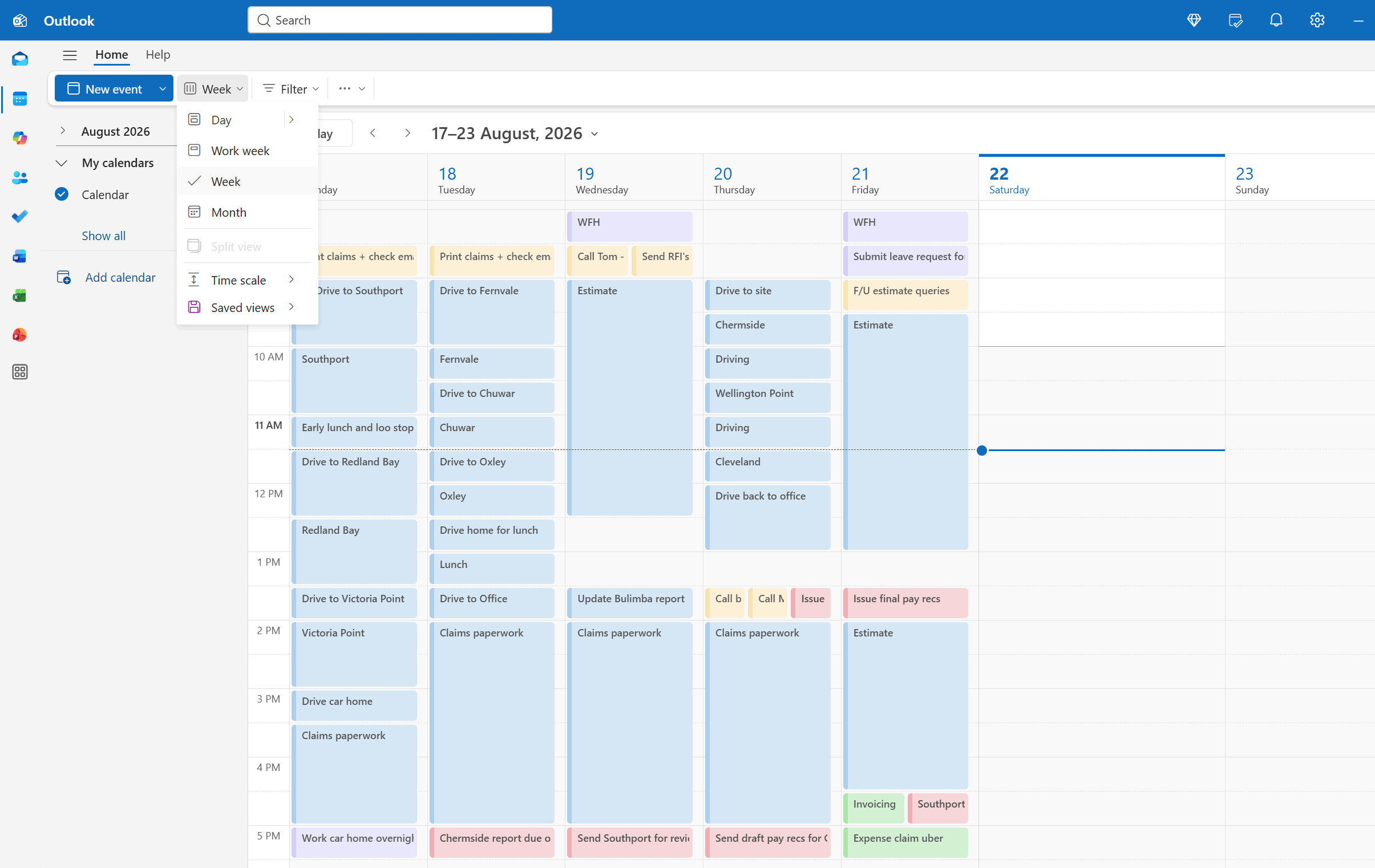
If you’re thinking about planning both your work and personal life into Outlook, you can toggle between work week, week and monthly calendar views
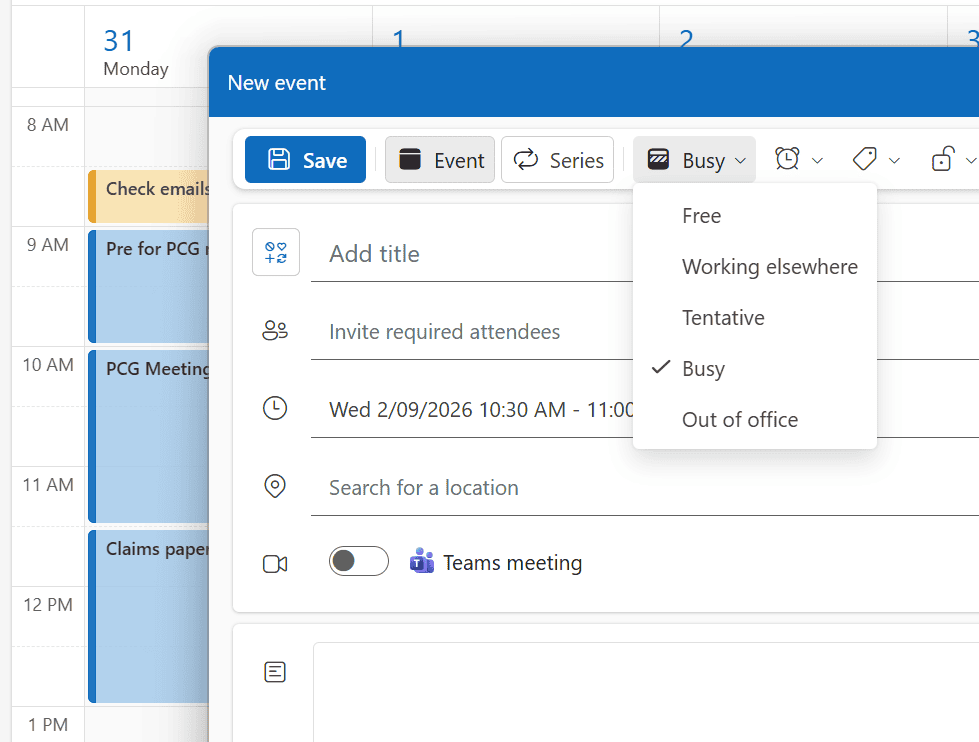
The default when you add something in Outlook is that it will set your status in Teams to ‘busy’. You can change this by double clicking on the appointment and then in the pop up menu, changing from busy to free.
But I like to leave my status as busy because then people have to ask if I’m available before they schedule a meeting.
Other ways I organize myself at work
What about my to Do List?
When you flag an email it generates a to do list off to the right side. But I never use it. I don’t see the point in flagging things as I have a good memory, can search for emails within Outlook and I probably only receive about 20 emails / day.
My work is repetitive, I can copy over a previous report, highlight everything in yellow then unhighlight it when it’s been updated for the current project. I keep to do lists for each project within the project’s files. So if I’m working on a report, I brain dump my queries and list of the documents I need to follow up on in the Word document and highlight them in blue. It’s very helpful to have all of my notes in the project file instead of to do lists on paper as I often switch between projects. I can then copy and paste the notes into an email, unhighlight and polish them up sending to a client.
Word document with email templates
I used to search my inbox for sent emails with keywords of what I needed, then copy and paste into a new email. But there’s now so many emails in there and I have enough going on without Outlook itself that I just prefer to keep a separate document. These are some of the pre-written scripts I have that I can copy and paste into an email within minor tweaks before sending:
- Issue a report to a client
- First email with a client
- Follow up emails
- Sending list of information required to a client (different ‘scripts’ depending on what is required)
- Standard responses
- Turnaround times
- Annual leave auto reply email
You can add these to quick parts function in Outlook but I just have them in a Word doc saved on my desktop or search my inbox for the last email of that type that I sent.
Pin project folders to quick access
As for organizing project folders. If you right click on a folder on your computer and choose ‘Pin to Quick Access’ form the menu that will appear. It will ‘stick’ that folder to the left side of the folders menu so you can find things easily. It will only show a certain amount so you might need to expand this.
Job Reference List
I keep a spreadsheet of every project I’ve ever worked on, what I did on that project, with a link to the job folder. It’s very helpful for benchmarking and digging out examples and past reports to use as a template.
In summary
I know there are many more features for using Microsoft Outlook, these are just the ones that work for me.
If you’re not sure where to start, time blocking your week like I have only takes a few minutes to set up each week so why not give it a try!
More tips for organizing your week
- 50 Tips for writing a better to do list that will make you more productive
- 20 Productivity & Time Management ‘Rules’ I Live By
- 15 Productive Things You Can Do In 15 Minutes or Less
Found this post helpful? Pin it!