

How to make monthly cover pages for your planner or bullet journal with no design skills (for free using Chatgpt)
I can’t draw. I’ve purchased those books that show you step by step how to draw simple shapes that eventually create an image, but I just didn’t enjoy the process and was never that happy with the end result. I don’t want to spend hours doodling by hand.
So if I can’t draw, then how did I make this?
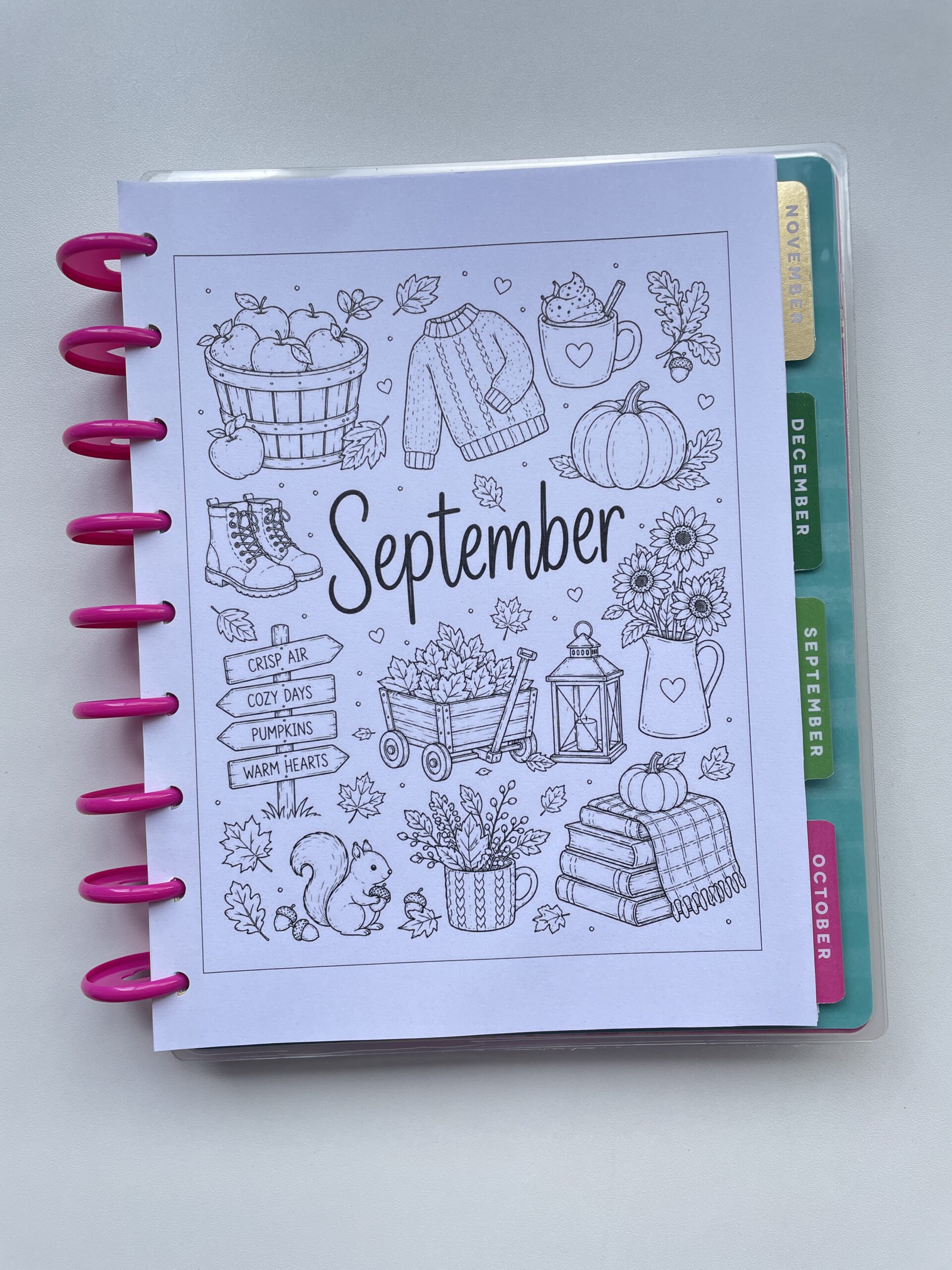
Let me show you how easy it is!
You’ve probably already guessed what tool you need for this… it’s ChatGPT.
How to create decorative monthly divider pages for your planner or bullet journal with no design skills
To enlarge the screen of the video, click the square icon in the bottom right hand corner of the video (it will say ‘full screen’ when you hover your mouse over the icon).

Subscribe to my YouTube channel for more printing tutorials and stationery review videos
If you’ve used chatGPT for anything you’ve probably noticed that you get better results if you’re more detailed at describing what you want. The same applies to creating monthly divider pages for your planner or bullet journal. If you don’t know where to start you can enter a simple prompt, see what it creates, then the tell it what tweaks you would like. But if you have a clear idea of what you want it will make the design process much faster.
If you’re using the free version of ChatGPT you’ll want to be specific in as few prompt requests as possible, as it will only generate a few images for you before it tells you to come back in a few hours or the next day when your limit has reset.
And no refreshing the webpage isn’t a work around, believe me I tried that!
So what should you tell it?
Here’s an example prompt:
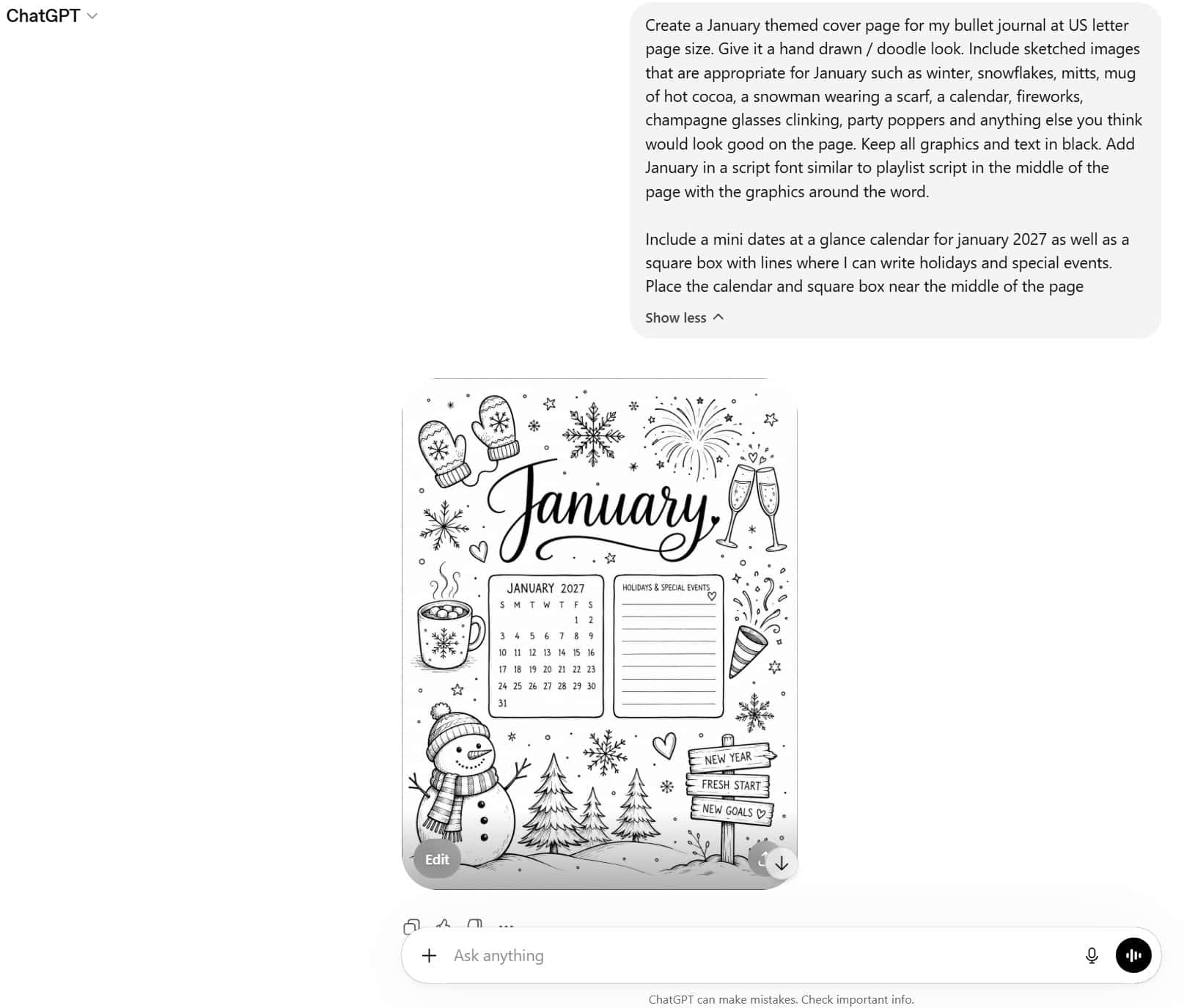
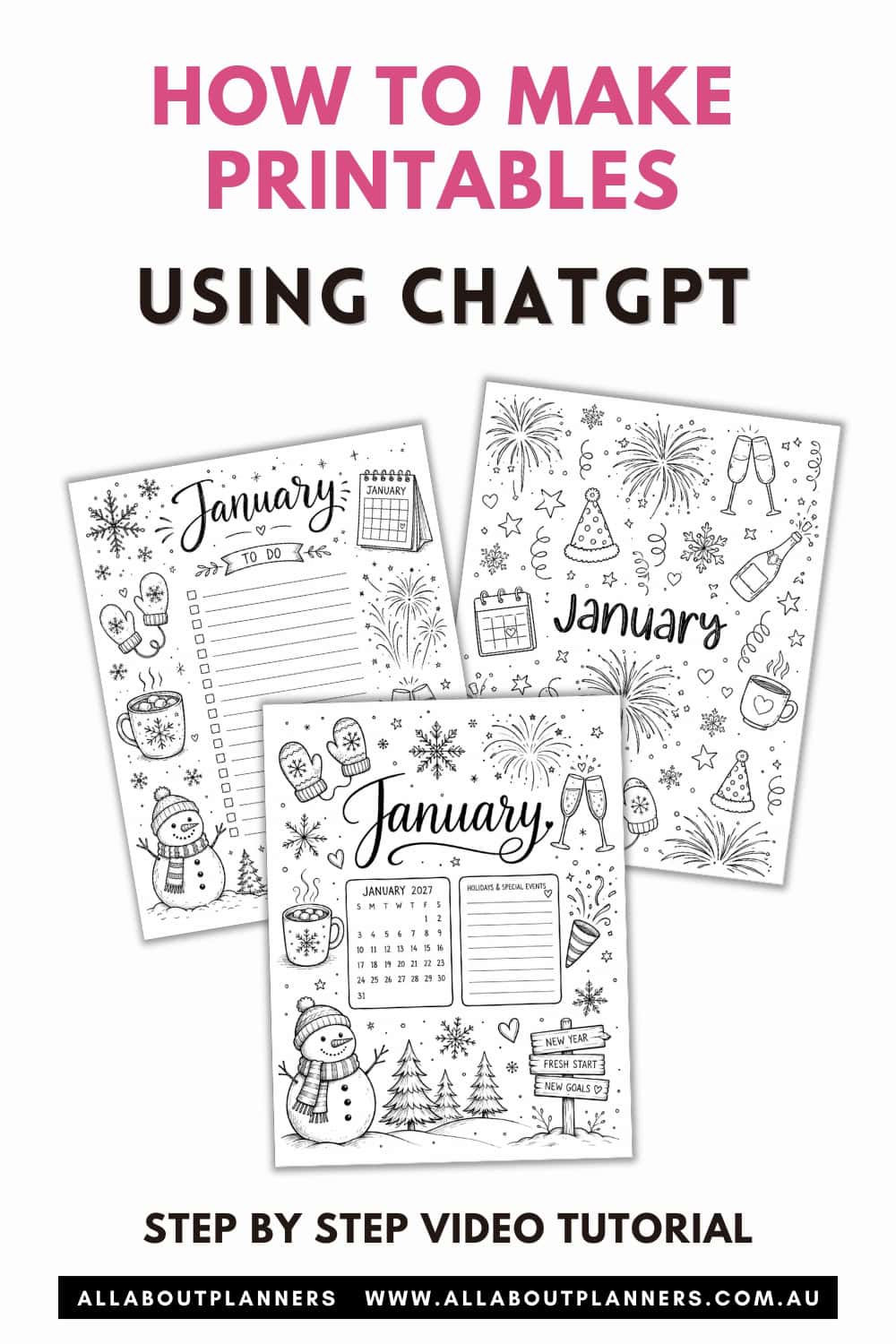
Create a January themed cover page for my bullet journal at US letter page size. Give it a hand drawn / doodle look. Include sketched images that are appropriate for January such as winter, snowflakes, mitts, mug of hot cocoa, a snowman wearing a scarf, a calendar, fireworks, champagne glasses clinking, party poppers and anything else you think would look good on the page. Keep all graphics and text in black. Add January in a script font similar to playlist script in the middle of the page with the graphics around the word.
Here’s what it generated for this prompt
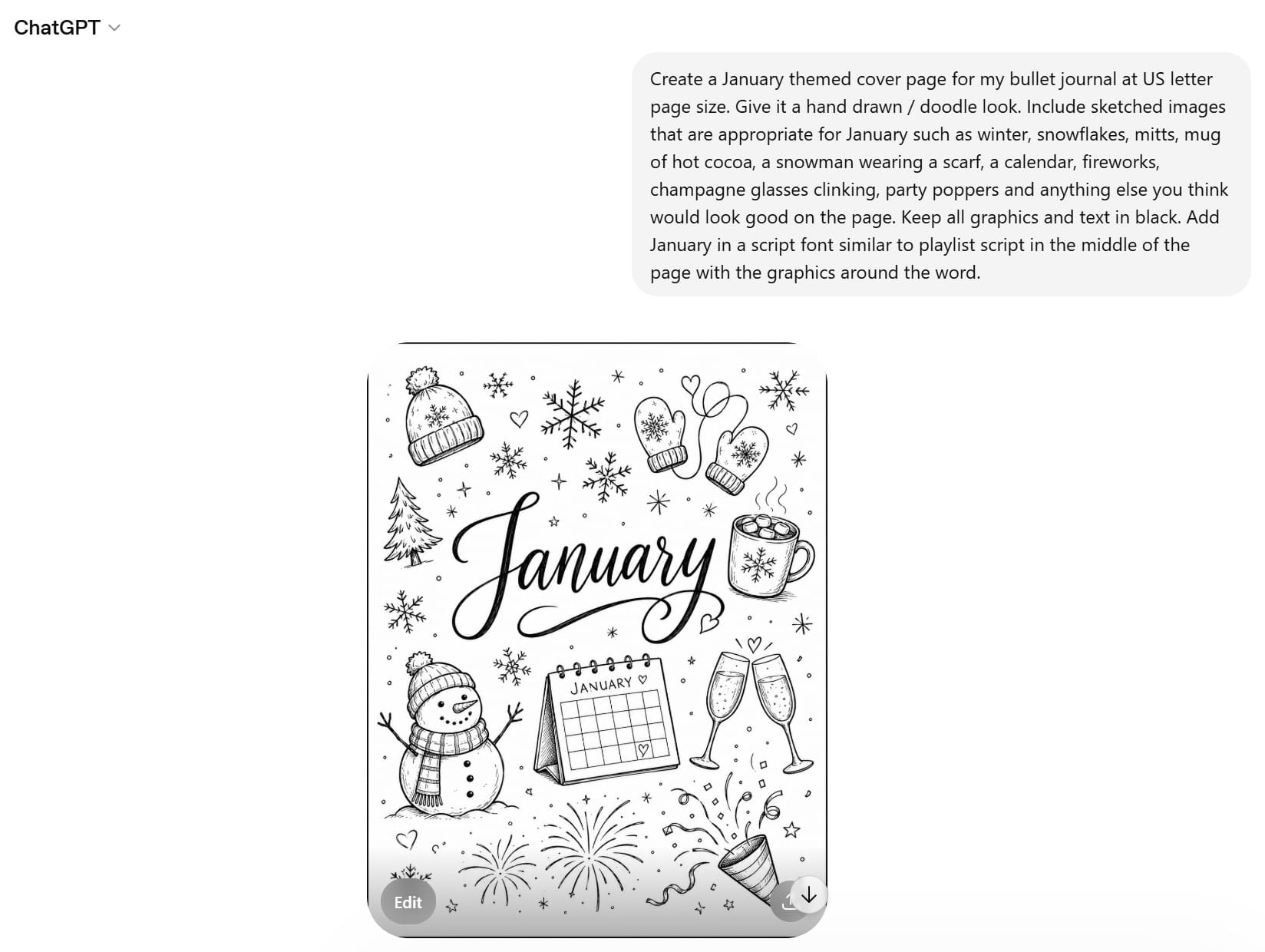
If you don’t like what ChatGPT created, you can ask it to try again. Simply tell it what you do and don’t like, or tell it to create a completely different design based on what I originally said
Here’s what it came up with when I told it to try again
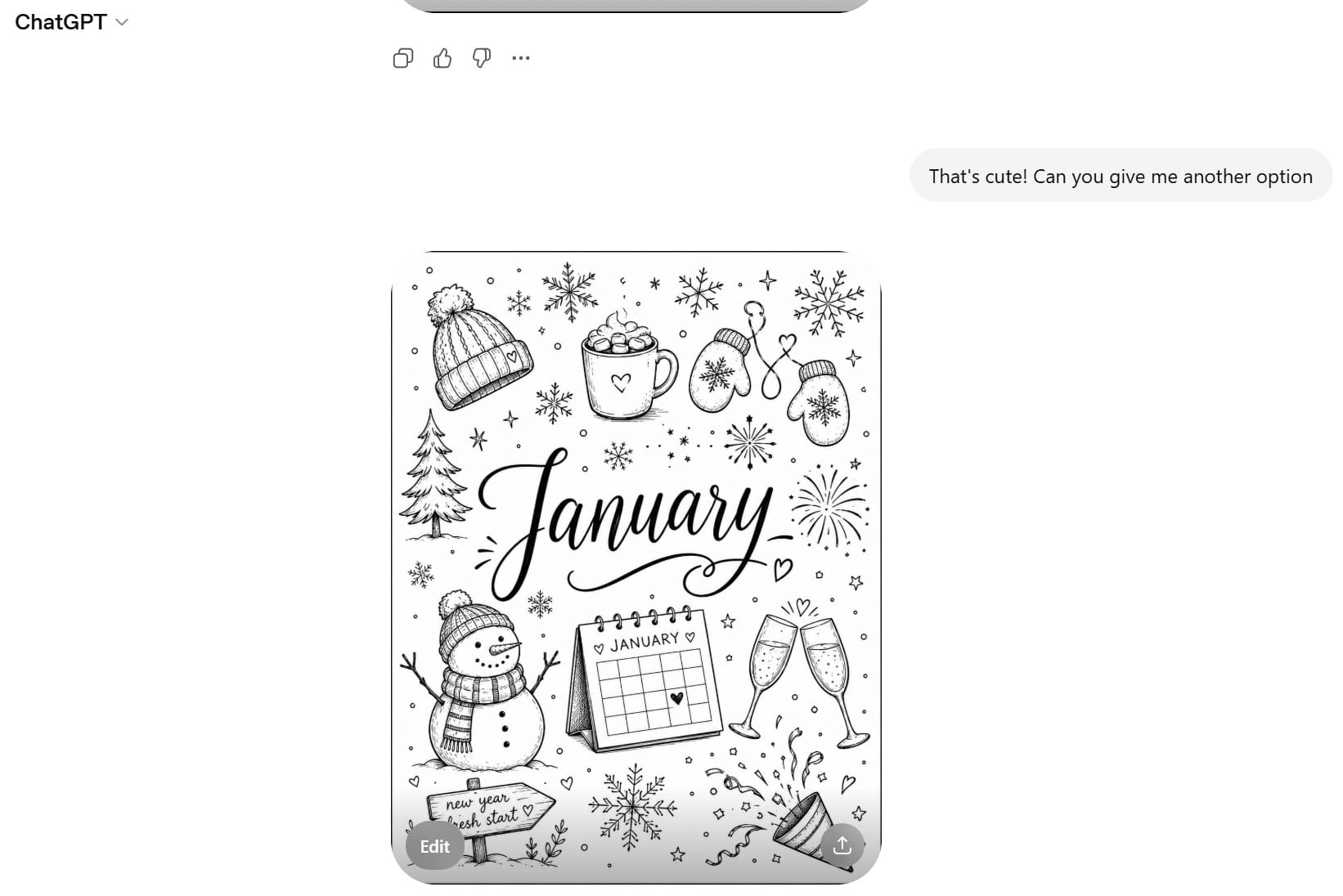
Some slight differences with the graphics it chose. If you liked the little sign it added to the bottom left corner, you could tell it something like replace one of the fireworks graphics in the first image with the ‘new year fresh start’ sign instead.
You could ask it to add new doodles in there like ice skates or whatever else you want and keep making any other requests for tweaks until you’re happy with the finished design.
It usually took less than 30 seconds for ChatGPT to generate the image each time.
Some ideas for prompts you can use in ChatGPT
- You could ask it to add a dot grid background for a more authentic ‘hand drawn’ feel
- I wanted a ‘busy’ page with lots of drawings on it. You could ask ChatGPT to include less images / more minimalist if you prefer
- Ask it to use different fonts such as cursive, bubble font, all uppercase letters, block font. You can even tell it to use a specific font if you know the name of it. Or ask it to use a font similar to a specific one you like (but maybe don’t have access to if it’s a paid font)
- You can also upload an image of a design you like and ask it to use a similar font or overall style
- If there are specific shapes or graphics you want added, you can upload them into ChatGPT and it will incorporate them into the design.
- The more specific you are at describing what you want, the more defined / detailed the image will be
- You could ask it to place the name of the month in different locations such as at the top of the page, bottom right corner etc.
- I didn’t have much luck with it when asking it to use colors. I’d rather black and white designs anyway as it’s more ink friendly
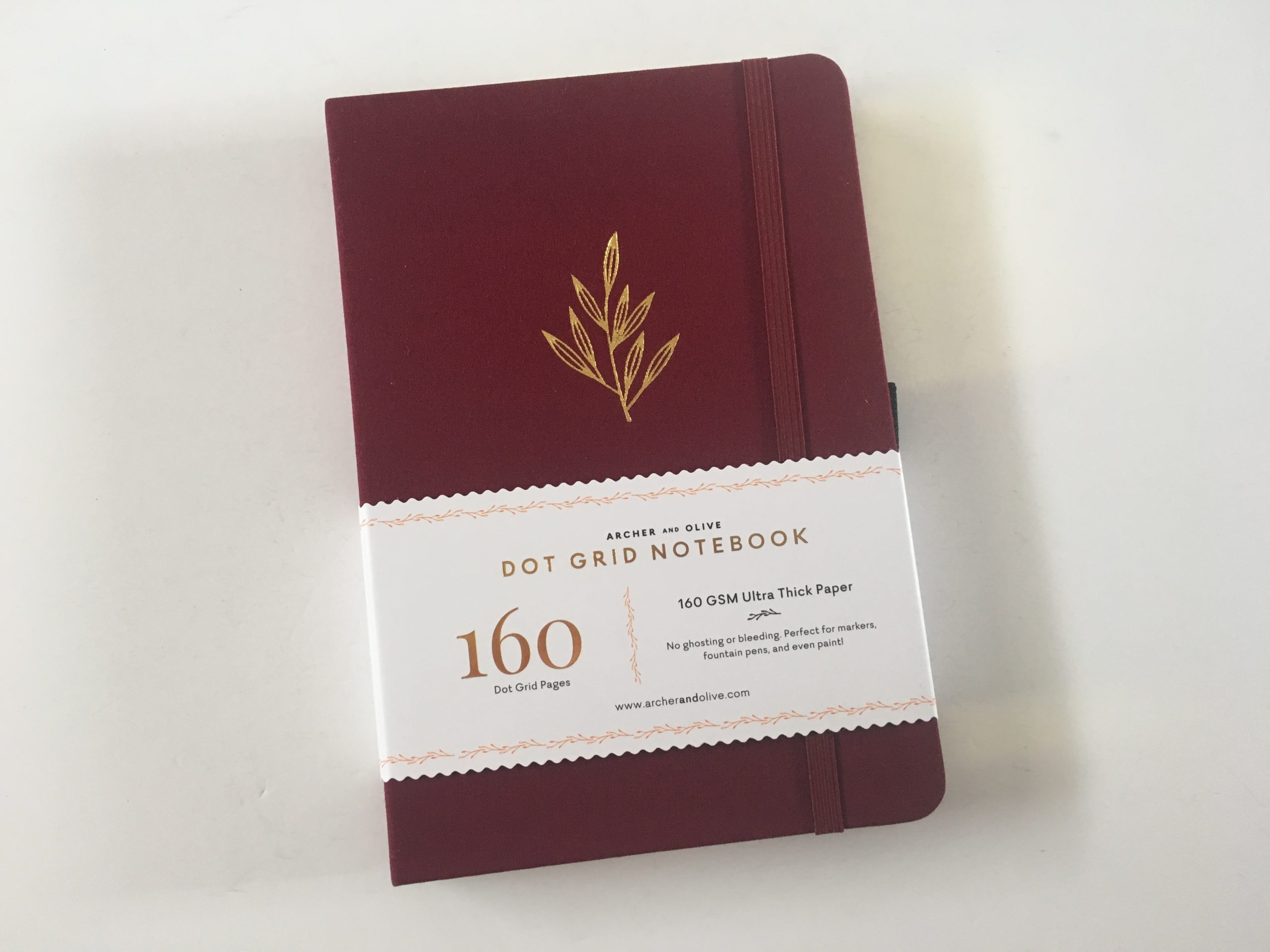
- You can choose to leave it minimalist, or add color after printing using pencils, markers or highlighters like the zebra mildliners or the Archer and Olive Acrylograph pens
- If there’s an image or style you’ve seen elsewhere that you want ChatGPT to replicate, you can upload an image of it to help guide it, or even just send it the URL link as part of your prompt.
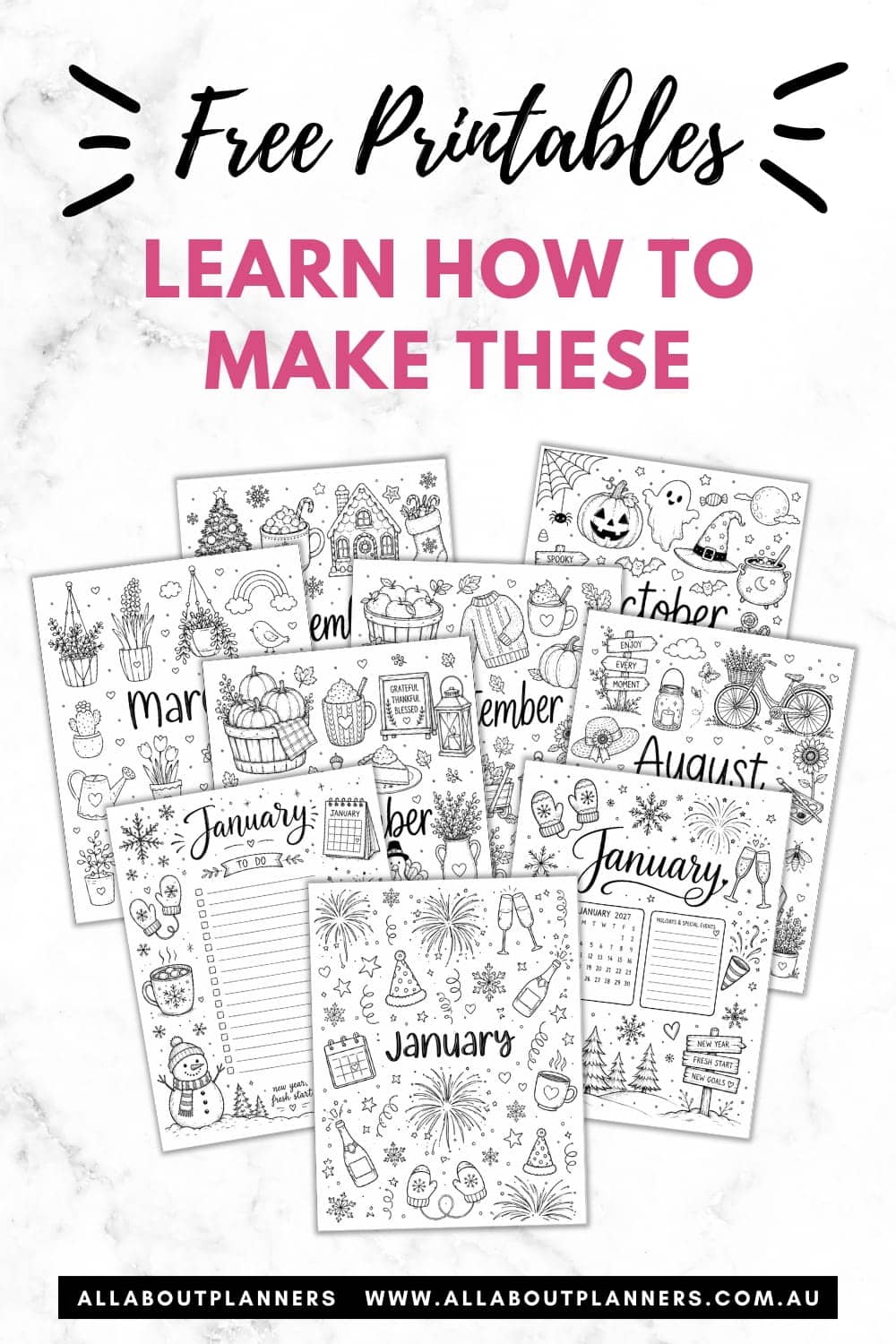
Here are all of the monthly divider pages I made in ChatGPT.
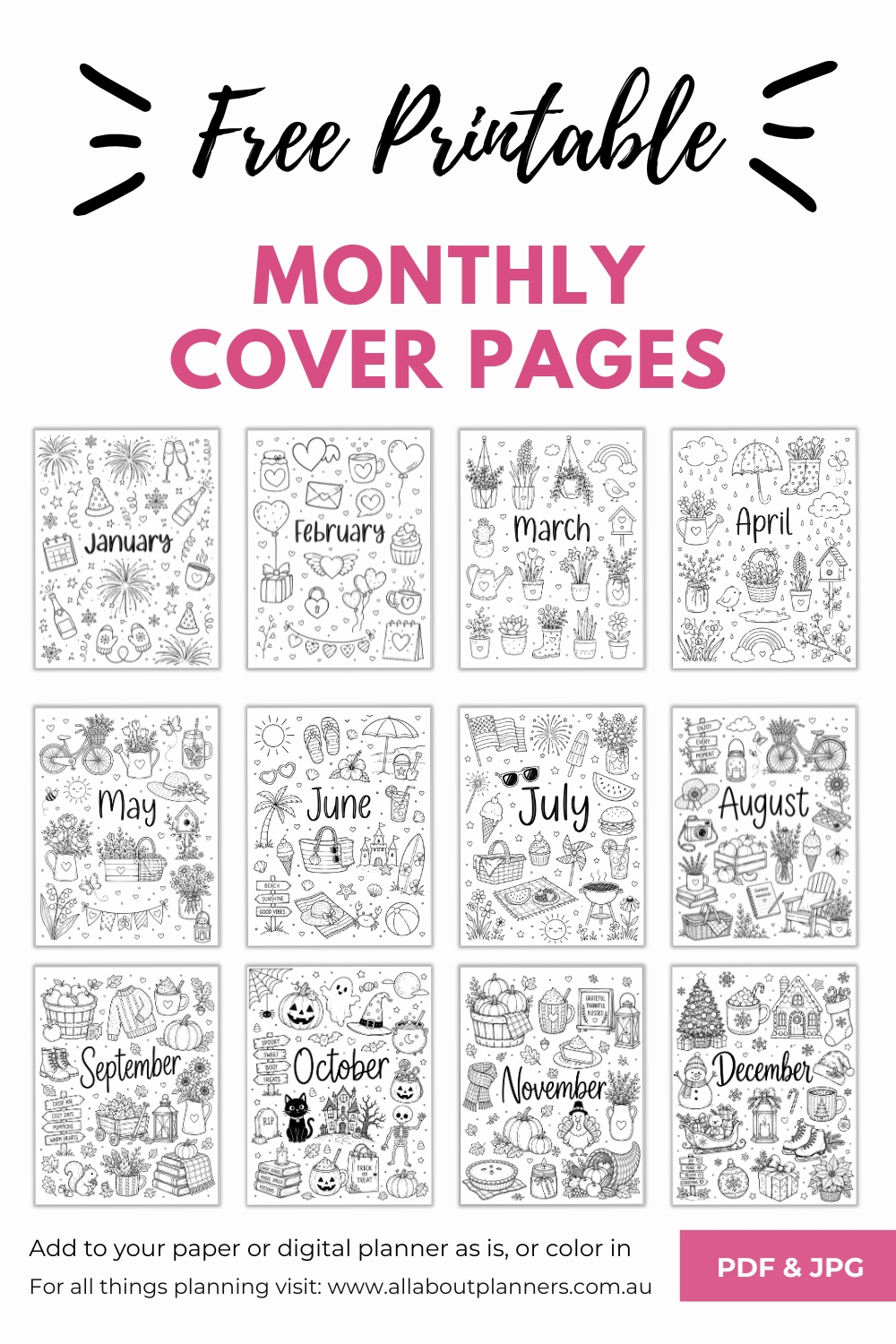
If you like the monthly dividers I generated, they can be downloaded from the free printables library here. Existing subscribers can login and download them here
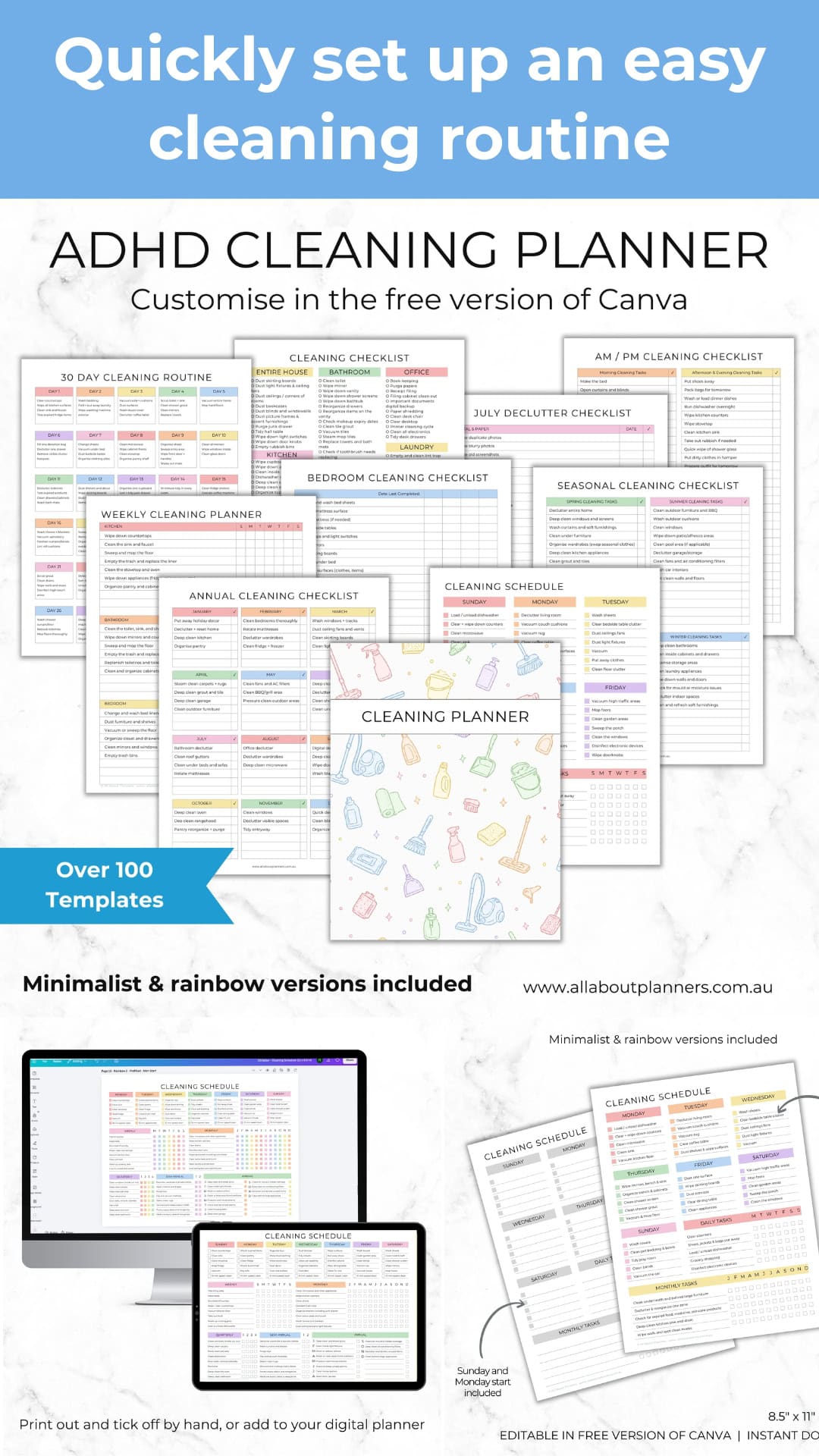
I used similar prompts to create the pattern I used on the cover for my cleaning planner
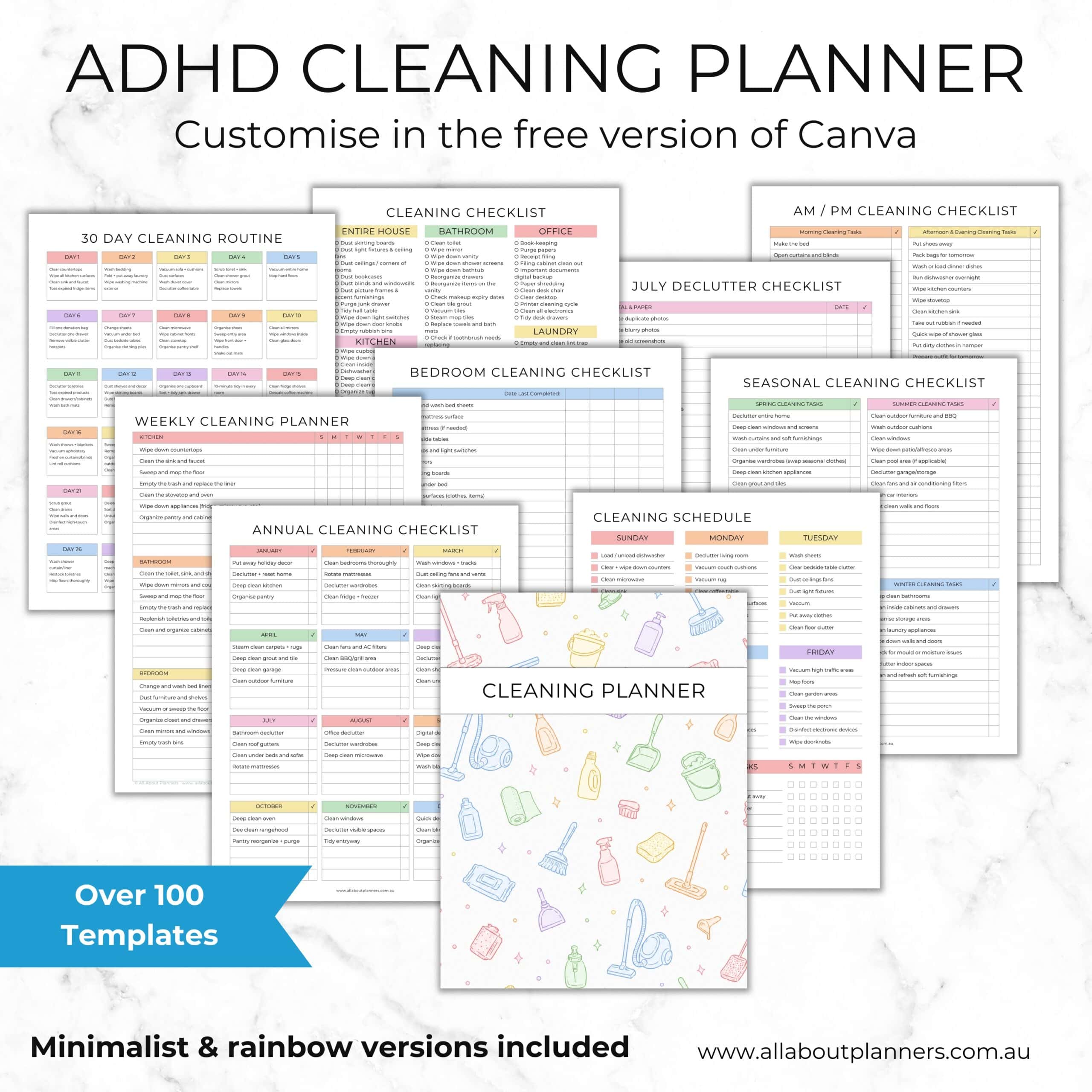
What about other designs?
I tried it again asking it to create a pattern background this time… good start but not quite what I was envisioning.
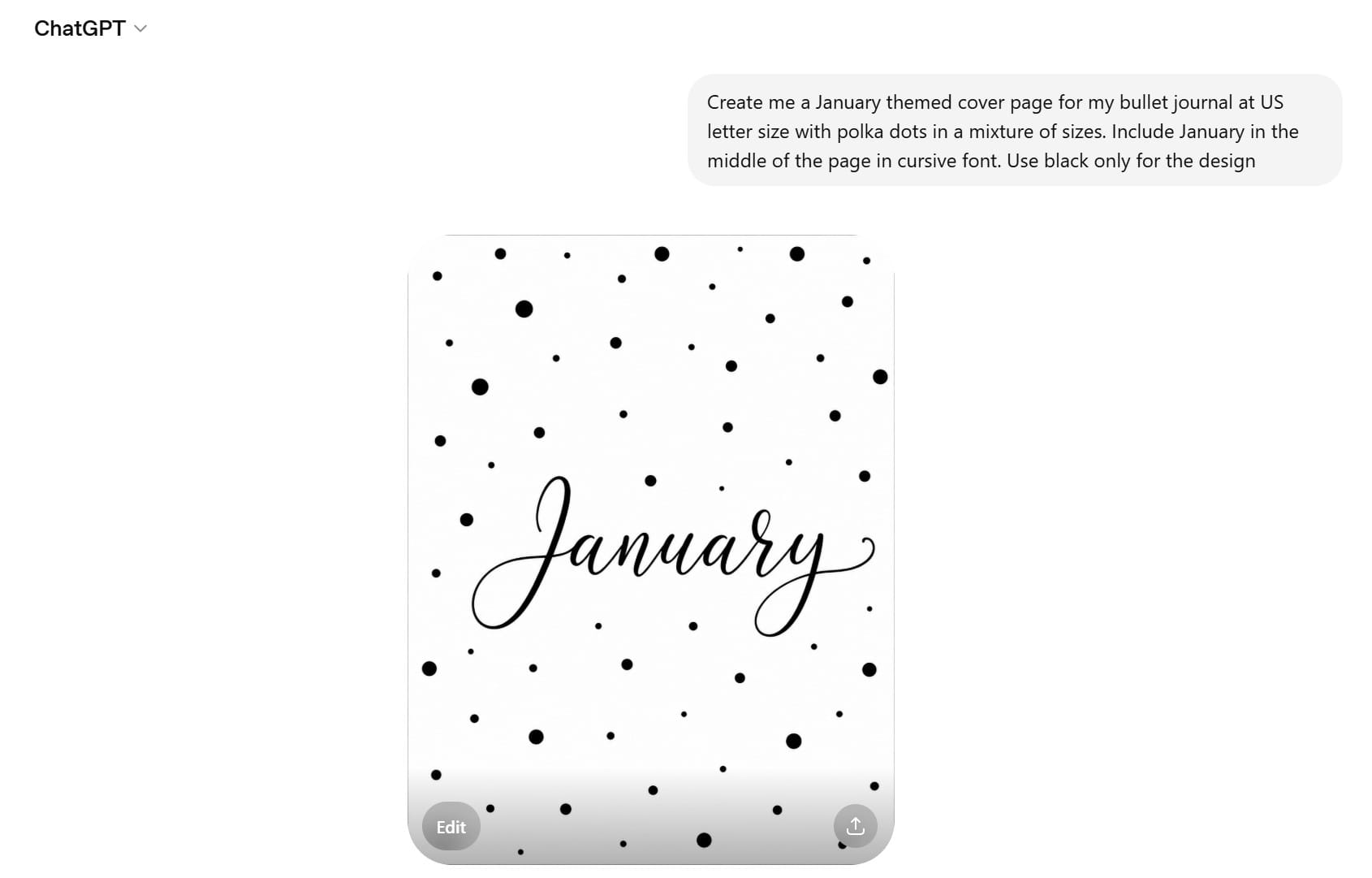
So with a minor tweak:
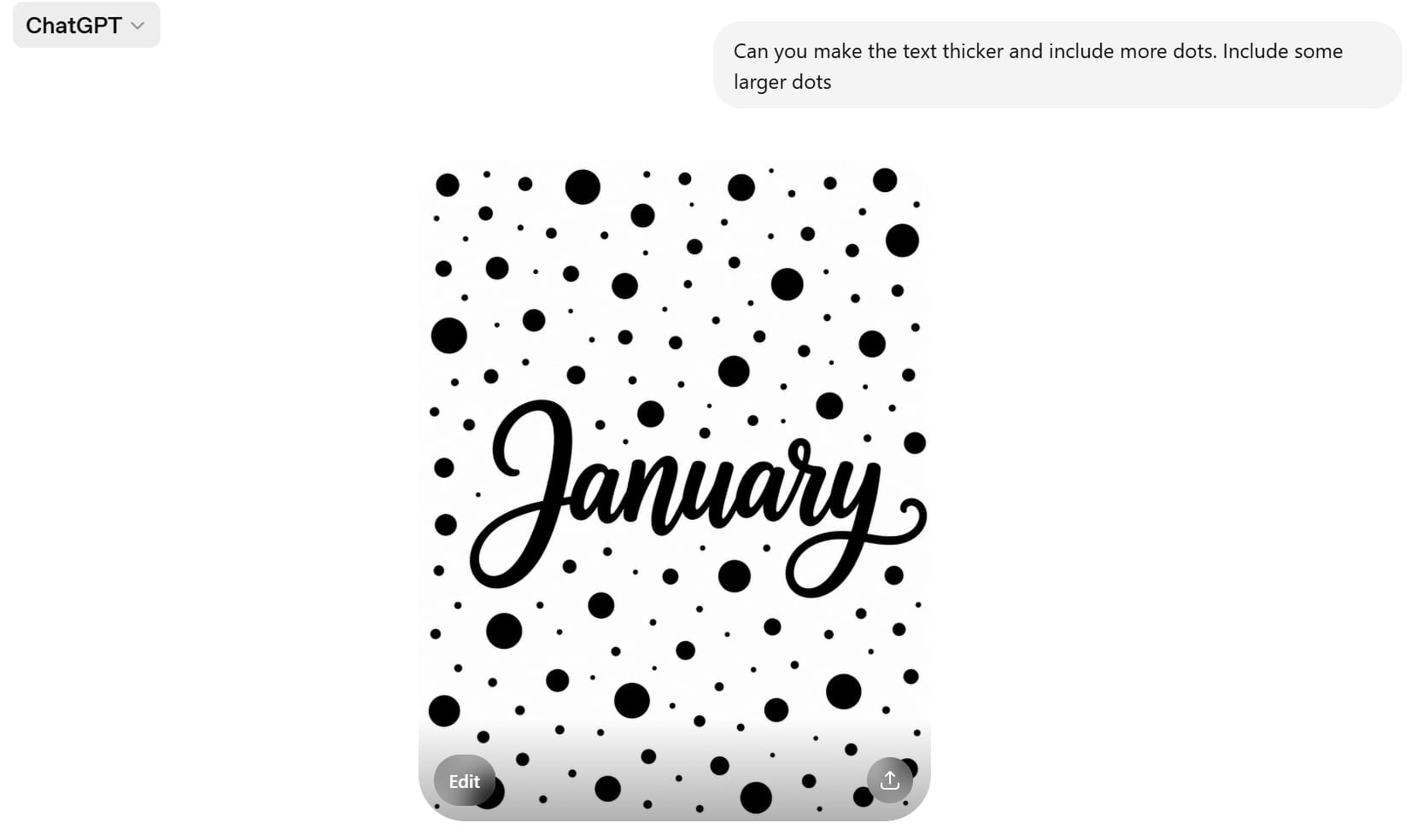
Third time turned out perfect
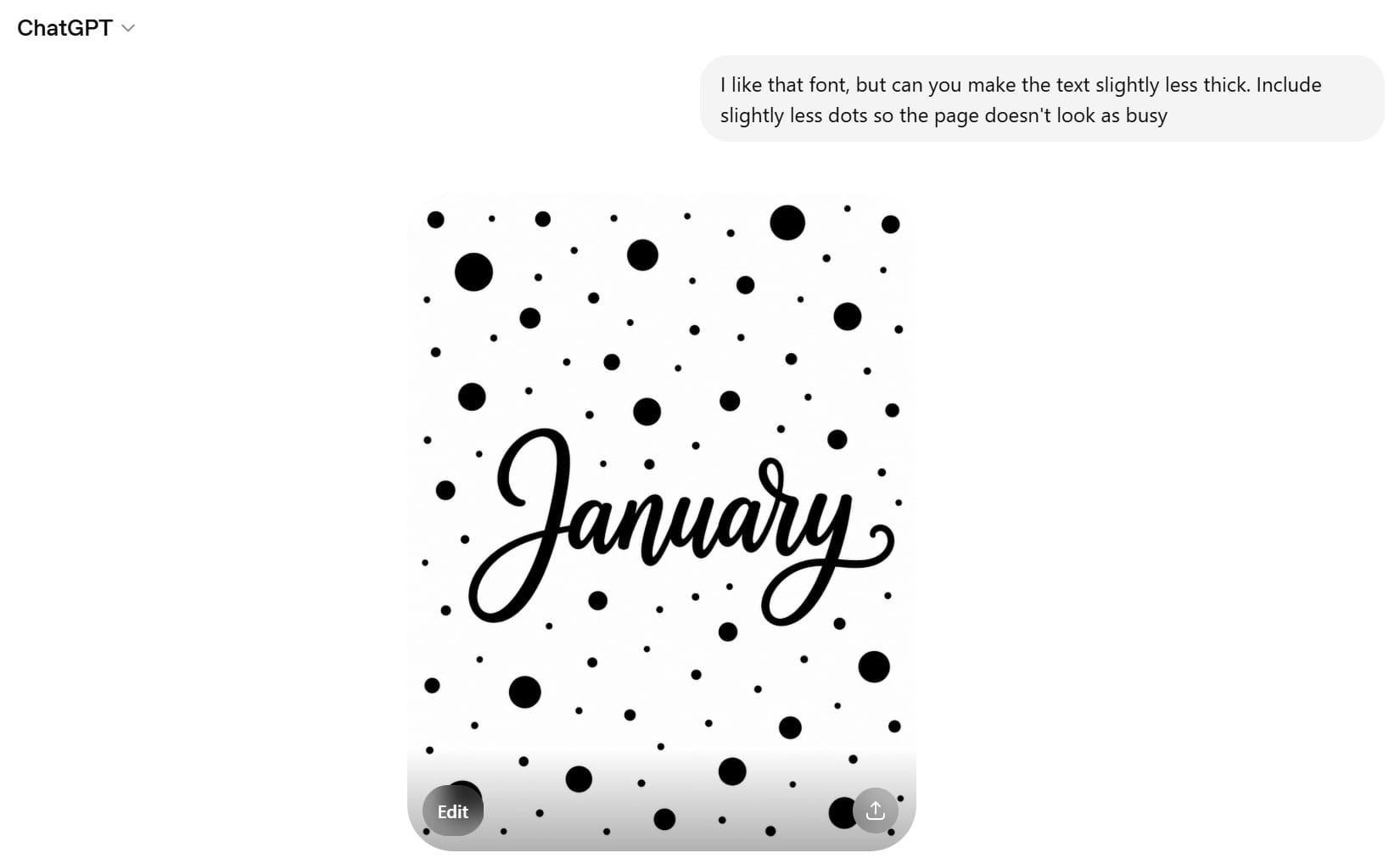
Those 3 prompts only took a few minutes, what a timesaver! I used to have to create patterns manually using Photoshop. I loved using all the patterns but creating them could be a tedious process, especially complex patterns with multiple design elements and layers.
What else could you create?
Once you start you’ll probably have tons of ideas. I asked it to add a mini dates at a glance calendar and a note section for birthdays and other special events.
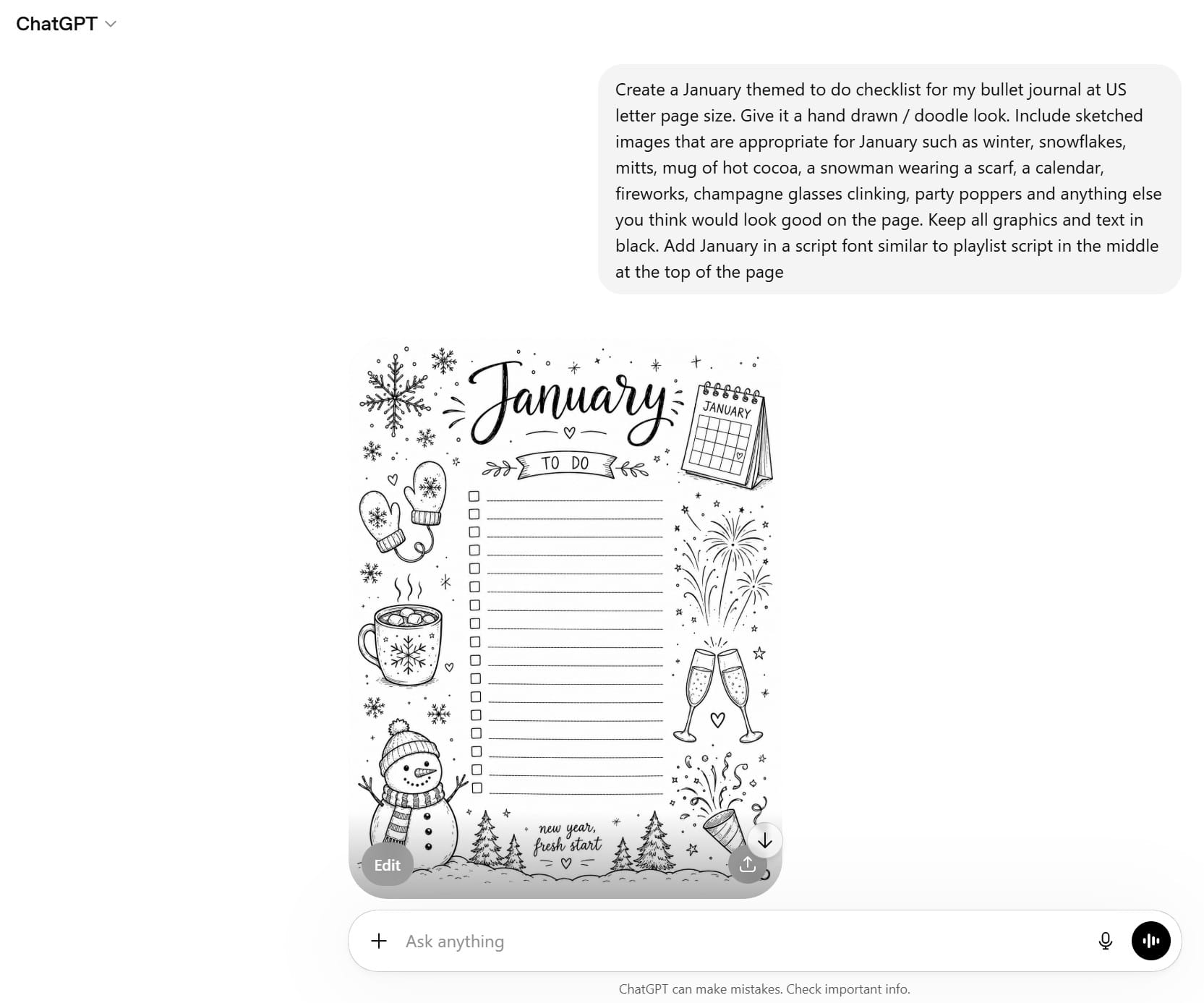
I also asked it to make a checklist in the same theme as well.
How is the image quality from ChatGPT?
The image quality from chatGPT was very good. Some of the designs have more hand drawn ‘sketched’ look. You can ask it to do crisp black lines if you prefer.
The images actually printed really well, it was just a cloudy day when I took these photos
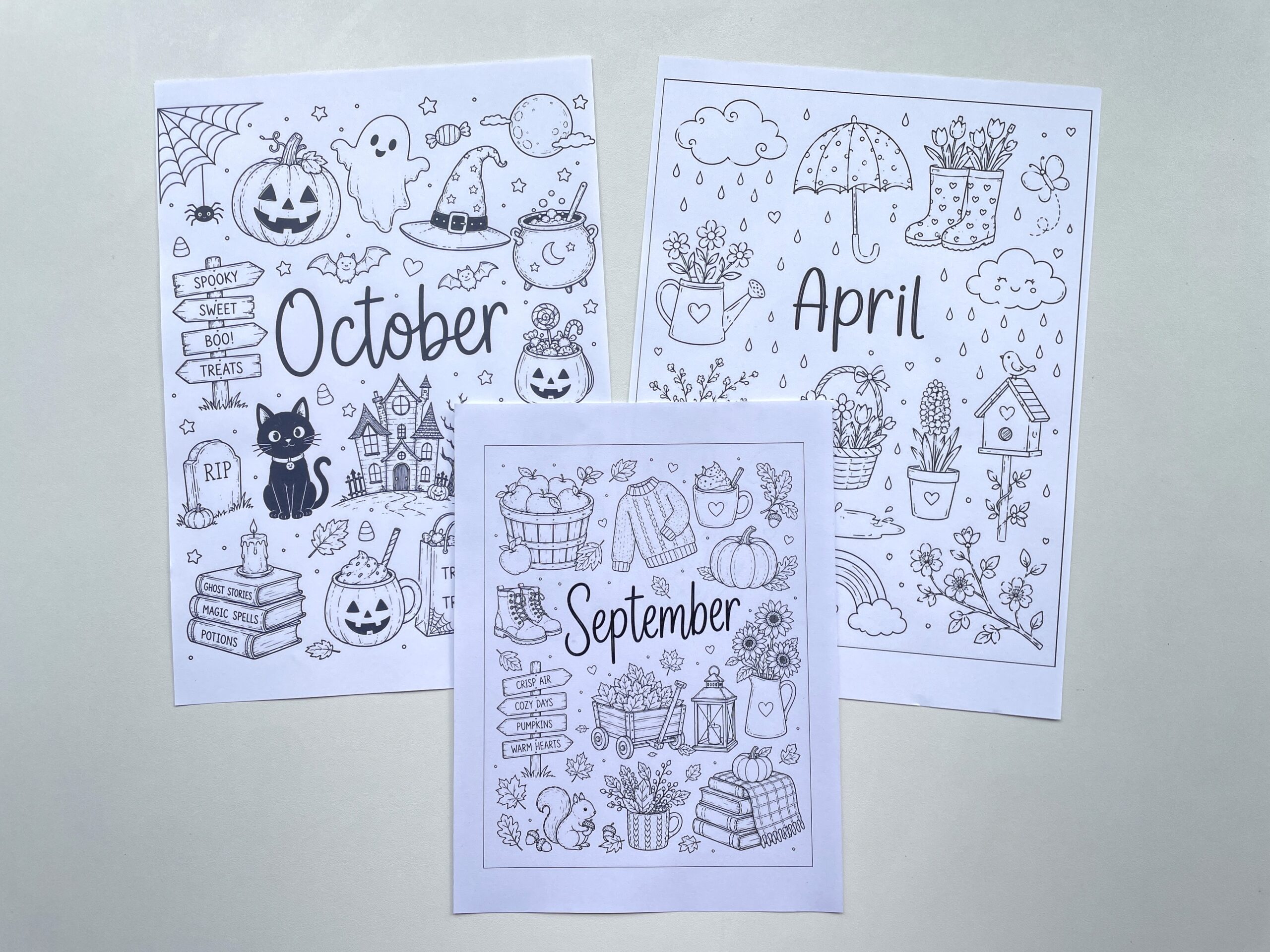
PDF file on the left (October), PNG file on the right (April)
I saw no difference in print quality when printing from the PDF generated via ChatGPT, versus the PNG generated via ChatGPT.
What about other page sizes?
If I want to resize I usually select ‘fit’ to page’, my printer shrinks the design down and good to go!
Related post: The fastest and easiest way to resize printables
I think it was the chatGPT generated images fault and not my printer, that a black border was automatically around the design when it printed (the border is not visible on the PDF). That’s never happened to me before when resizing down printables.
When I tried resizing directly in ChatGPT it added the same border around the design.
When I imported the image into Canva it also added the black border.
Asking ChatGPT to resize the image to A5 size produced this
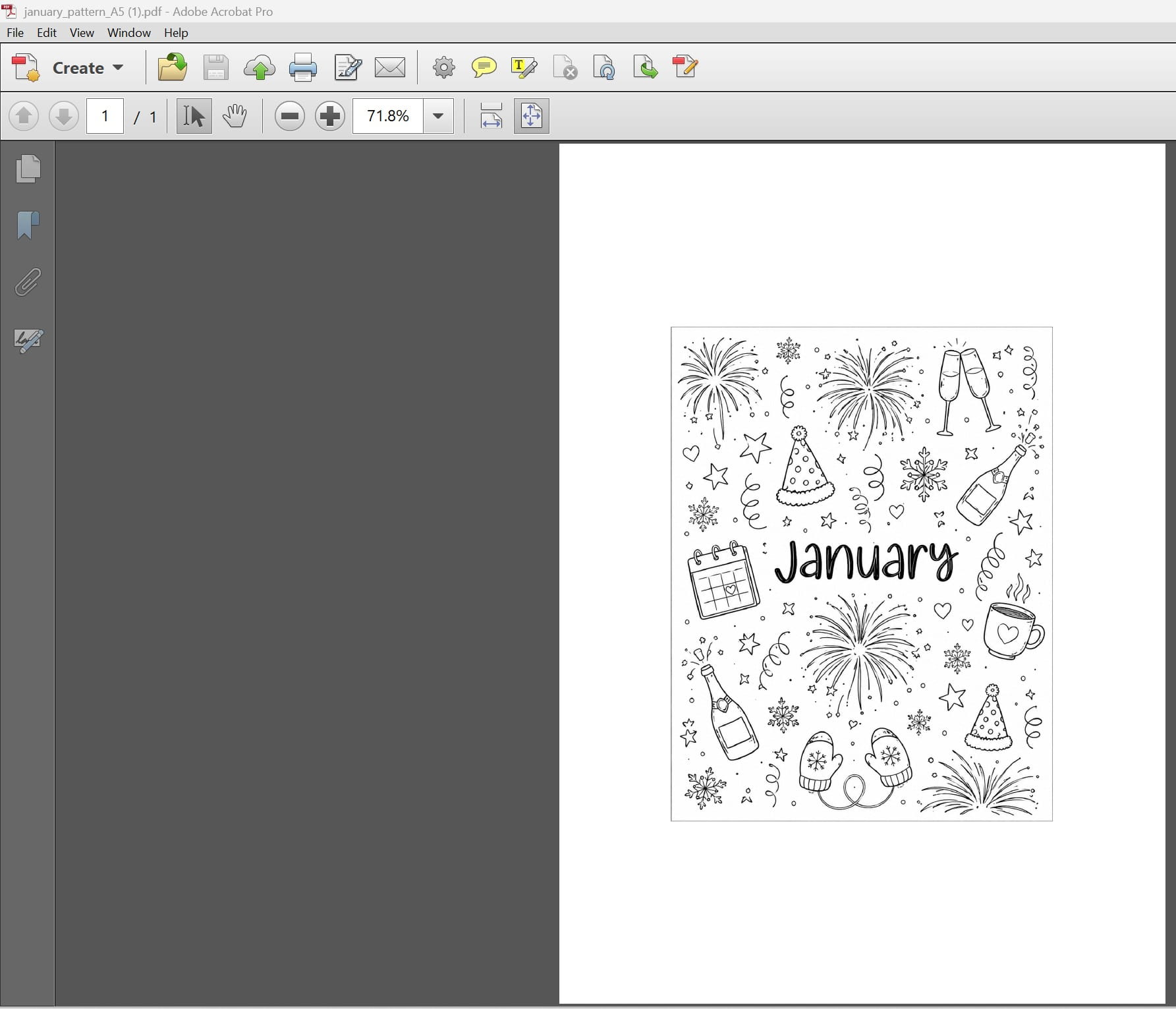
Printing PDF versus PNG
If you’re resizing down and want the design to fill the entire page, I had the best results using the PNG file and selecting ‘shrink to fit’.
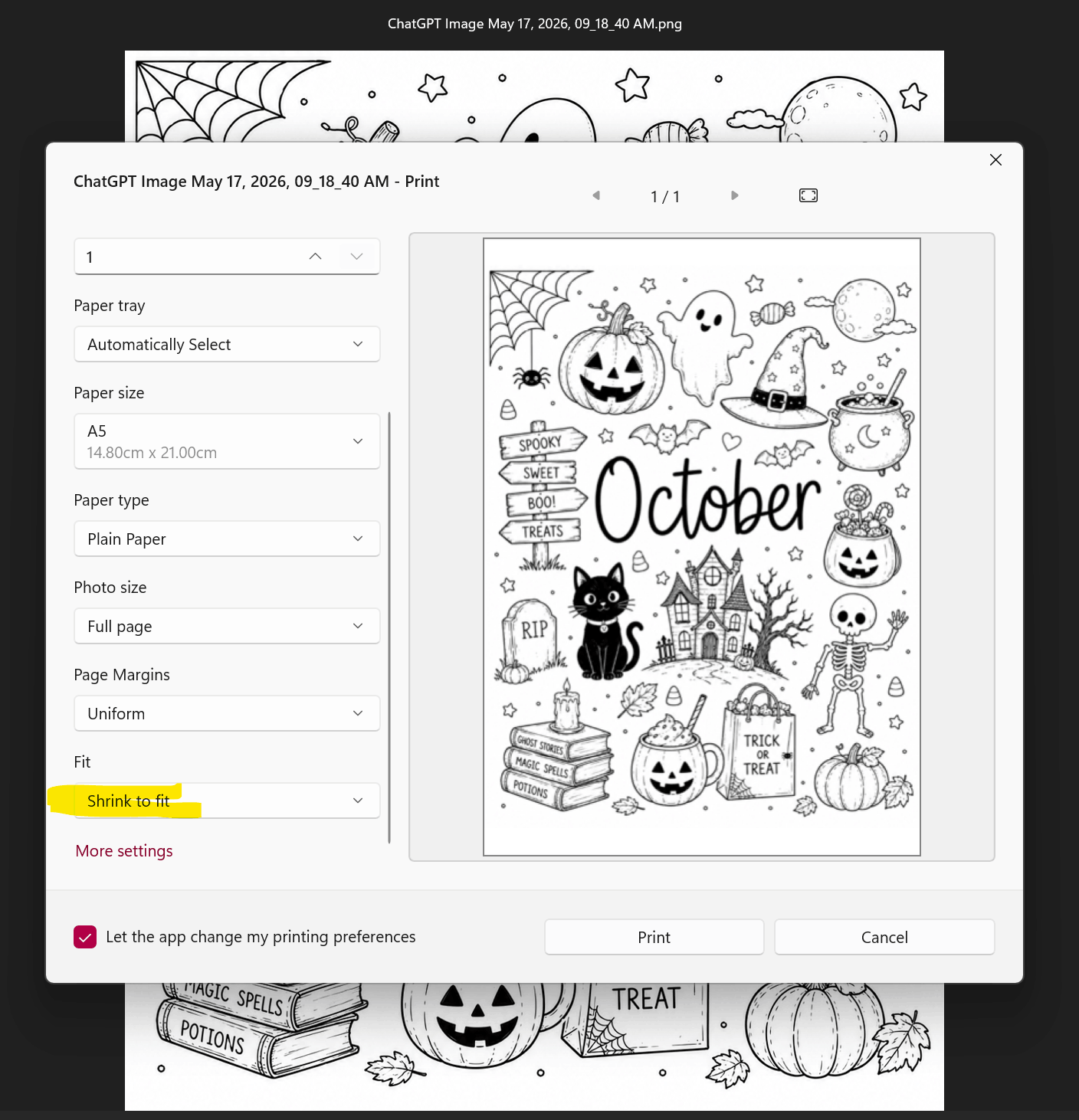
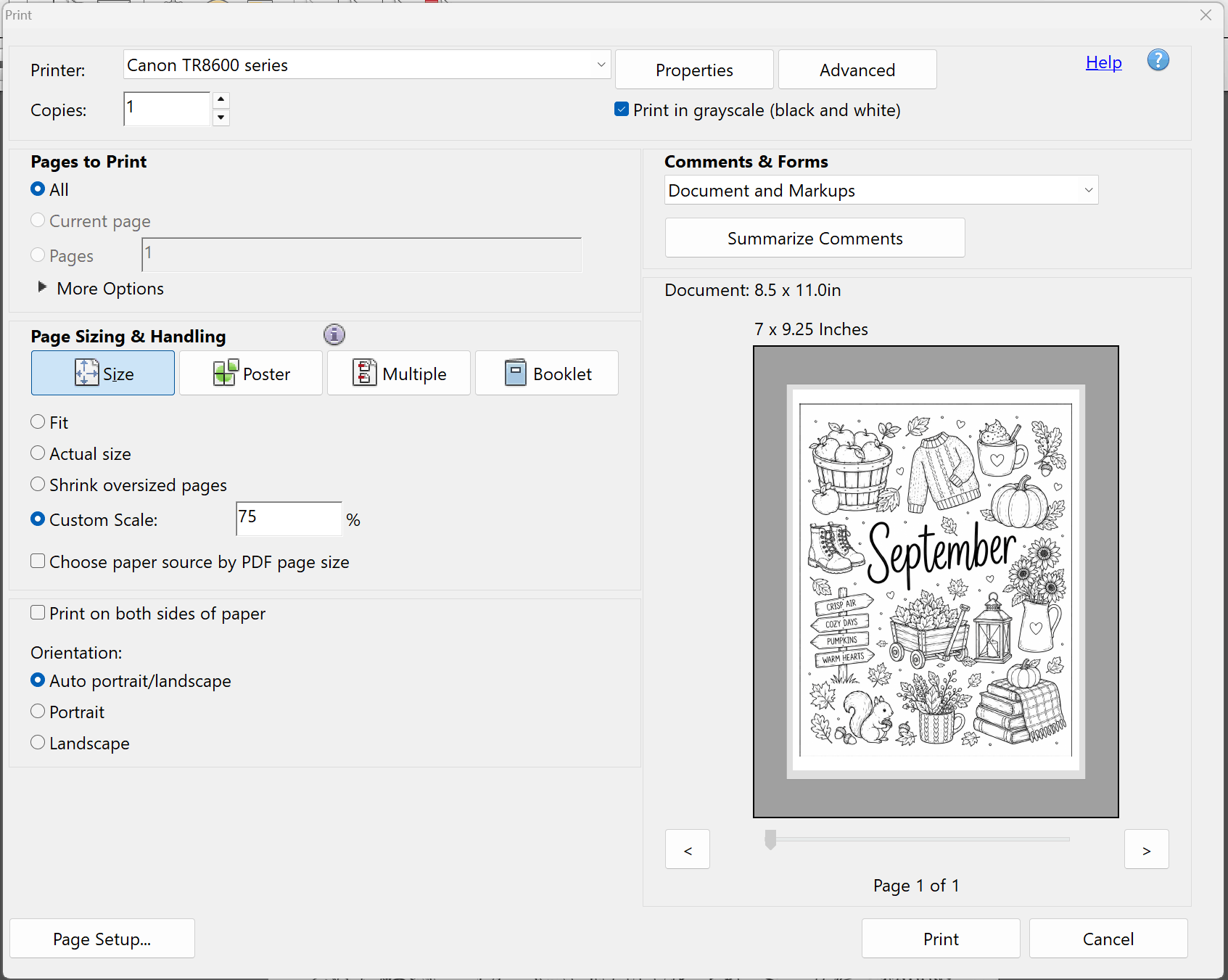
You could ask ChatGPT to add a margin to all sides or on just the left or right side, but I just changed the scaling when I printed it. Instructions for the scaling method are in this post.
If you’re having trouble printing, my printer gives me more options using PDF files rather than PNG or JPG files. I also get more options for the scaling method when printing using a PDF.
If you really want to get rid of the black border that gets automatically added when resizing down, import the image into Cavna and place white rectangles over those lines, then download as a JPG or PDF and print it.
I actually don’t mind how it looks with the border
The September cover ended up being my favorite! That squirrel is so cute
Editing in Canva
If the image generated from ChatGPT is a little blurry, you can upload it into Canva, click on ‘edit’ then ‘upscale’. I didn’t really see much of a difference in the designs I made so personally don’t think this extra step is a must do, but the option is there if you want to try it.
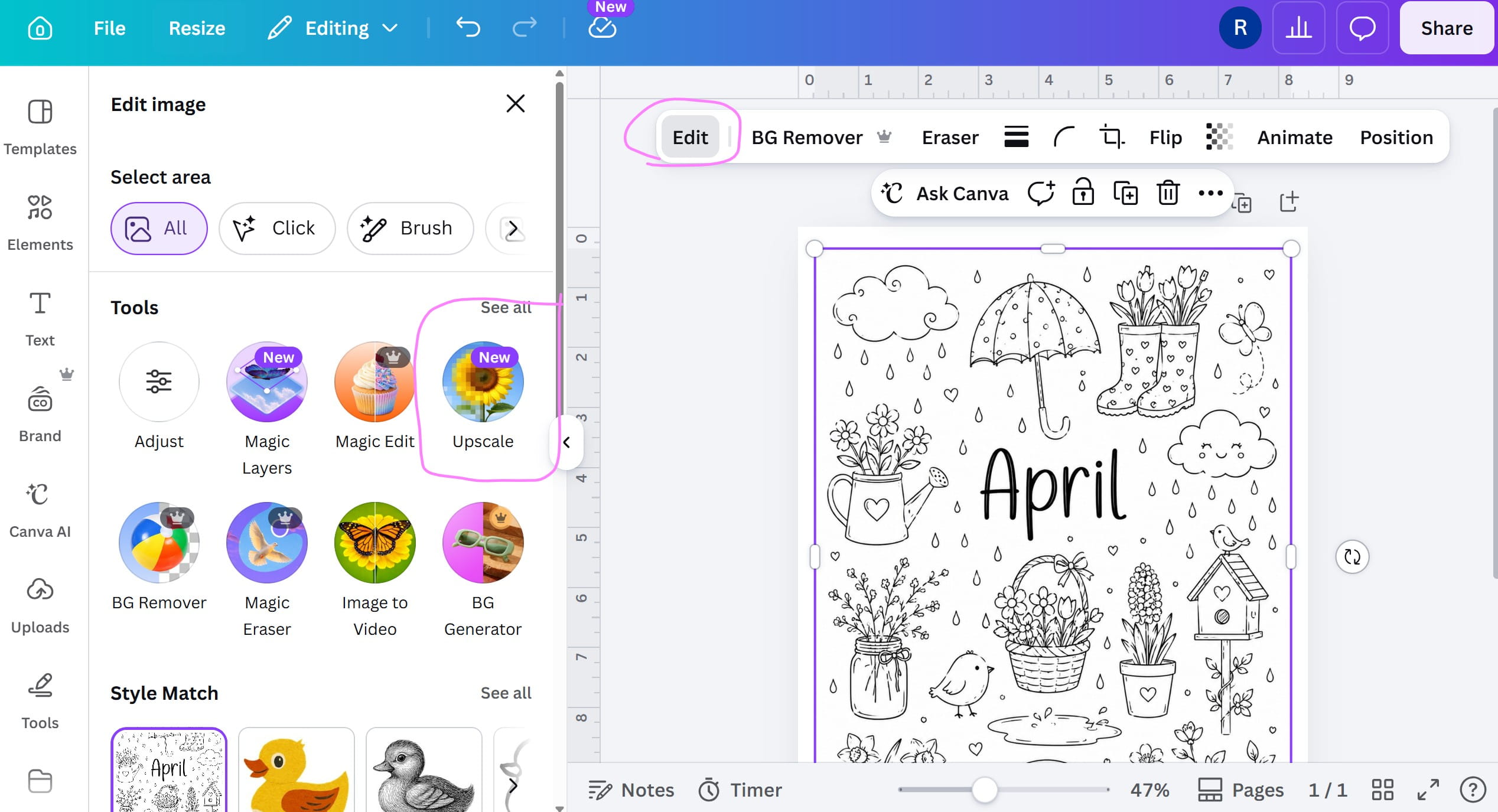
I also tried the magic layers function in Canva (from within that same edit menu after you click on the image). While it did work and made the images individually ‘grabbable’ so I could move them around or delete them, it unfortunately got rid of the nice font used for the month. It also got rid of some of the rain drops that filled in the gaps and made the image look cohesive.
If you want to edit the image, I’d do it using prompts in ChatGPT.
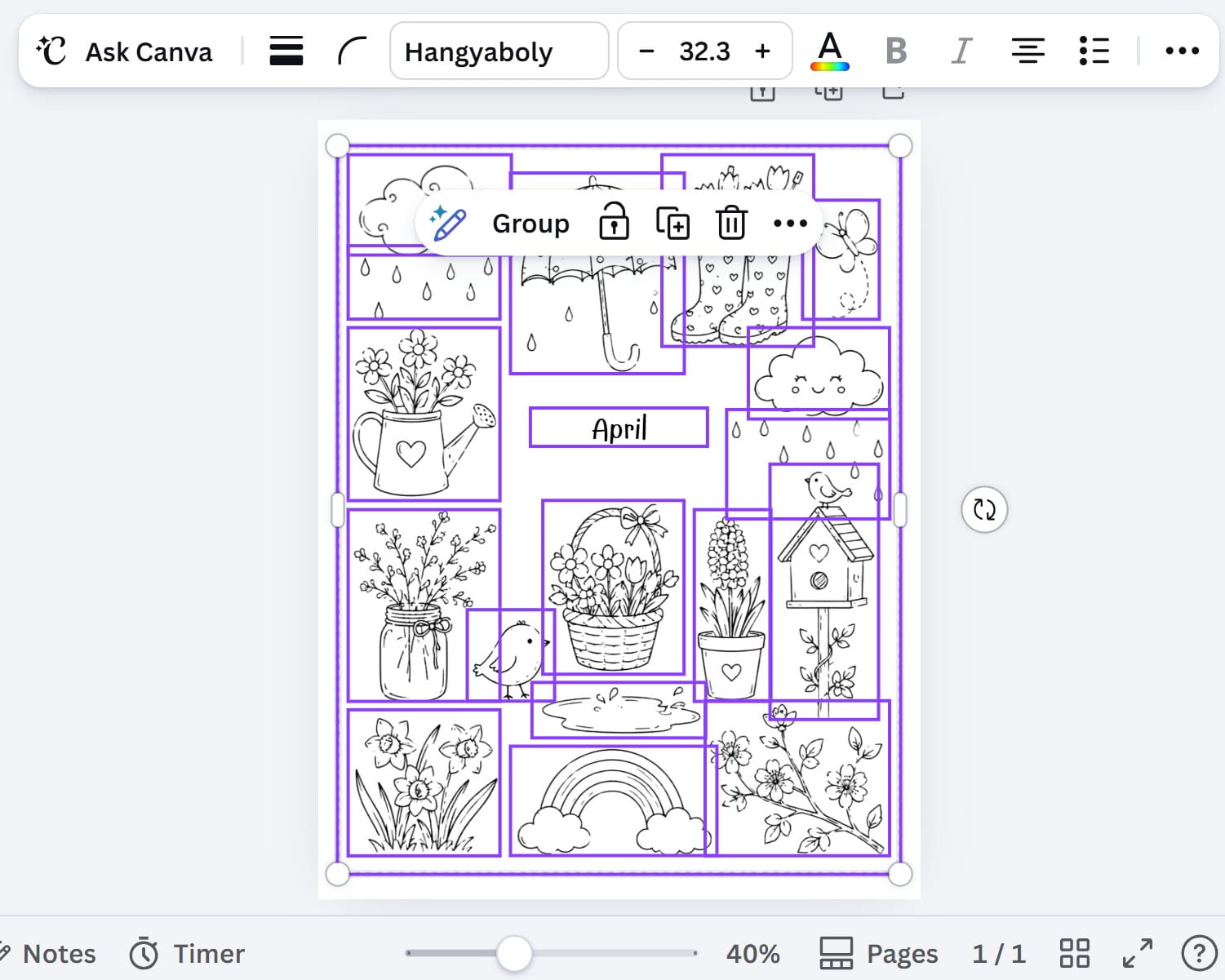
I also tried Magic Edit thinking it would be similar to ChatGPT so could be handy if you’re out of free prompts and really want some minor edits done.
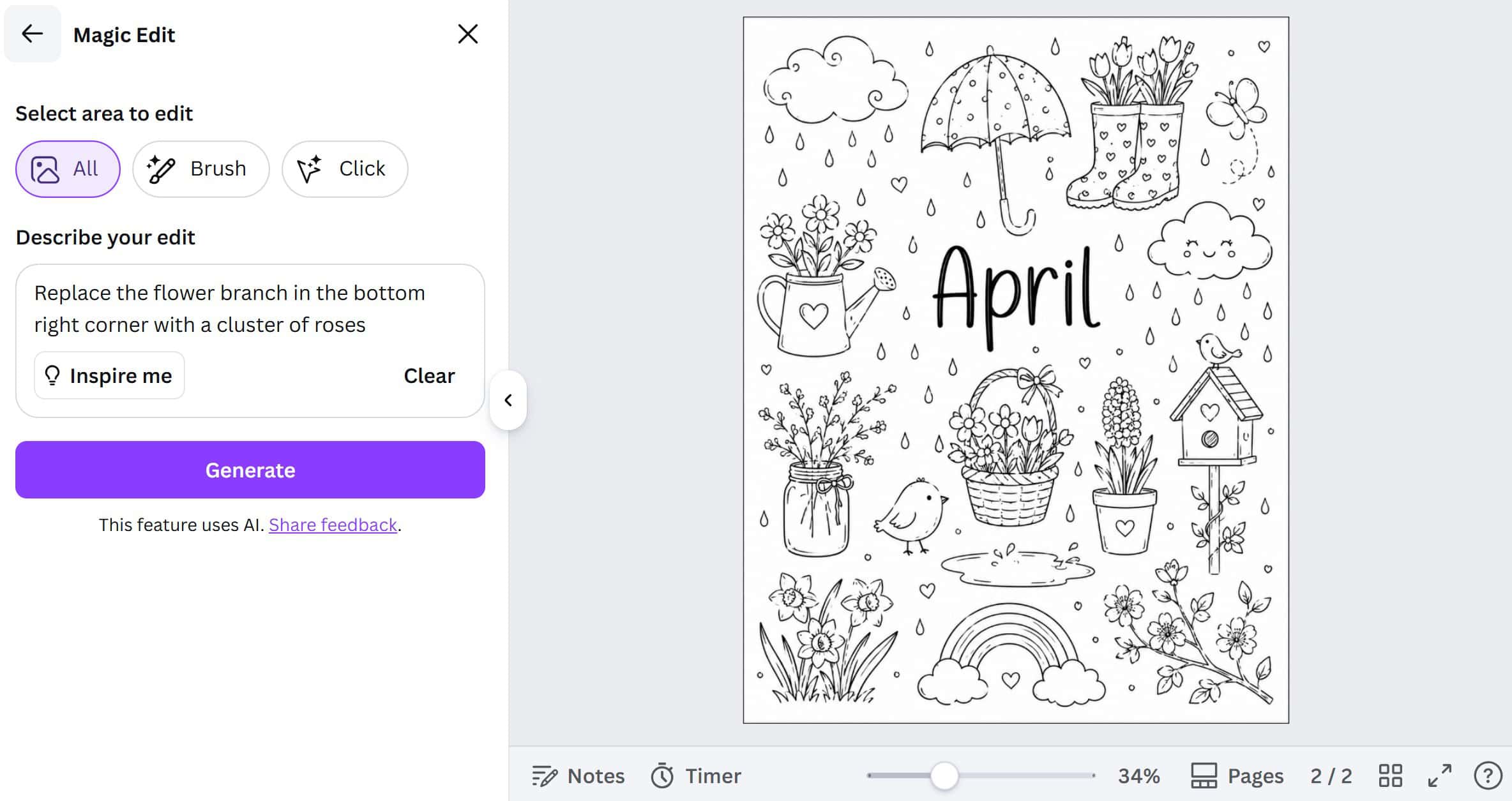
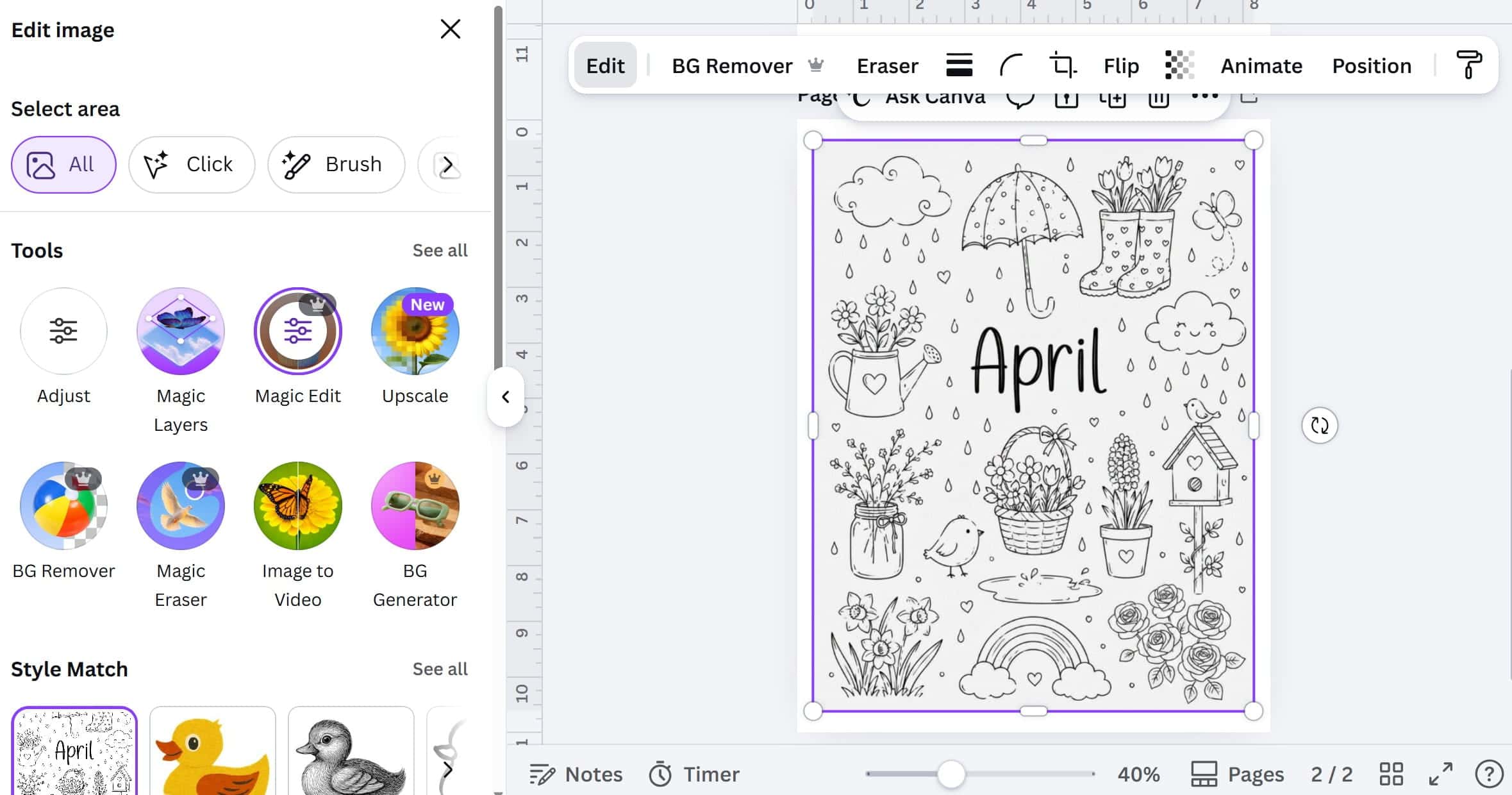
While it did a good job of replacing the image in the bottom right corner like I asked it to, it unfortunately made the background grey. Which if found odd as I didn’t tell it to do that!
Do I recommend using AI to create pages for your planner or bullet journal?
Yes and no. I’d rather make printables myself so I have complete control over the design (plus I enjoy the process of making printables). But I do see a few pros with using AI for making printables:
- It’s fast
- It’s free (with limits)
- It’s a great tool if you want to create a design like I did that involves lots of drawings, but you don’t know how or can’t draw
- It gives you inspiration and ideas you may not have considered before
- If you only want to make a few printables
- If you’re after something very specific
- The image quality isn’t amazing, but it is good enough
- It did very well when I gave it an image to use as inspiration, or an image to incorporate into the design
Good starting point for inspiration, then just tweak the design to suit your needs.
I did find a few limitations:
- It wasn’t good at resizing
- It wasn’t very good at adding a specific size margin to the page for hole punching
- ChatGPT kept adding a border around the design, even when I made no mention of wanting a border and it still kept it – even when I told it to remove it!
- Can only make a few images per day before the limit on the free plan runs out
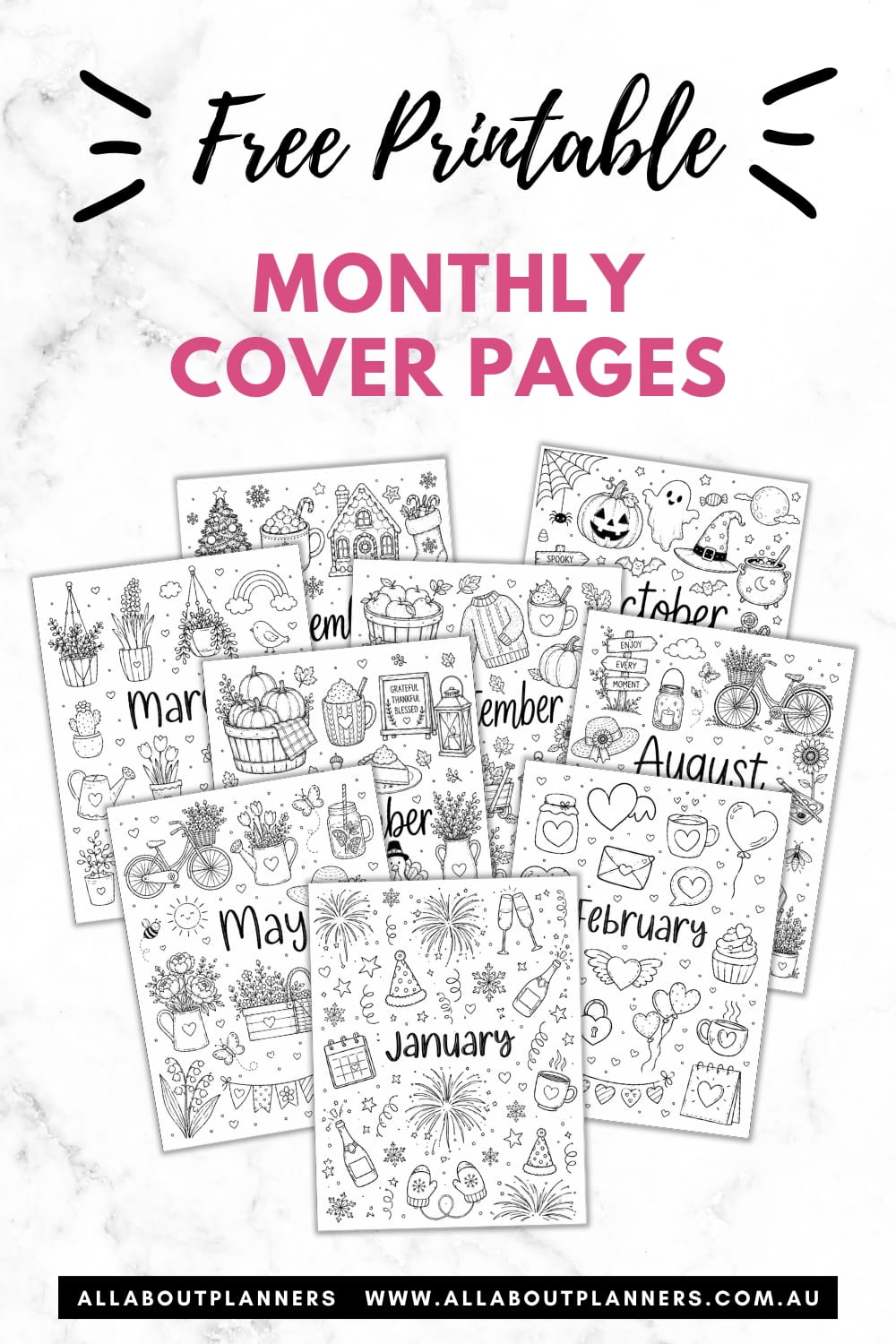
If you like the monthly dividers I generated, they can be downloaded from the free printables library here. Existing subscribers can login and download them here
More Planning tips
- Color coding your planner: how to choose which colors to use
- 10 Planner supplies that will help you plan your week faster
- Best stencils for bullet journal daily, weekly and monthly spreads
Planner setup ideas
- Using blank pages: 50 useful lists to add to your planner
- Setting up a new planner: 70 Tasks to add
- How to choose the right habit tracker for your planner
- Choosing sections for your planner: what to keep in your weekly planner versus a household binder
Liked this post? Pin it!
I tried this exact ChatGPT cover-page workflow last month on an A5 weekly (dot grid, 5mm). The prompt you used for a flat floral header is the right idea, but two things kept breaking the print.
First, ChatGPT kept handing back 1:1 or 16:9 images. Taping those onto a landscape weekly meant either a crop that ate the month name, or a white gap at the binding. Forcing “A5 landscape, 210x148mm, 300dpi, leave a 12mm quiet margin on the punch side” in the prompt helped a bit, but the text still came out as a baked-in bitmap, so I could not re-kern “SEPTEMBER” after the fact.
Second, the floral fill was pretty until I printed it on slightly off-white Tomoe River. The cream paper made the generated greens look muddy. What finally worked was generating a line-art version (black ink only, no fill), printing that, then coloring by hand with the Stabilo Boss set you compared in another post. The AI pass became a stencil, not the finished page.
When ChatGPT refused the size constraint I used https://soralum.com/image-ai/image-generator once as a second pass, same prompt, then dropped the PNG into Canva at A5. Same limitation though: do not let it redraw the layout, only lighting/texture, or the punch margin disappears.
Curious whether you keep a Canva template with the punch margin locked, or if you just crop after the fact.