How to Use Planify Pro to Create and Sell Printables on Etsy
You can make printables in various tools these days – Adobe Indesign, Affinity Publisher, Microsoft Word, Microsoft Excel or Google Sheets and Canva to name a few. But those tools can be used for many things, not just planner printables. If you want a tool that is specifically designed for making printable planners and digital planners, then Planify Pro might be what you need.
You can experiment with Planify Pro for free, but most of it’s features are behind a paywall – either a personal plan or a business plan. In this post I’m going to run through the main features that are handy for making planner printables, then you can decide if it’s worth paying for it or not.
Disclaimer: If you sign up for Planify Pro using my affiliate link I’ll earn a small commission in exchange for referring you. It costs you nothing extra.
I did an overview on how to use Planify Pro in the video below, but there’s more details further down this post as well.
Planify Pro Features for making planner printables
- Variety of pre-made templates or you can start from scratch
- Plenty of fonts to choose from within Planify Pro
- Can upload custom fonts
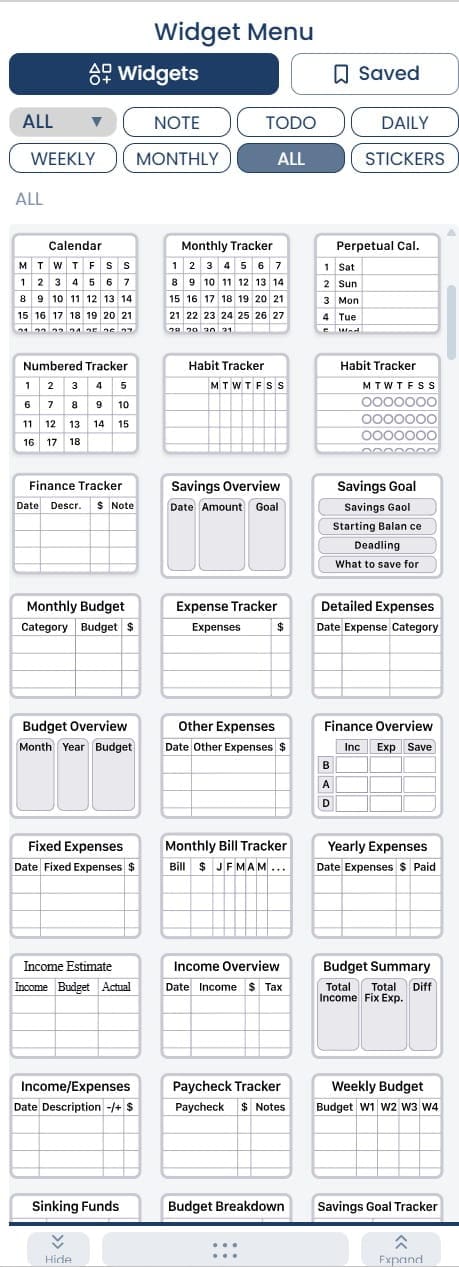
- Premade components to create your pages (checklists, monthly calendars, habit trackers, hourly schedules, dot grid etc.) – these are called widgets in the software
- Add a widget, customise it, then copy and paste it to other designs
- Automatic page resize (it’s very accurate) – there are so many page sizes to choose from A4, A5, Half US letter, US letter, Happy planner sizes, TN, passport etc.
- Optional cut line automatically and accurately placed on the file
- Change spacing for things like row height, dot grid, graph with one click
- Automatic dates can be added if you choose
- One click options to change the style of the design
- Can add patterns
- Can add stickers / elements / graphics
- Matching patterns and graphics to create coordinated planner designs
- Change choose what margins your design has on each side of the page
- Can make digital planners (there are some templates for these as well)
- Commercial license for Etsy and KDP sellers
How to make a printable with Planify Pro
To enlarge the screen of the video, click the square icon in the bottom right hand corner of the video (it will say ‘full screen’ when you hover your mouse over the icon).

Subscribe to my YouTube channel for more planner related tutorials
Making a printable with Planify Pro (using a template)
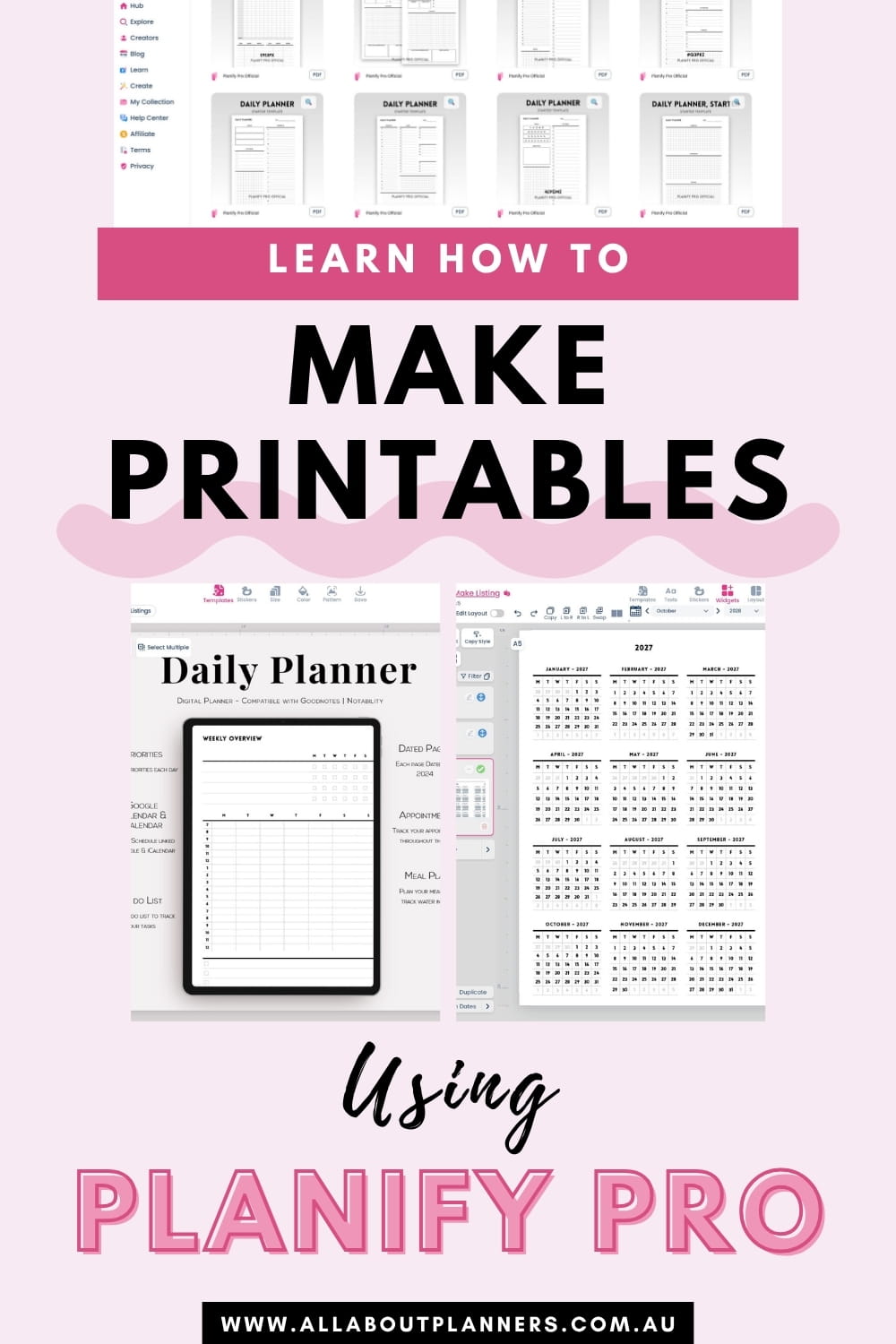
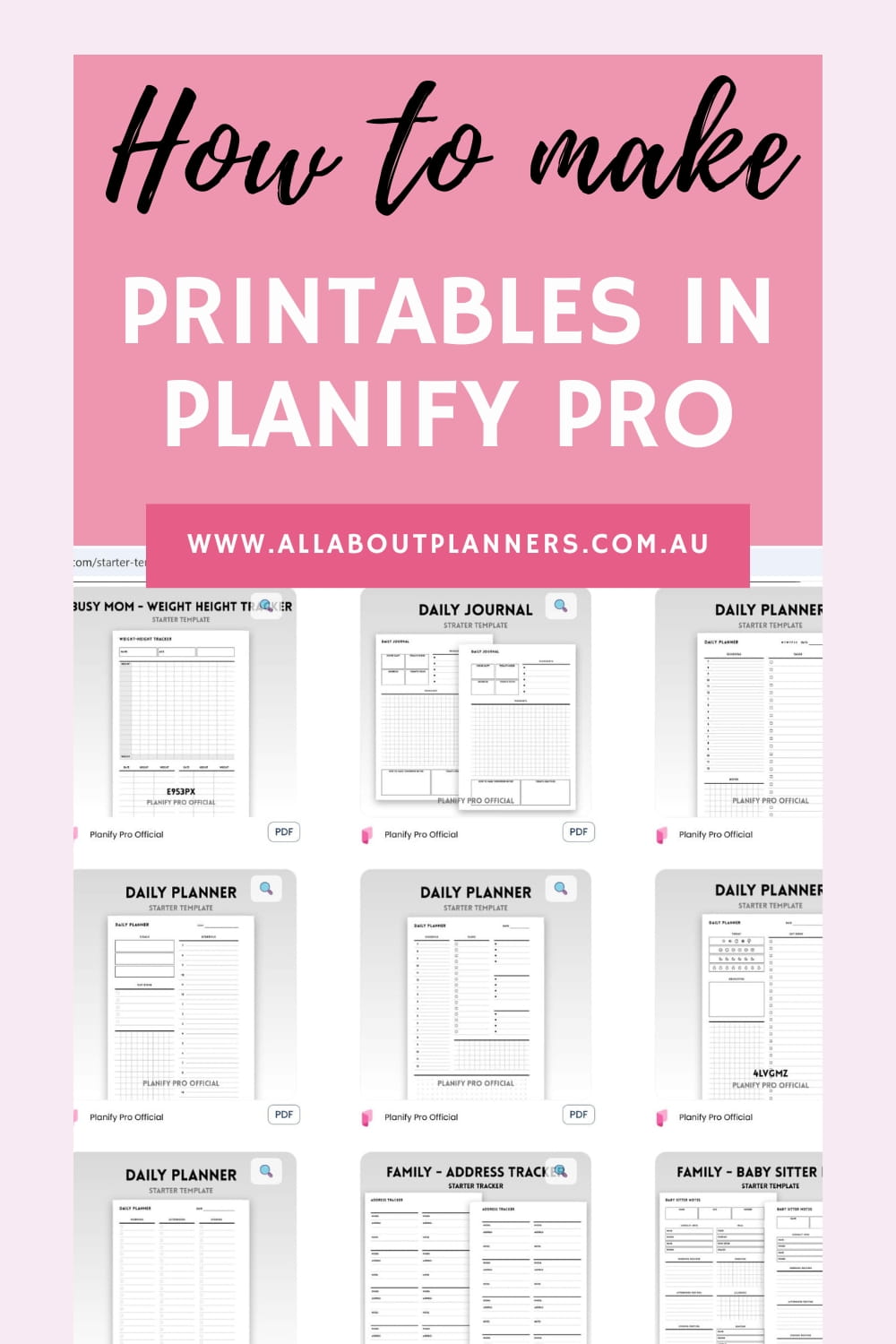
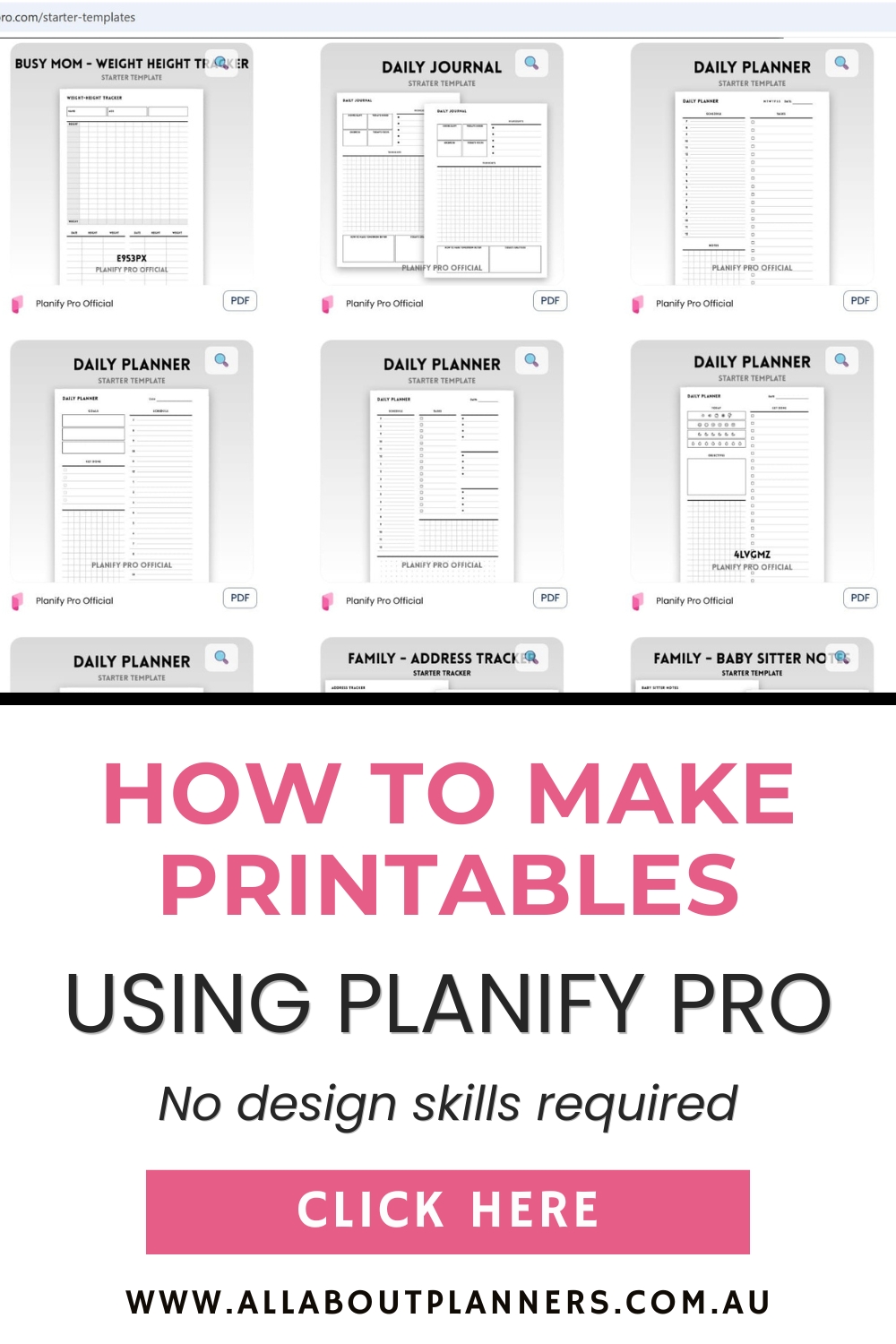
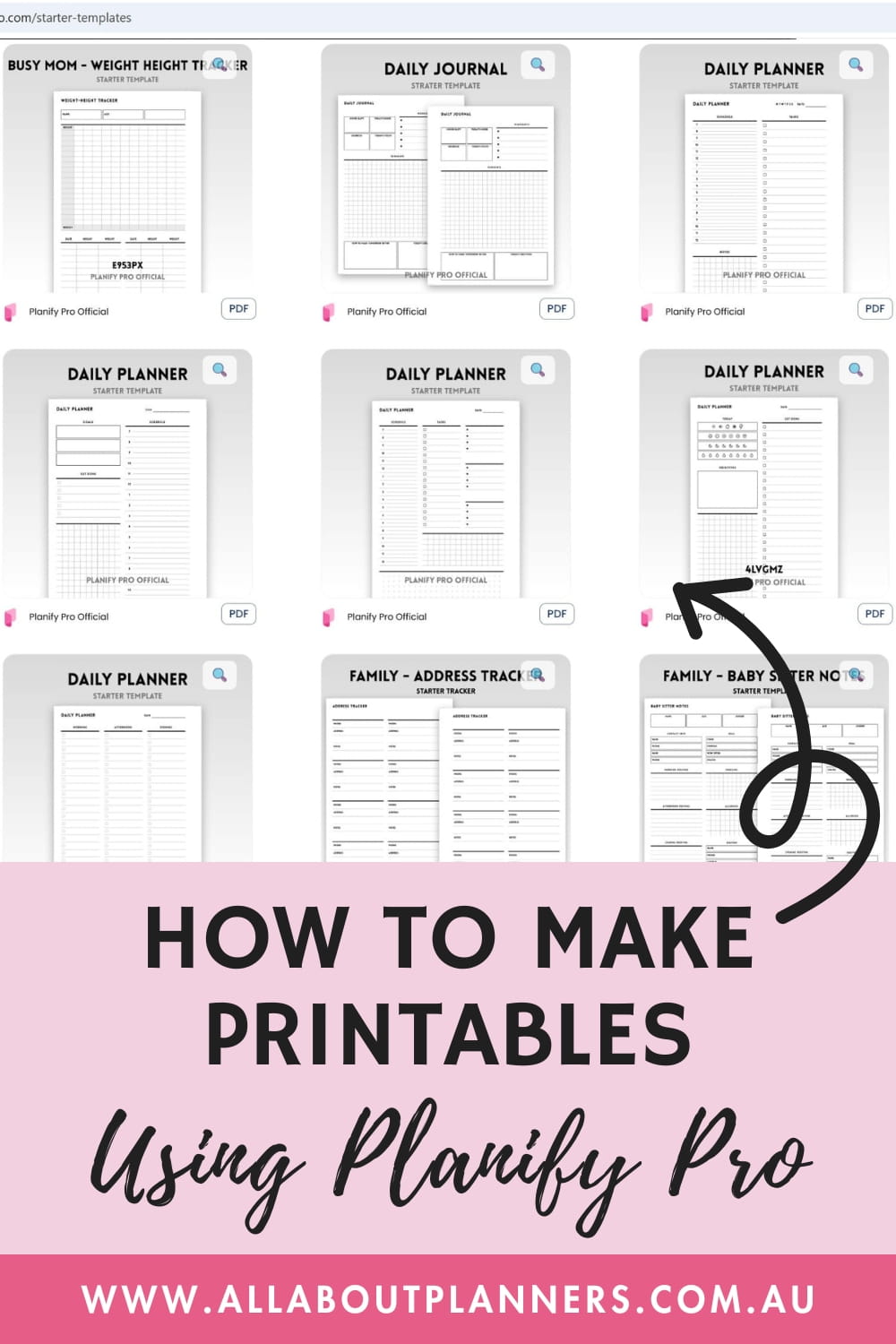
There are 150 starter templates to choose from, I started with one of the daily planner designs.
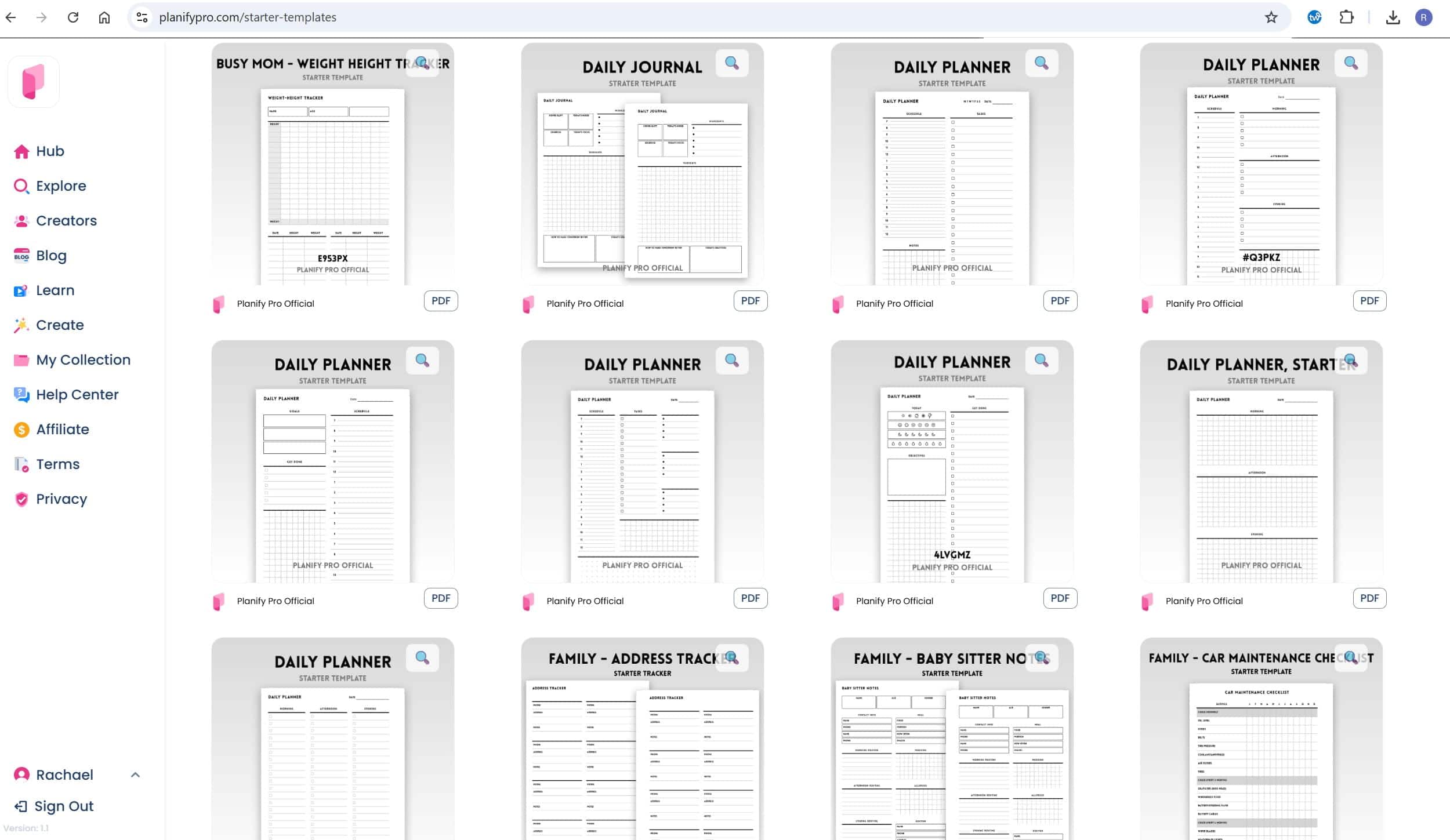
Some of the Planify Pro starter templates
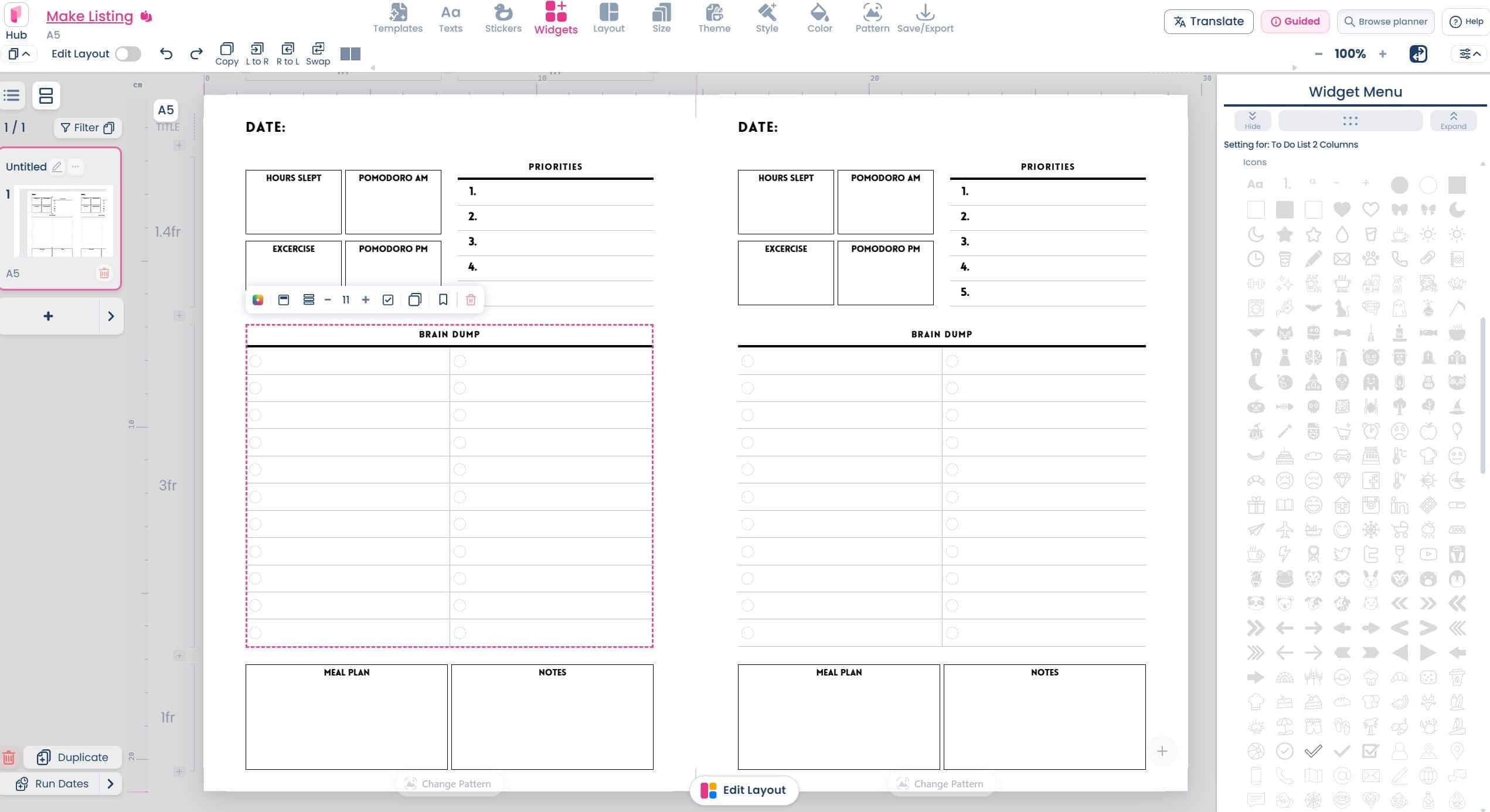
With a few quick edits, I created this daily planner page in 5 minutes. I could’ve spent another 5 minutes making it look more unique by:
- Changing fonts
- Changing colors
- Changing the styles of the widgets
- Changing the shape / icon for the checklists
- Add extra rows
- Changing more text for the headings
- Adding extra widgets if I wanted to make some of the sections larger or smaller
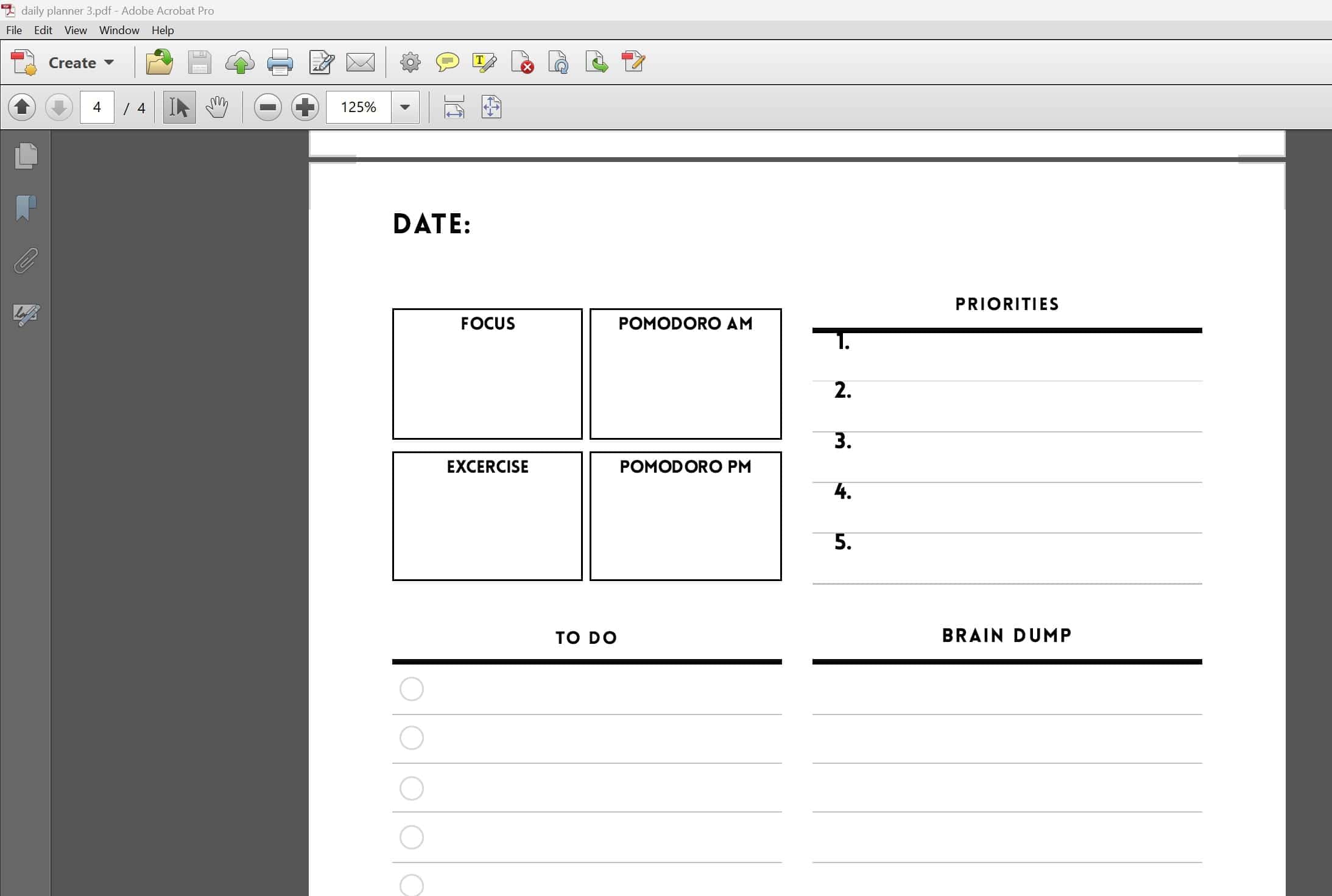
I did want to point out one of the glitches I found. The alignment of the numbers in the priority list was fine in Planify Pro, but after downloading the template, the numbers were misaligned.
Because the software is not a freeform tool where you can move items yourself, I couldn’t see any way to fix this misalignment in Planify Pro.
I accidentally added an extra column of widgets to a template. I hit undo but that extra column of widgets did not disappear.
I also had an issue where I changed a widget from graph (too many of the starter templates had graph paper for the notes space), to dot grid. However the graph remained. I had to delete and recreate the widget from scratch.
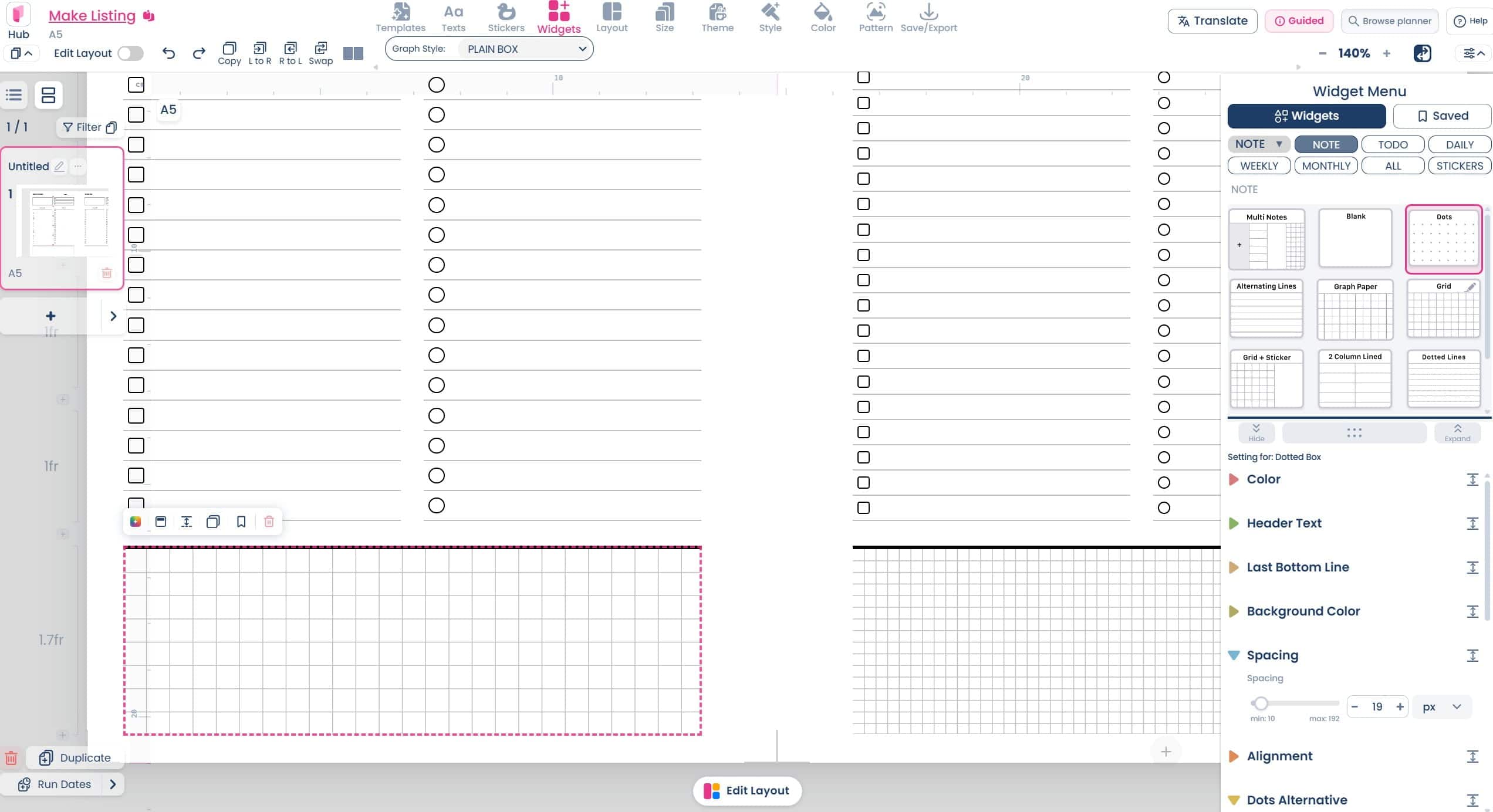
Making a printable in Planify Pro (from scratch)
Planify Pro uses widgets to quickly build designs. When you create a blank template there are options with multiple widgets if you already have an idea that you want say, a 2 column or 3 layout. You can also add extra sections to the planner using widgets after you start designing.
Some of the (many) widgets you can choose from:
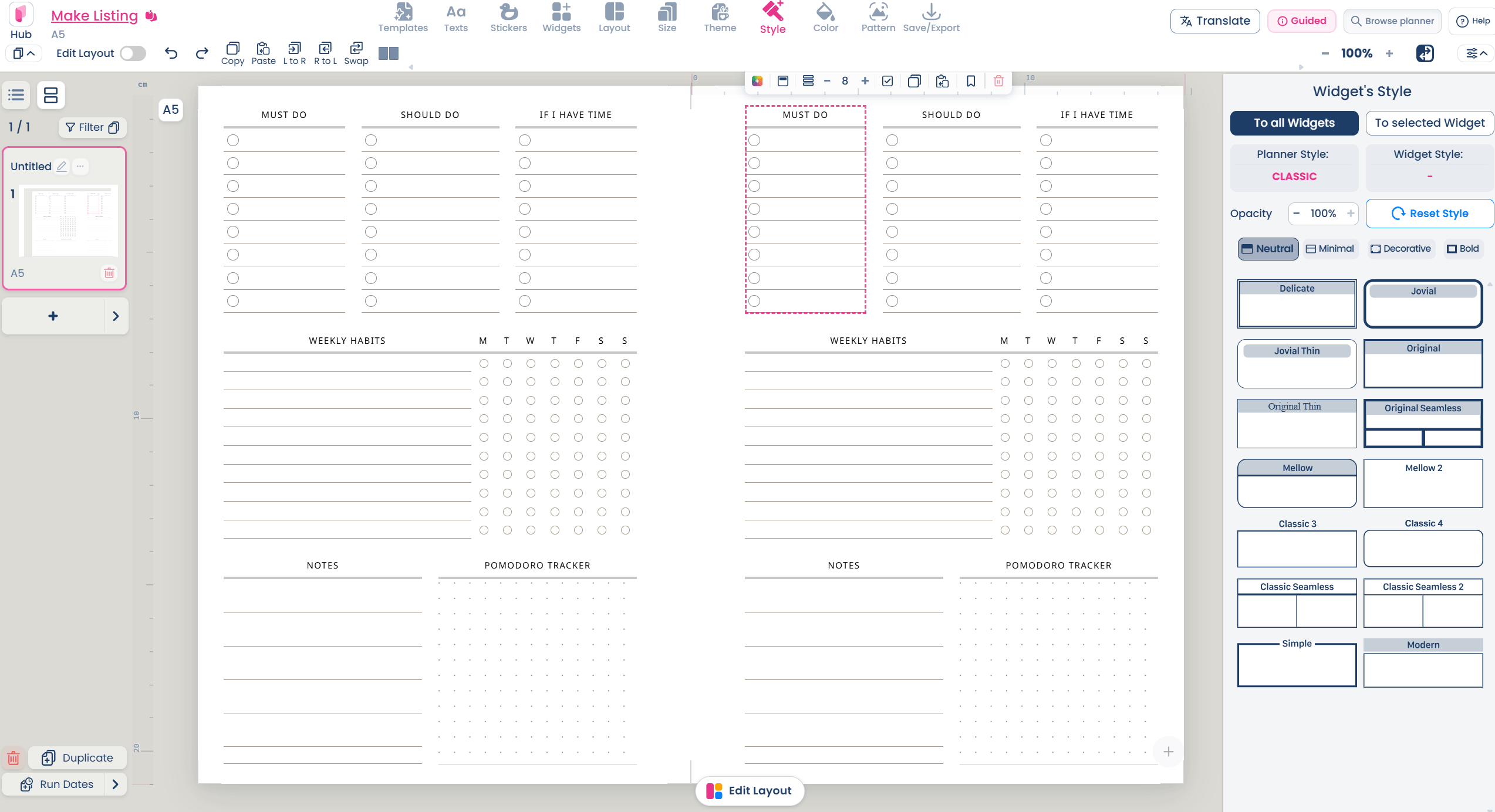
Here’s a simple printable I made in a few minutes
And customised with a few clicks, much faster than it would take to customise in other graphic design software.
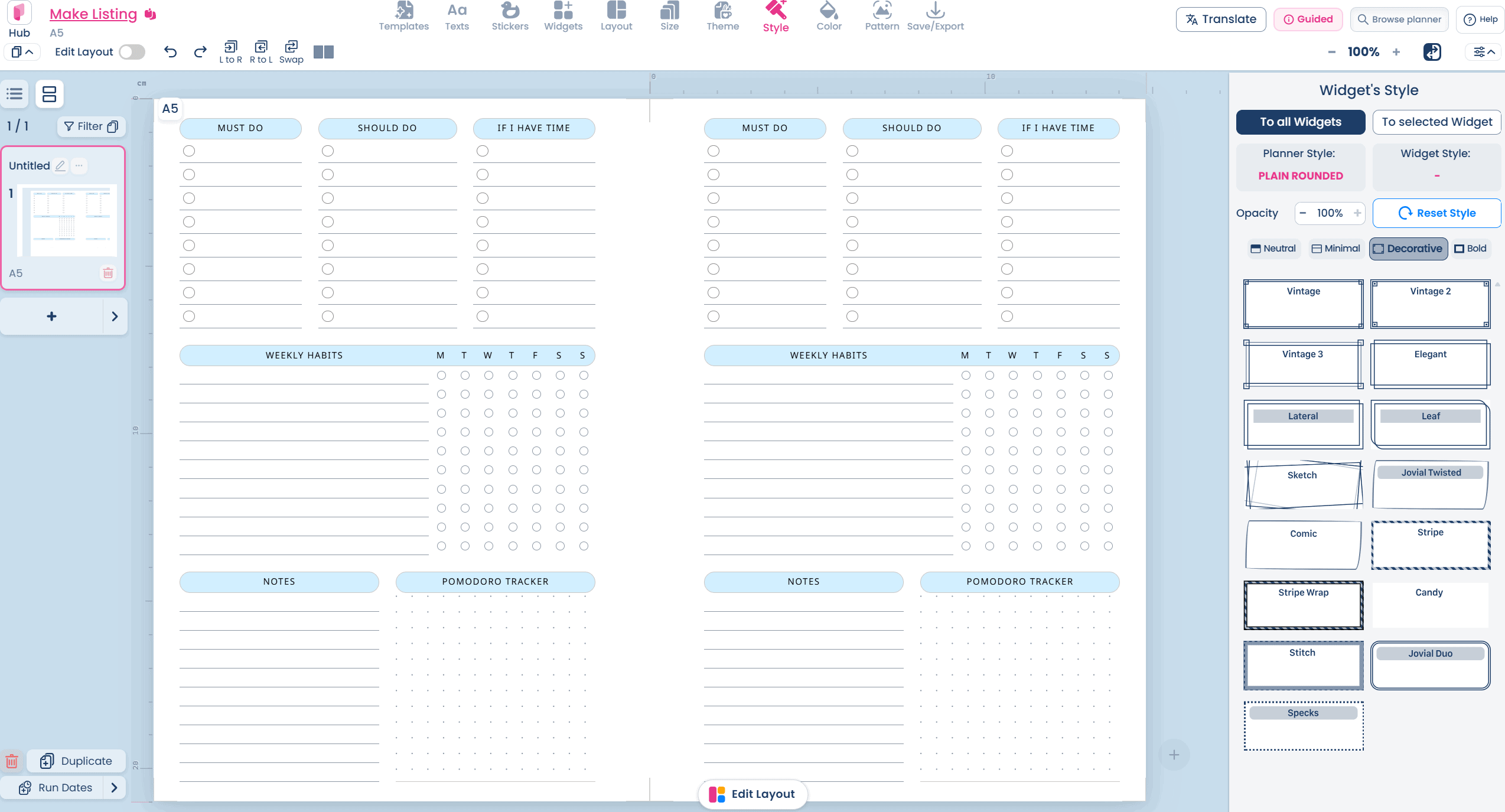
You can change the style for all widgets or only selected widgets
Here’s another printable I created with prefilled dates. It’s really easy to change the dates using dropdown menus, and it only takes seconds for Planify Pro to switch between Sunday and Monday start and update all of the dates. You can also do undated calendars if you prefer.
You can choose the spacing for the dot grid section; and change the number of rows in lined and checklist sections if you want the writing space to be smaller or larger.
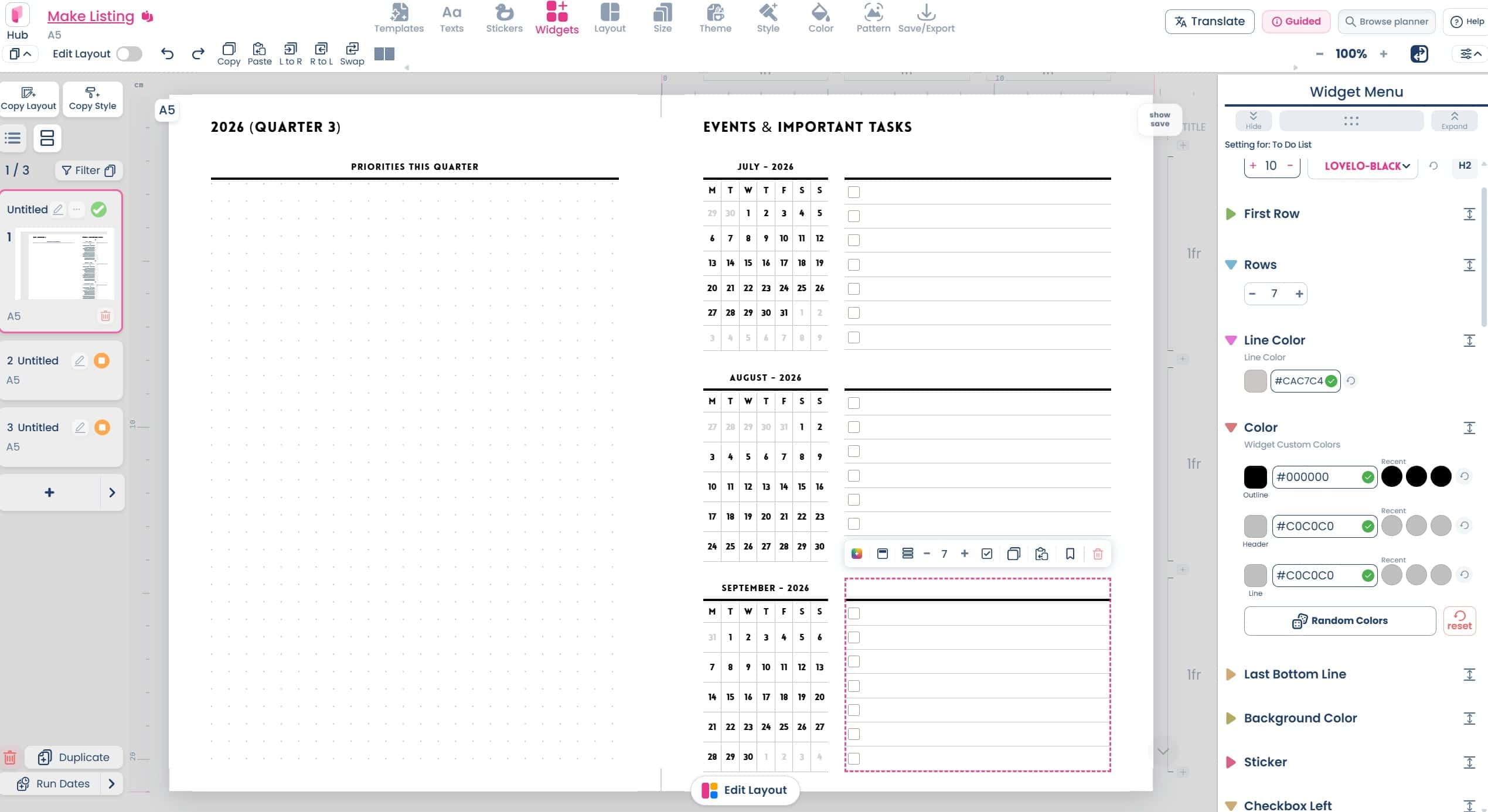
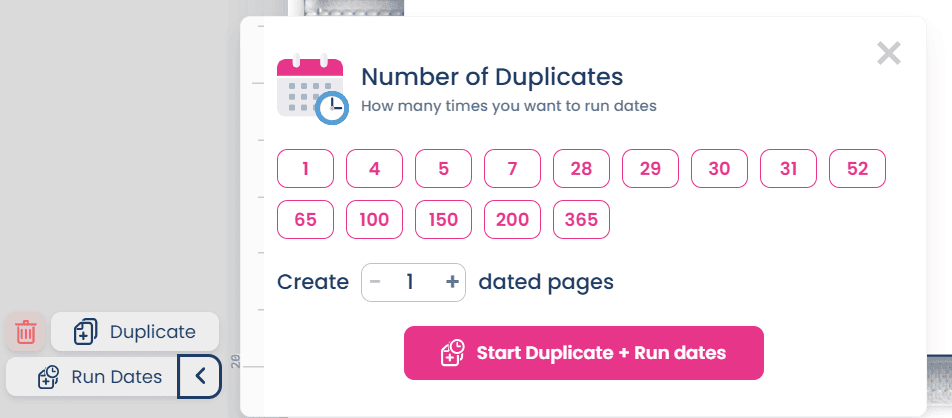
Adding dates is easy, just choose when you want it to start and run the dates.
Some of the more unique planner styles
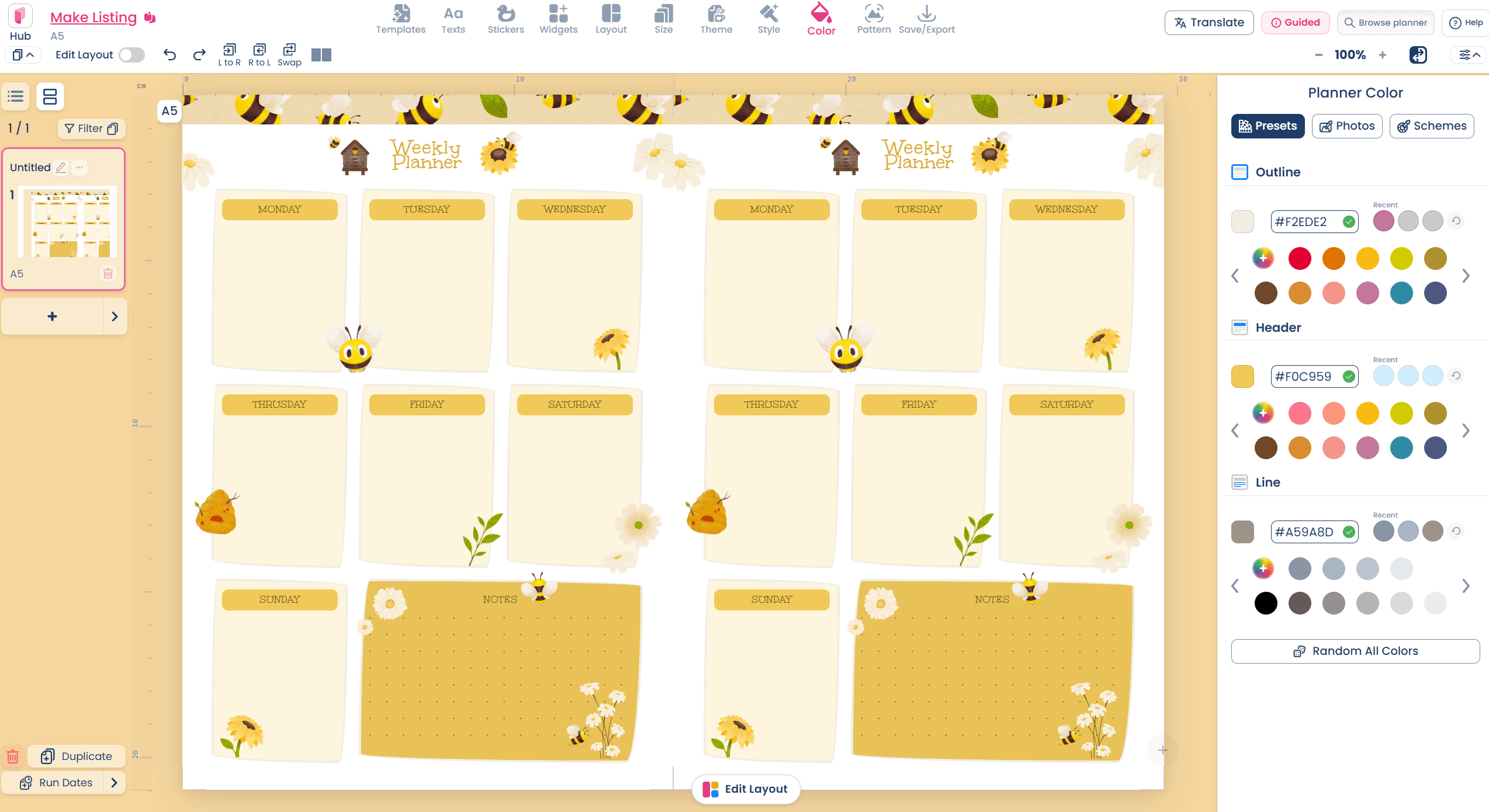
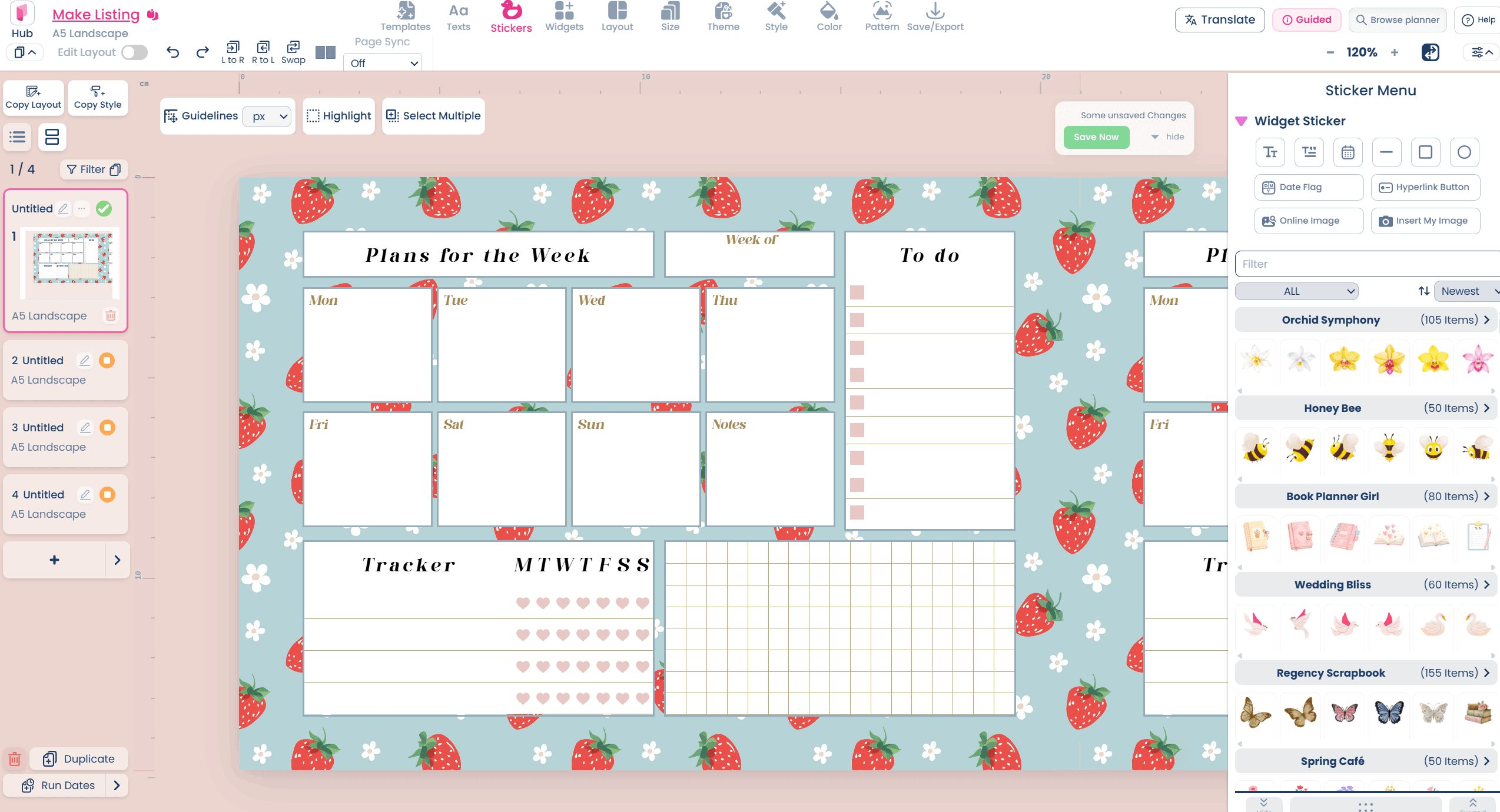
You can do pattern backgrounds as well
Resizing printables
This is one of Planify Pro’s main point of difference. With just a few clicks it automatically resizes and reproportions all of the design elements into a different page size. And there are about 50 different page sizes to choose from!
All of the popular page sizes:
- US Letter
- Half Letter
- A4
- A5
- Classic Happy Planner
- Travellers Notebook
- Personal size
As well as some more unique sizes like B6 and pocket size. And you can add your own custom size too.
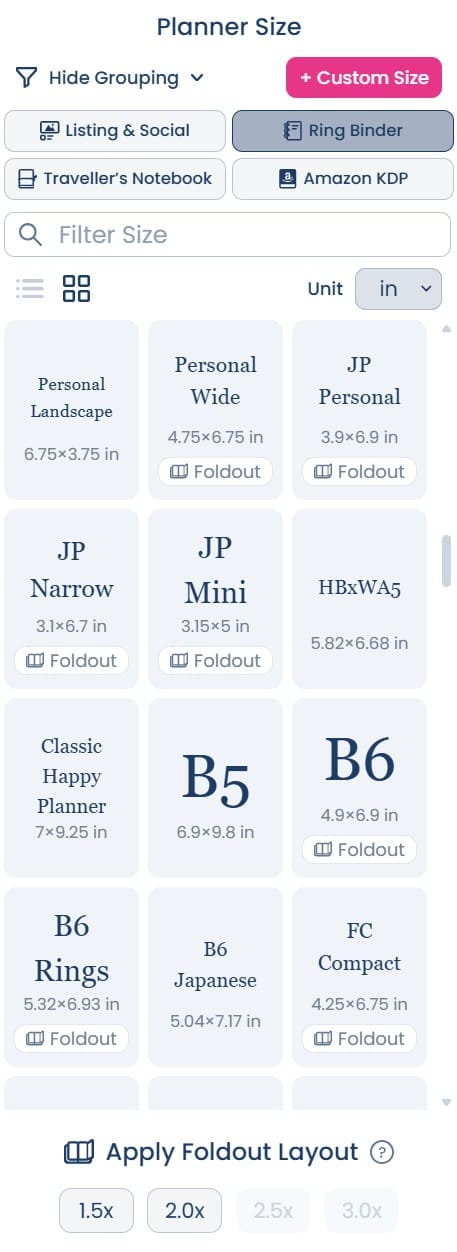
Planify Pro has the ability to easily add cut lines. So if you were selling say, A5 printables, then you could sell the designs in multiple formats:
- Printable already at the finished page size (A5), for printing onto precut A5 size paper
- A5 size design with cut lines on US letter size page
- A5 size design with cut lines on A4 size page
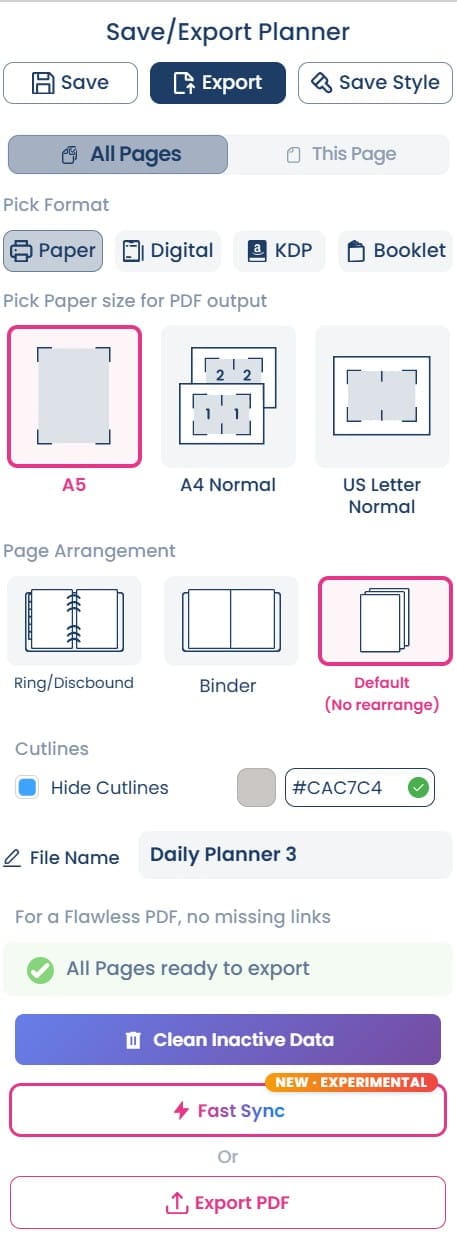
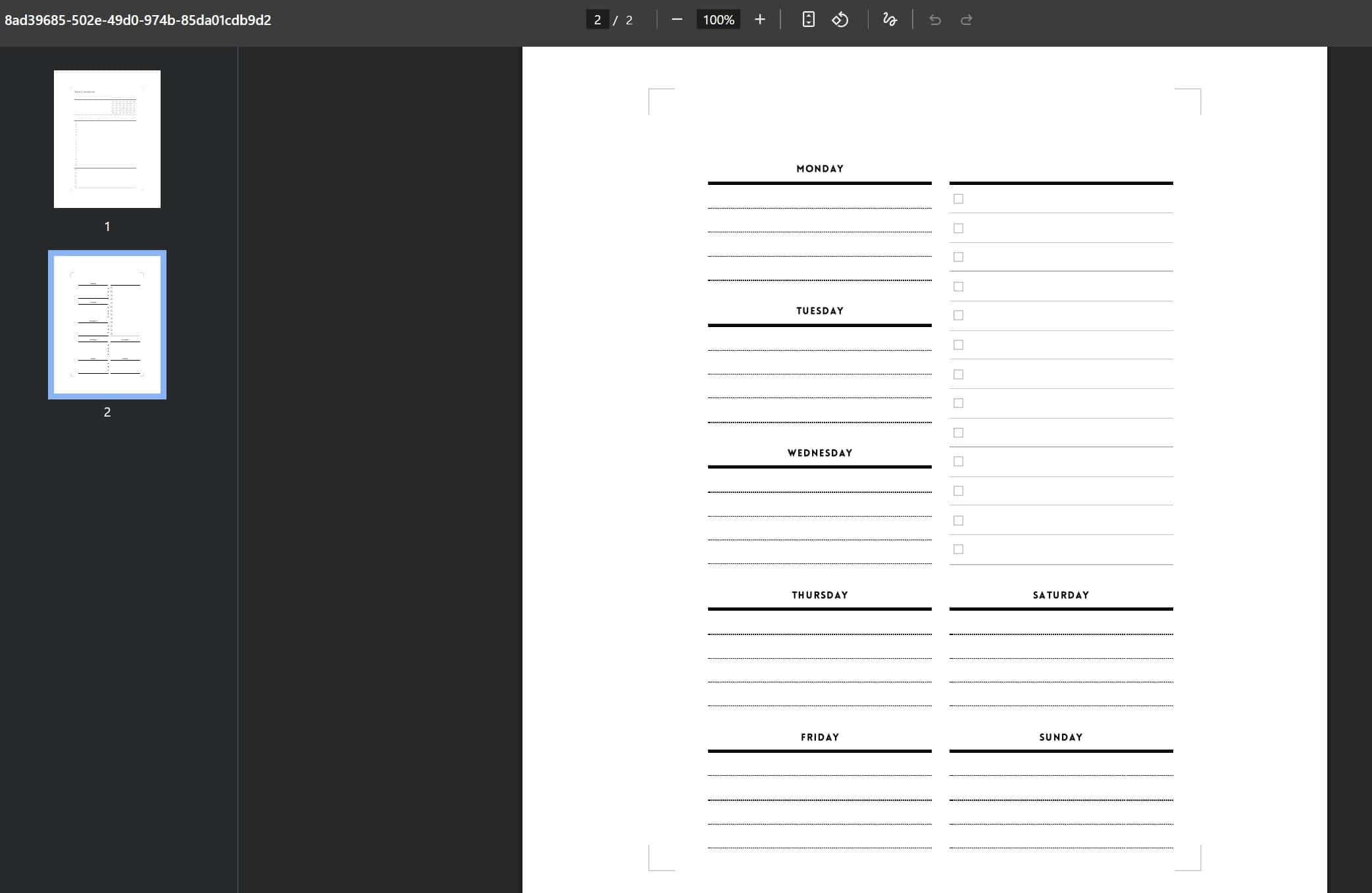
Here’s what the output looks like with cut lines added.
There are many more features, make sure you watch the video earlier in this post!
Price of Planify Pro versus other graphic design software
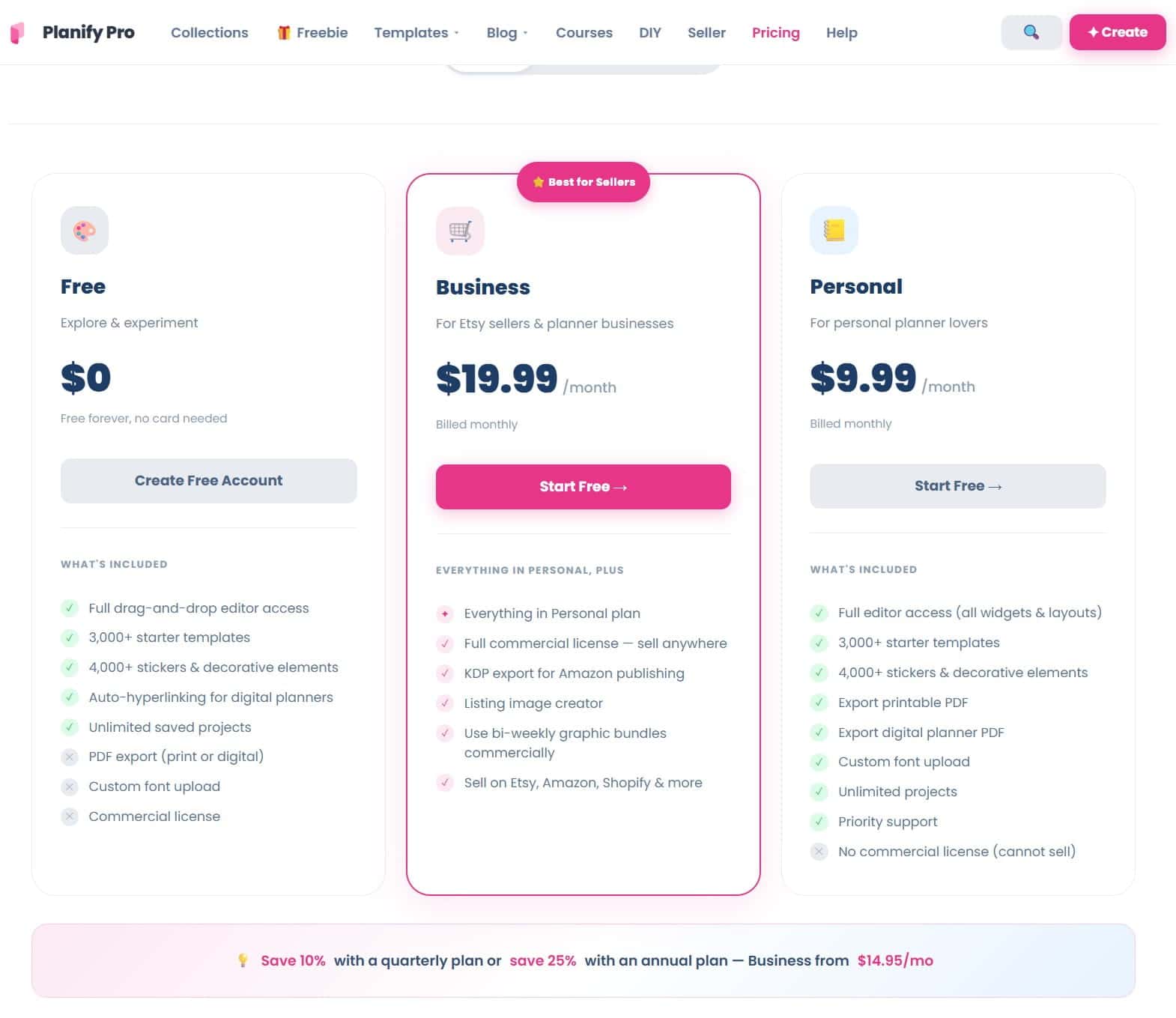
The Planify Pro business plan (for Etsy sellers / commercial use) costs $20/USD per month or $180/USD per year. There’s also a personal Planify Pro plan for $10/USD per month or $100/USD per year.
This is comparable to the cost of Canva Pro, however Affinity Publisher (my preferred tool for making printables which is now owned by Canva) is free.
Other things worth mentioning
The widgets are great, but there were times when I wanted to make something specific and couldn’t find a widget for it, like a top 3 box for a daily spread, simply adding a line between sections, or creating a schedule that had 2 columns instead of one. I couldn’t see a search bar in the widgets menu either.
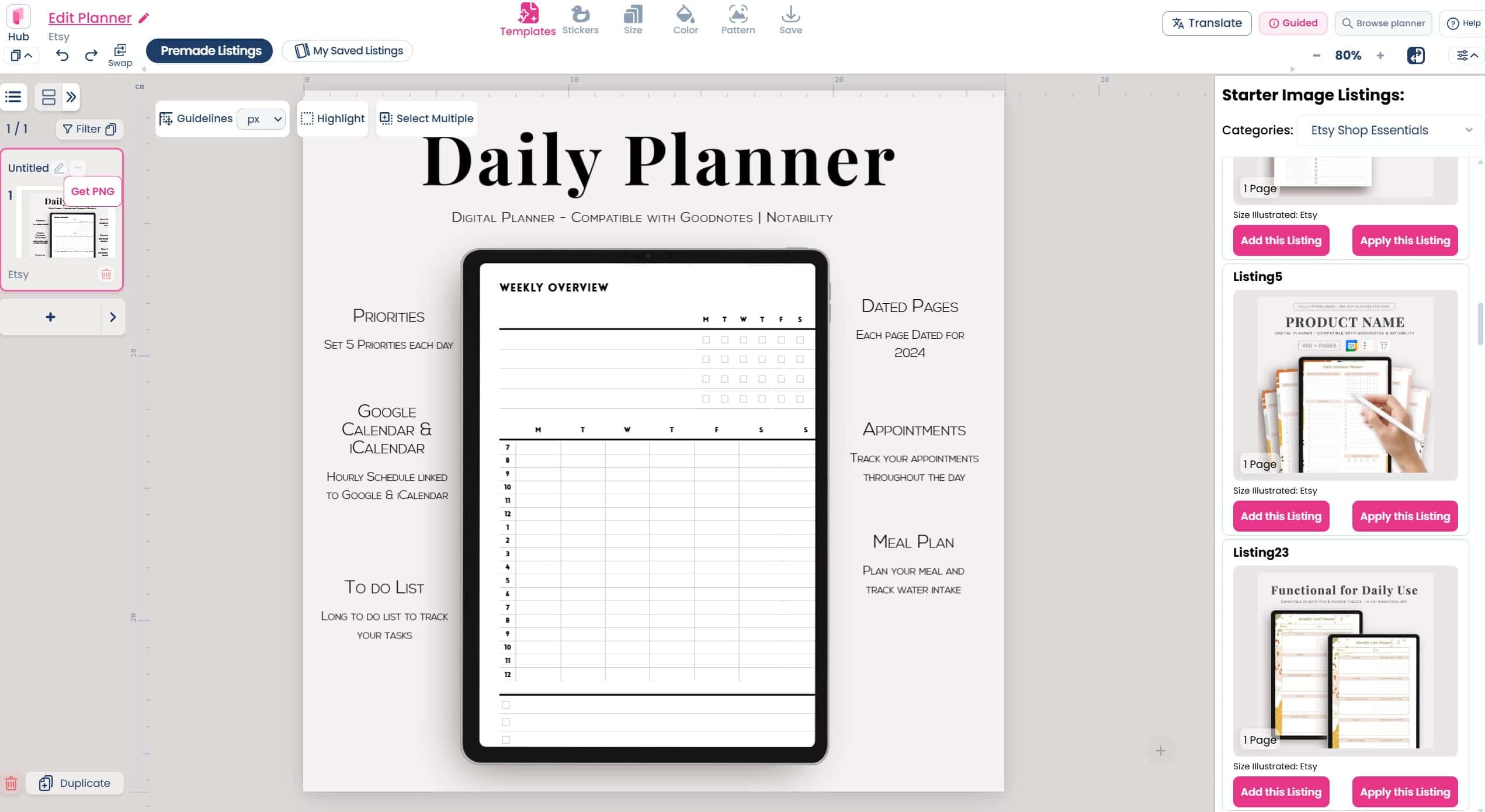
Since Planify Pro is a niche tool that’s specifically aimed at Etsy sellers, it has an in built feature to create your listing images fast – a huge selling point if you want to make planners for commercial use. But I will say that I can tell which Etsy sellers are using Planify Pro, as they use the same photos,
Would I use Planify Pro for making printables?
No, not at the moment.
I think it’s a fast and easy tool for making simple planners, and the time saved not having to manually resize elements for different page sizes is a huge drawcard.
But that time saving can be lost in the initial template setup and trying to get the widgets to look how you want. There were too many glitches when designing. I’d rather a free form tool where I have complete control over every element of the design. It can also feel clunky and a bit time consuming to change basic things like the font style.
I don’t use dated planners or digital planners (the main features that set it apart from other design software), so that also influences my opinion.
I’ll be doing a detailed comparison of Planify Pro versus Canva so make sure you’ve subscribed to be notified when that is published.
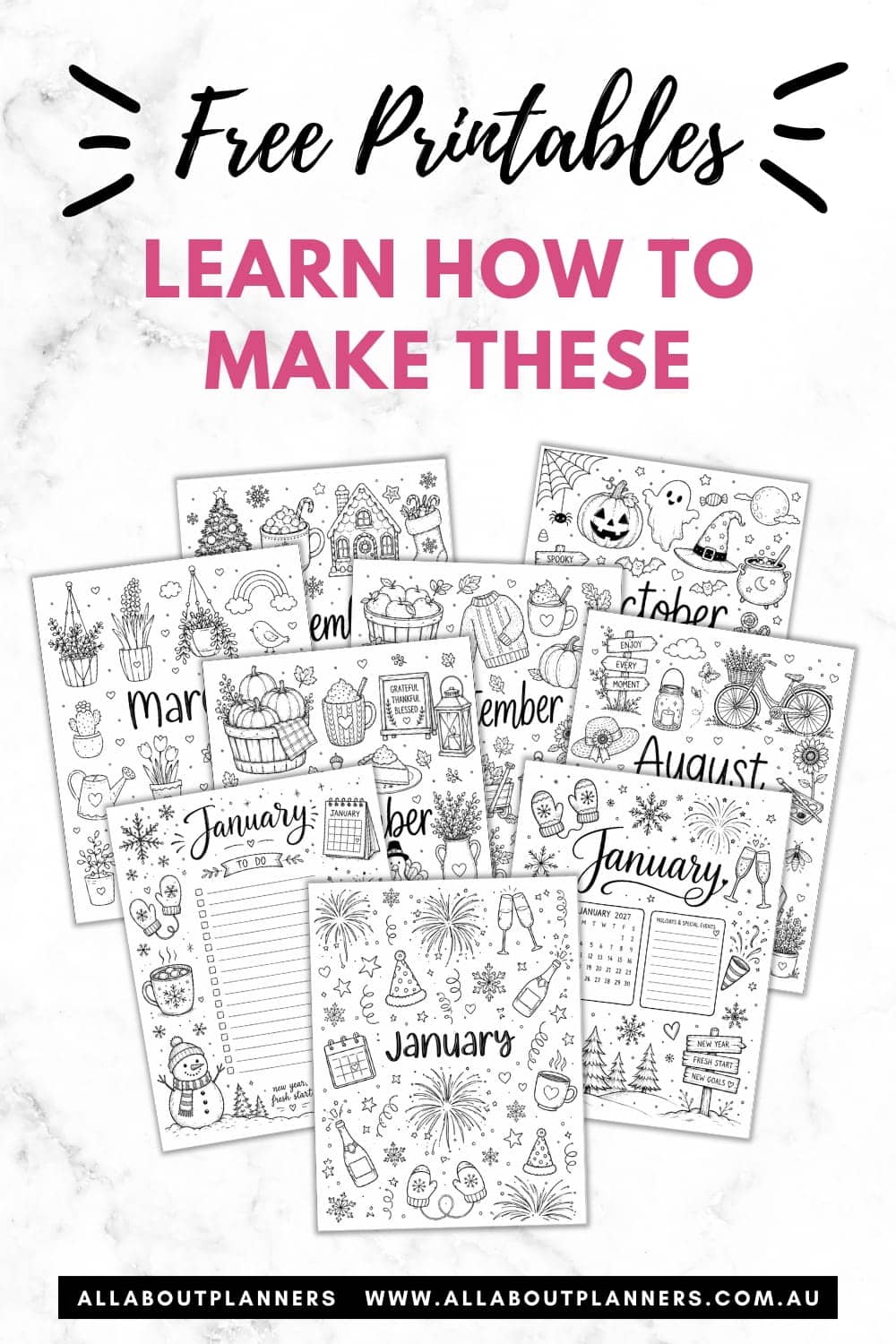
In the meantime, I’ve uploaded some of the designs I created in Planify Pro to the free printables library so you can see what printables made in Planify Pro are like.
If you’ve already decided Planify Pro is right for you, here’s my affiliate link.
Planning tips
- 5 Ways to get ideas for your planner spreads
- 150 Dinner Ideas Printable Quick Reference List
- The best tools for habit tracking in your planner or bullet journal (my top 10)
Liked this post? Pin it!