

How to make a monthly calendar printable using Google Sheets (online tool similar to Excel)
I previously posted a tutorial on how to make a weekly planner in Google Sheets. I had some comments on that video saying the audio wasn’t loud enough so I’ll be re-recording that tutorial sometime in the future.
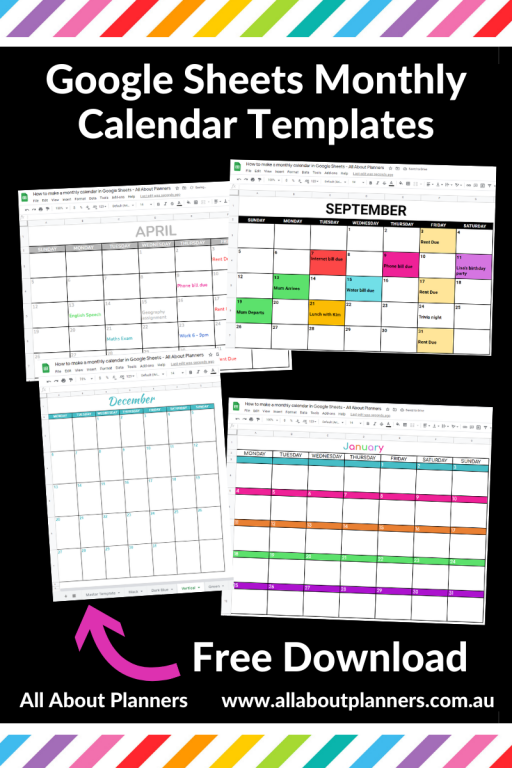
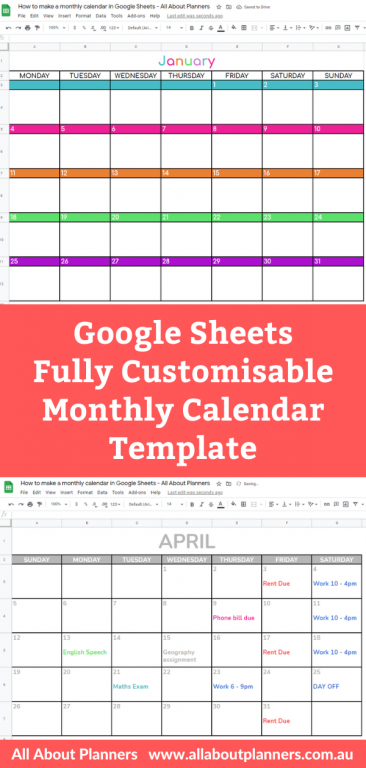
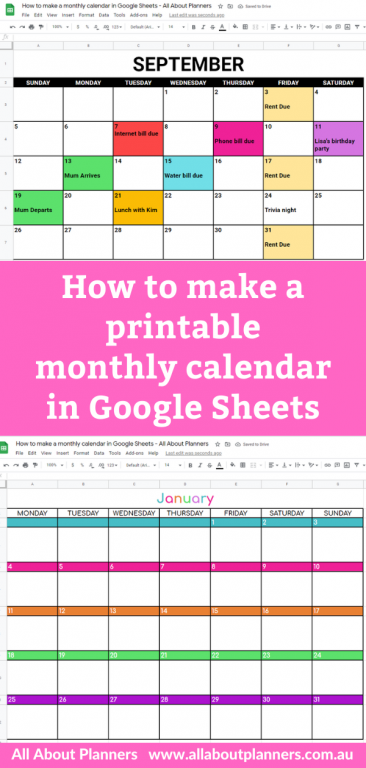
In the meantime I’ve recorded another tutorial for using Google Sheets. This time, how to make a monthly calendar. You can use a similar process to make the weekly planner from my previous tutorial (really the only difference is the number of columns and rows you want your printable to have).
How to make a monthly calendar using Google Sheets
To enlarge the screen of the video, click the square icon in the bottom right hand corner of the video (it will say ‘full screen’ when you hover your mouse over the icon).

Subscribe to my YouTube channel for more planner videos!
Download the Google Sheets template I made in the video by entering your details below. Existing subscribers can login and download the file here.
More helpful posts about making printables
- Microsoft Word versus Excel: which is better for making printables
- How to make a printable chore chart using Microsoft Excel (including video tutorial)
- How to make a weekly planner using Canva (free online design program)
- How to make an A5 size, 2 page weekly planner printable in Photoshop (video tutorial)
- How to make printable graph paper in Photoshop (perfect for habit tracking and bullet journalling!)
Some of the ways you can use a monthly calendar:
- Meal planning
- Bills
- School or college assignments and exam due dates
- Most important task for each day
- Cleaning routine
- Work schedule
- Kid’s activities
- Social media content planning
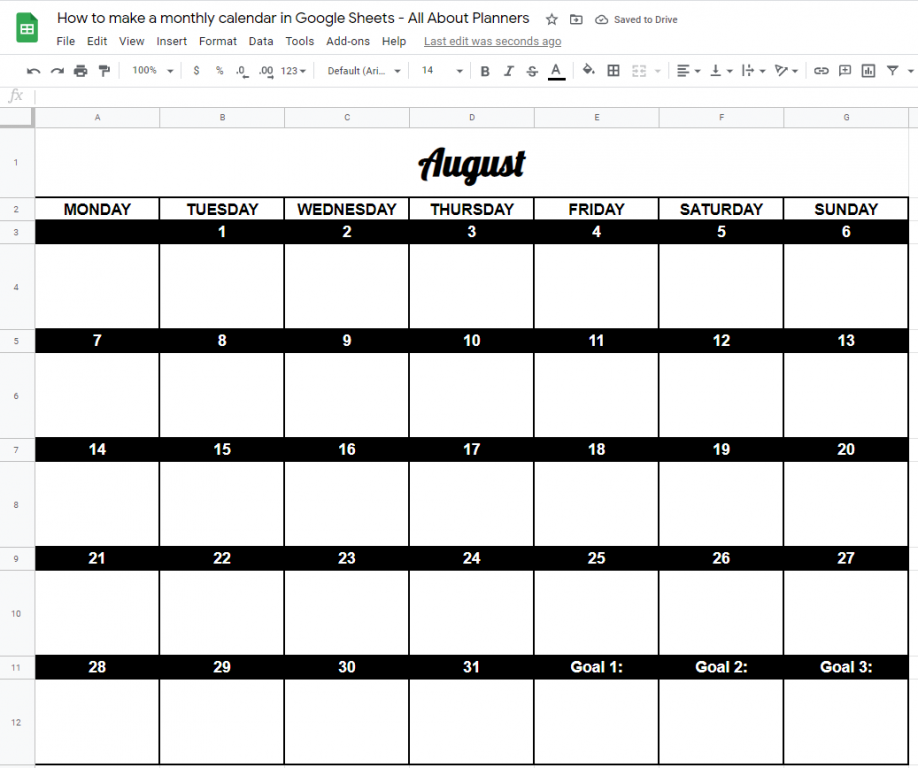
Tips for making printables in Google Sheets
- If you’re making a 2 page monthly planner, make the first page and then copy it and change the days of the week. Much quicker to create it once and copy, than re-create it from scratch
- I recommend no smaller than font size 14 for the dates and days of the week
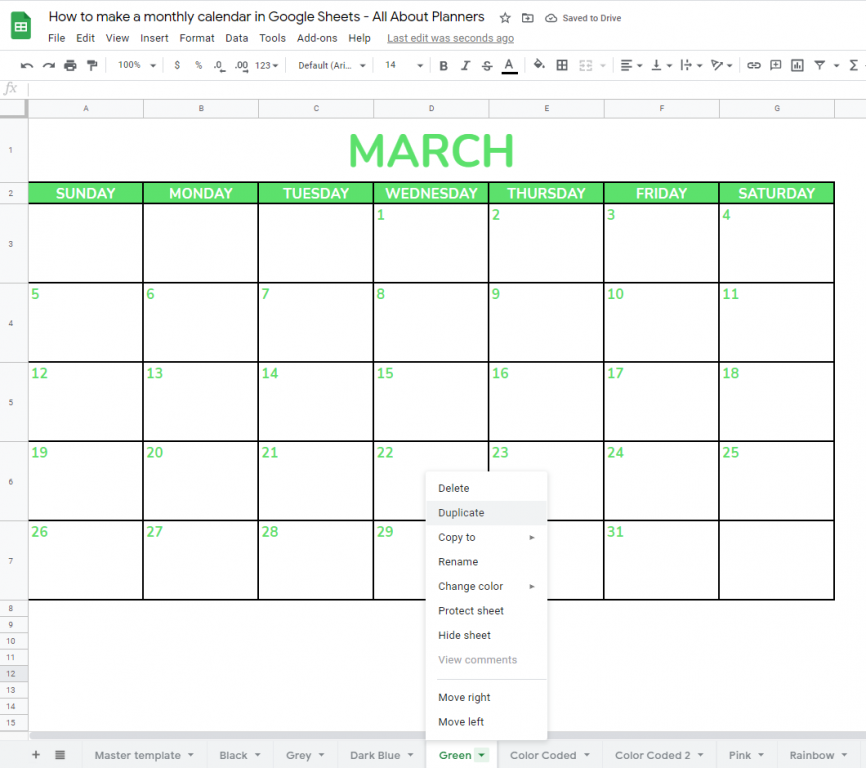
- If you want to use the same template but change it slightly, you can save a copy by right clicking on the tab and choosing duplicate. This way you’ll always have the original to come back to and won’t need to re-create the entire template from scratch
- Google Sheets auto saves your spreadsheet
- As Google Sheets is web based, you can login to Google Sheets and access your spreadsheet on multiple devices – computer, iPhone, iPad etc. I recommend designing your printable on your computer (much faster to design with a mouse and keyboard than a touchscreen)
- CTRL and z on your keyboard to undo
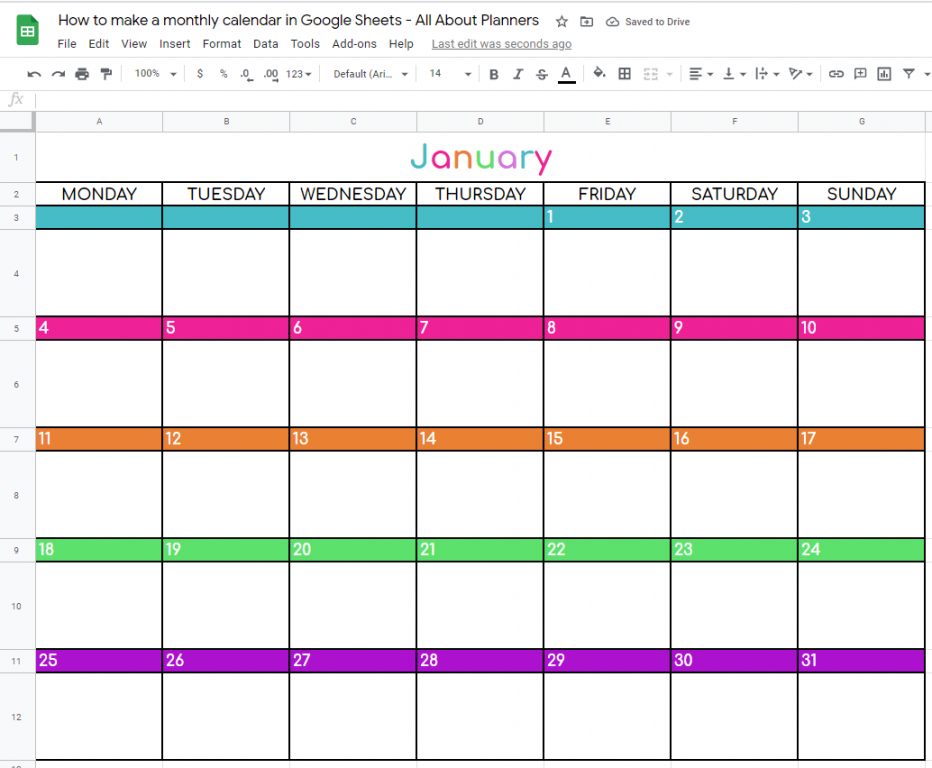
Once you’ve made your template you can make small changes to create new templates
- Delete some of the rows (e.g. the date rows)
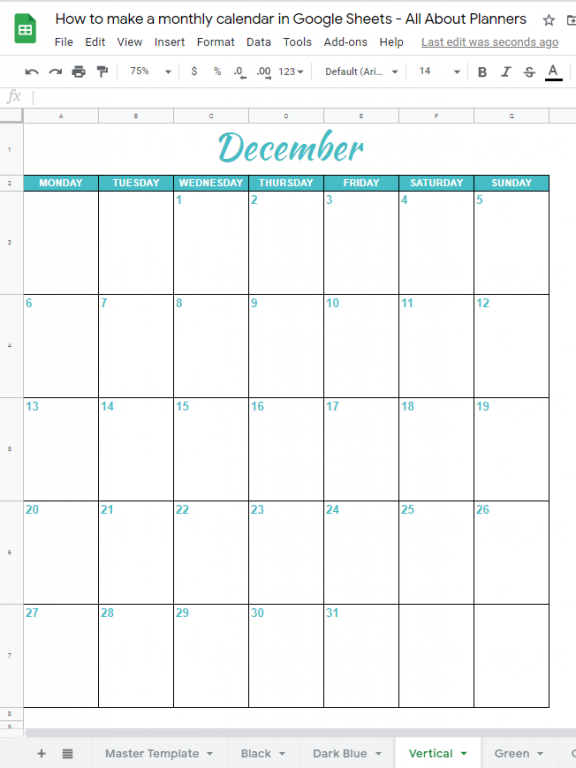
- Change the column width to create a portrait page orientation calendar instead of landscape
- Add a column to the left and add week numbers
- Change colors to either different colors for each row, one color for everything, a different color every second row etc.
- Change font colors
- Change font style
Color Coding Recurring Tasks
You can pre-enter text if you have recurring tasks or bills that happen on the same day each month. Press ALT and enter on your keyboard for a new line.
You could color code the entire square…
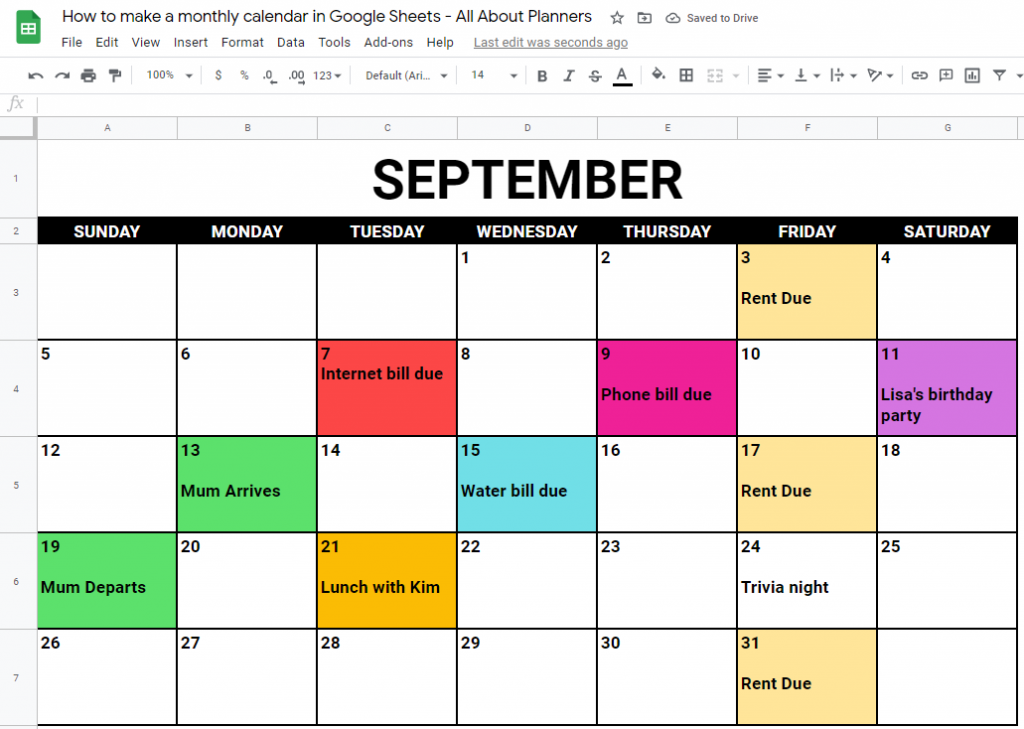
Or if you have multiple things happening on the same day, use different font colors
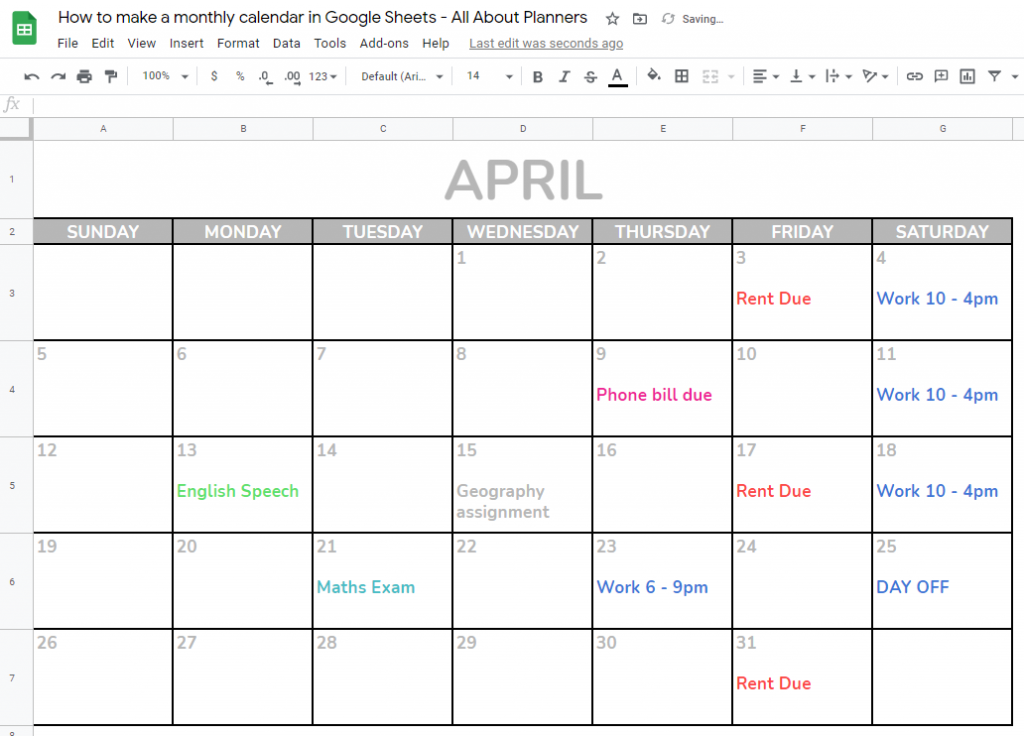
Changing colors
You can choose from the colors already included in Google Sheets’ color menu. If you have a specific color/s you like to use, you can enter the hex code by clicking ‘custom’ in the color menu (refer screenshot below).
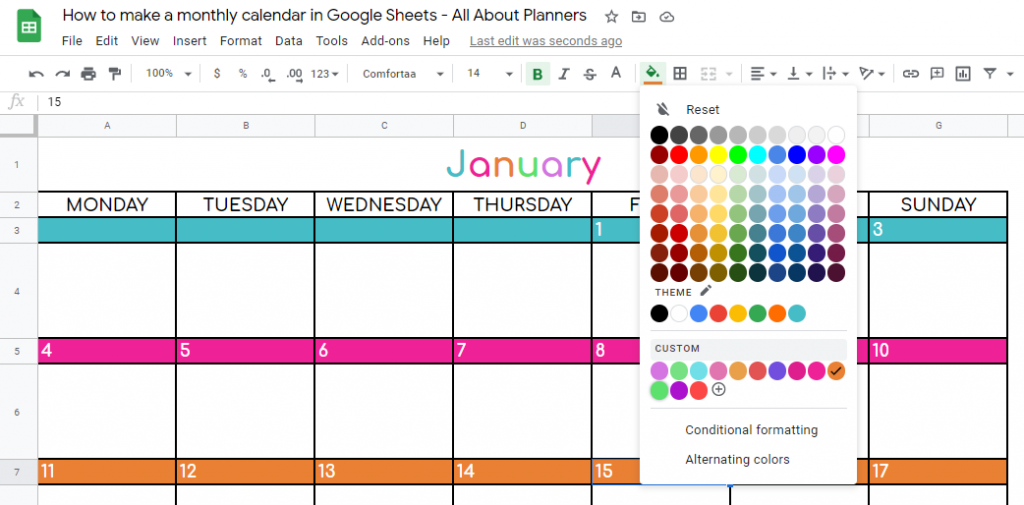
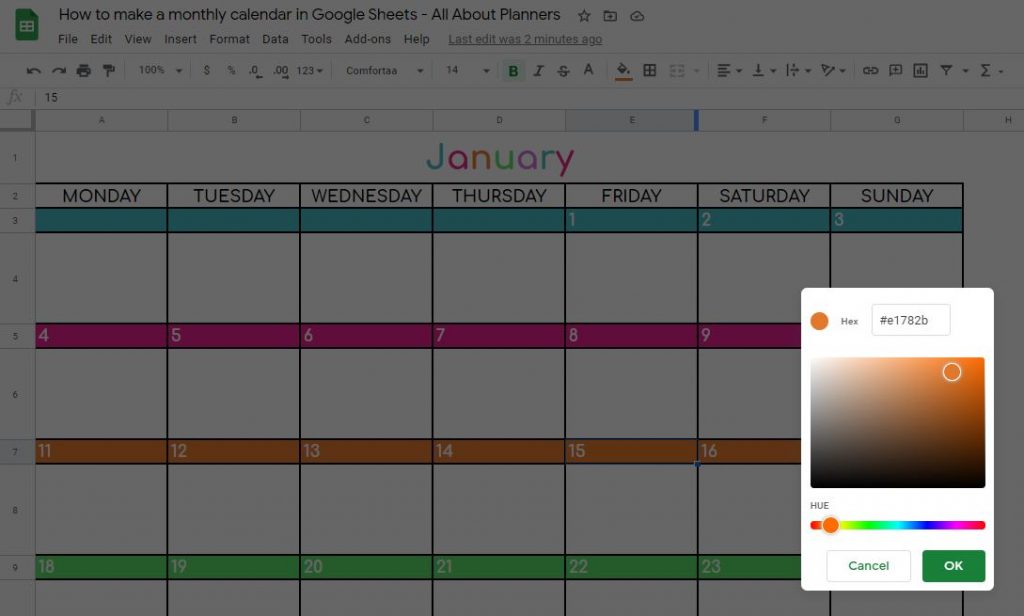
This will pop up the color picker tool where you can move the circle around until you find a color you like, or enter the 6 digit hex code of the color you want to use.
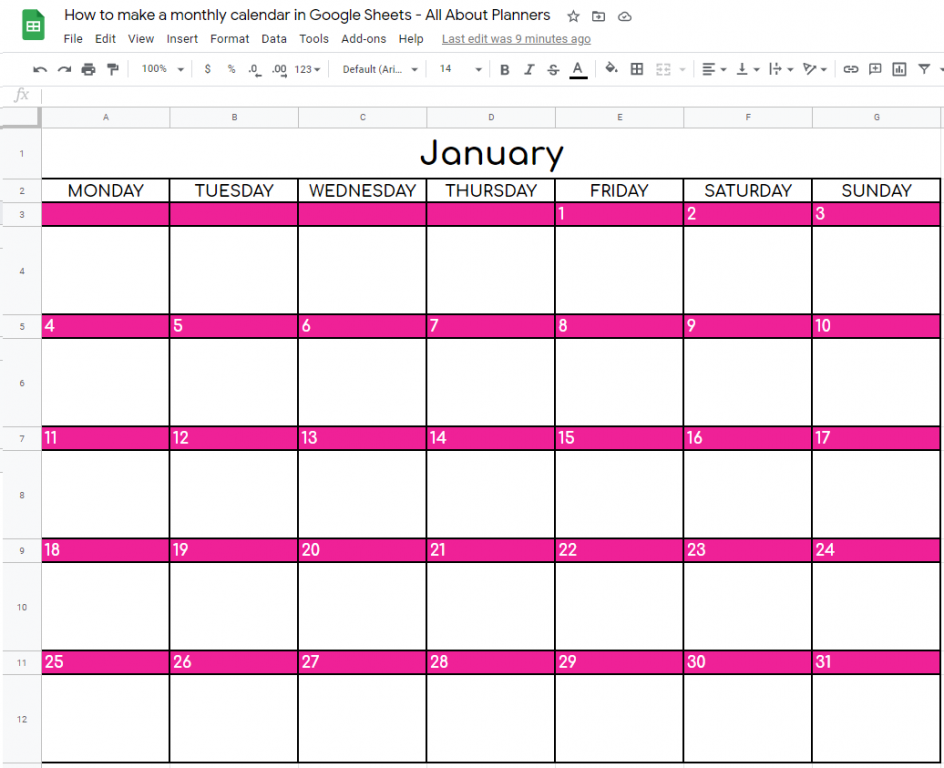
I like my planner to start on Monday, not Sunday. However now that you know how to make your own you can choose! If you need more space on weekends you can make those columns bigger than the weekdays.
I prefer to leave all boxes white but you could shade the empty boxes and add the dates for the past month and next month if you prefer.
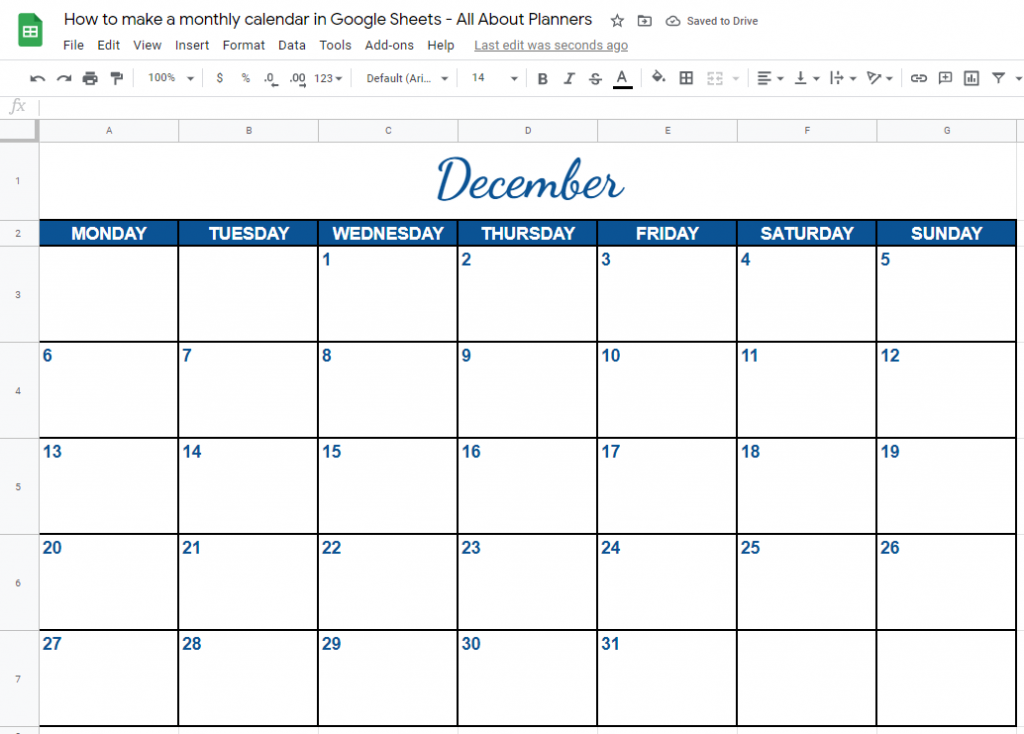
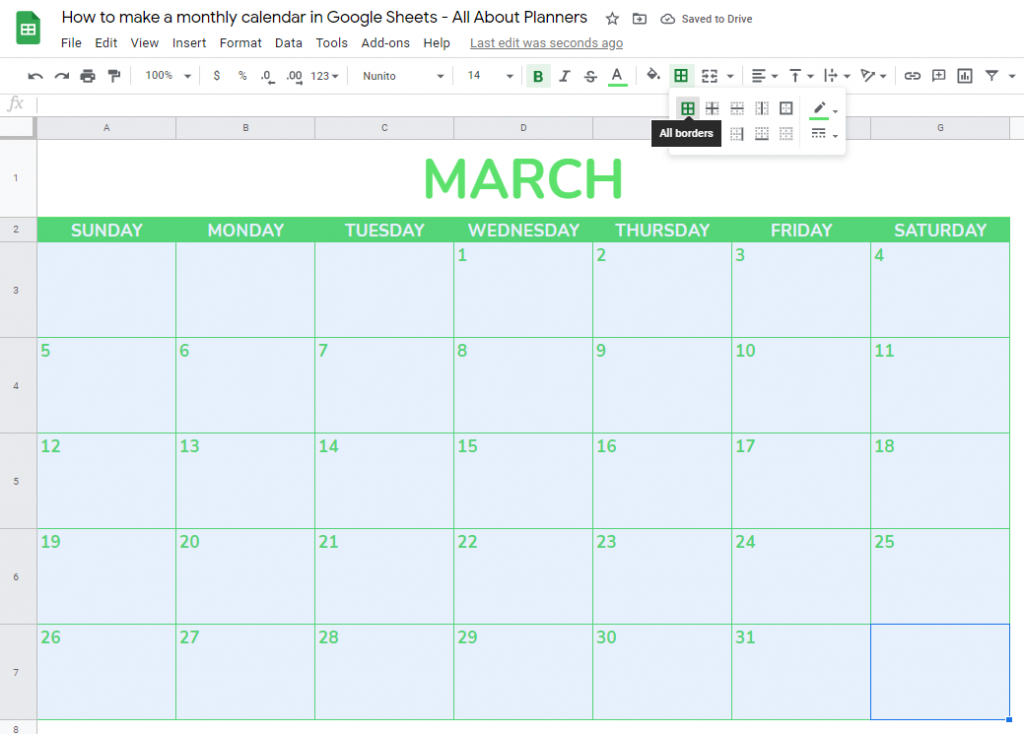
You can change the border colors by left clicking and dragging your mouse over the boxes you want to change the border color. Then go to the border menu, choose your color and select ‘all borders’
Text Alignment & Fonts
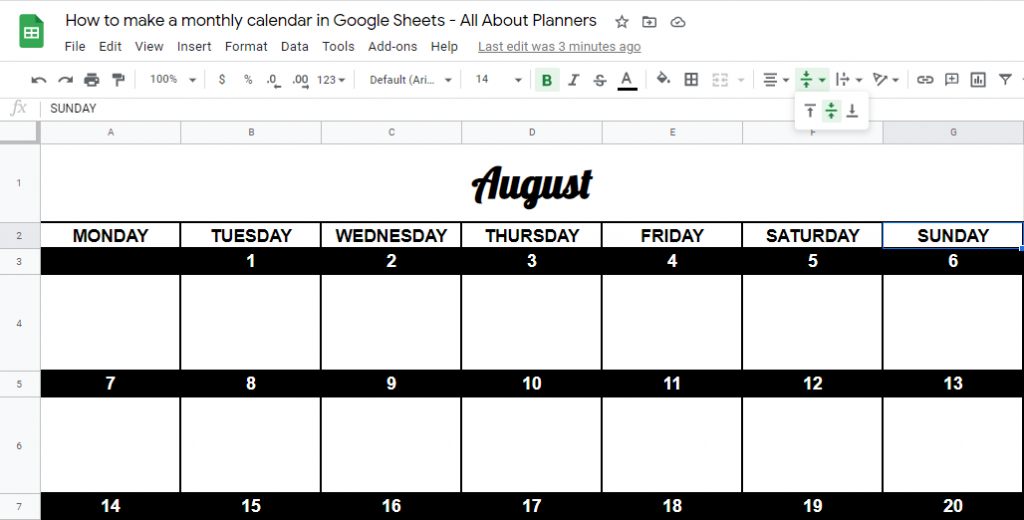
To change the positioning of your text, click the vertical and horizontal align buttons. You can use the same buttons to align text to the middle of a row.
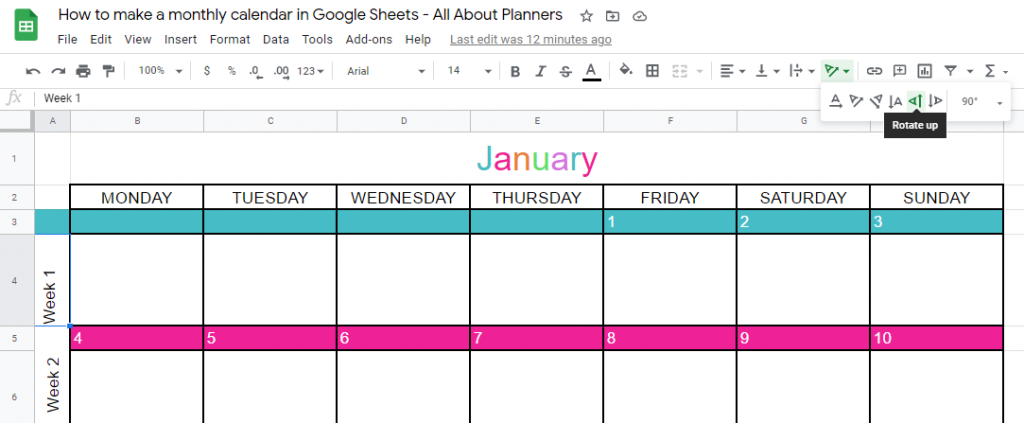
You can type text on the side using the text rotation tool (refer screenshot below)
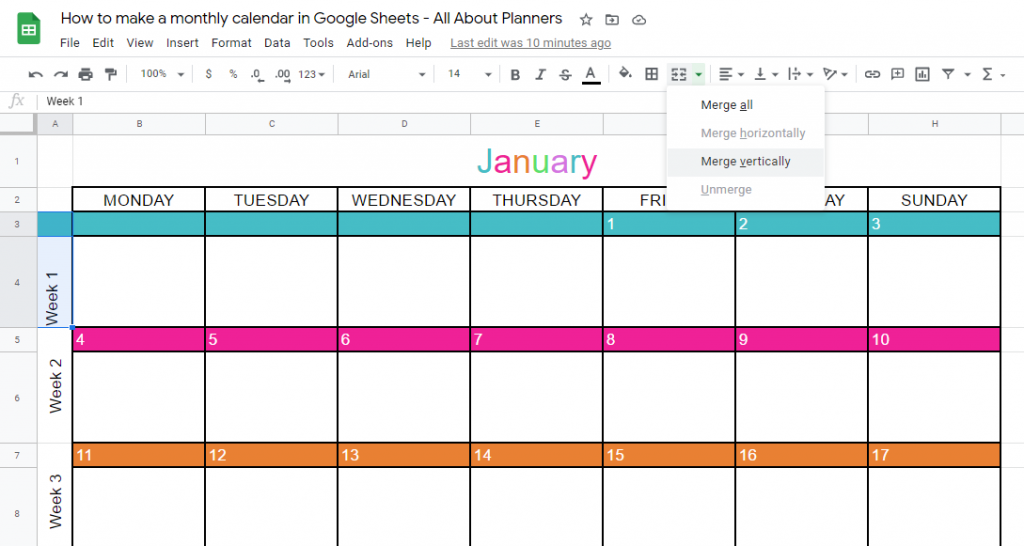
If you’ve done a separate row for the numbers like I did in the tutorial, you can merge the cells together by left clicking and dragging to select the cells you want to merge. Then go to the merge menu and choose ‘merge vertically’
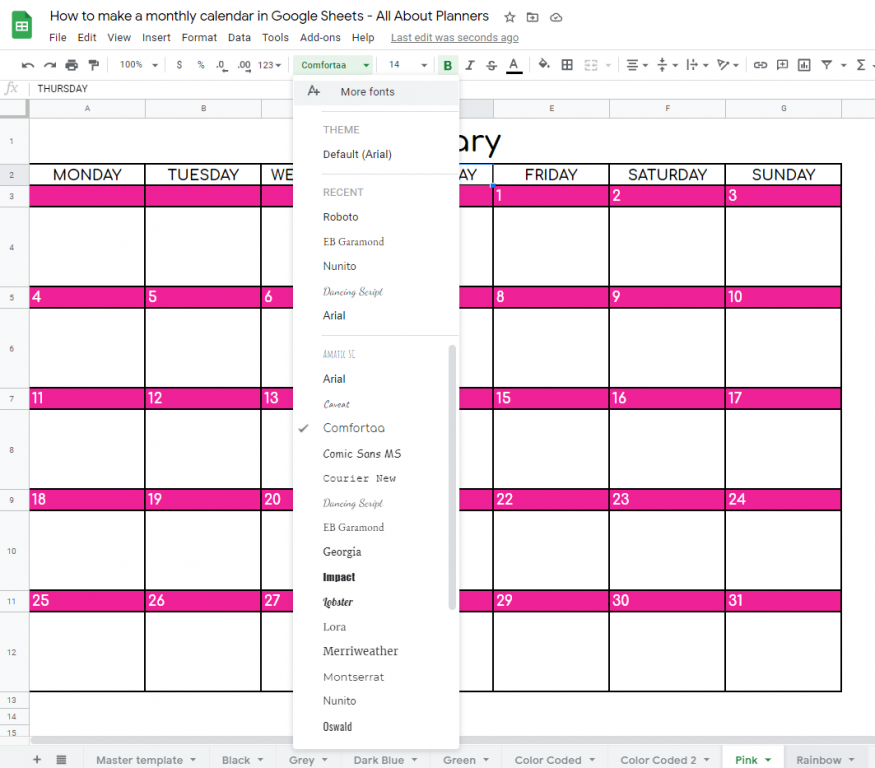
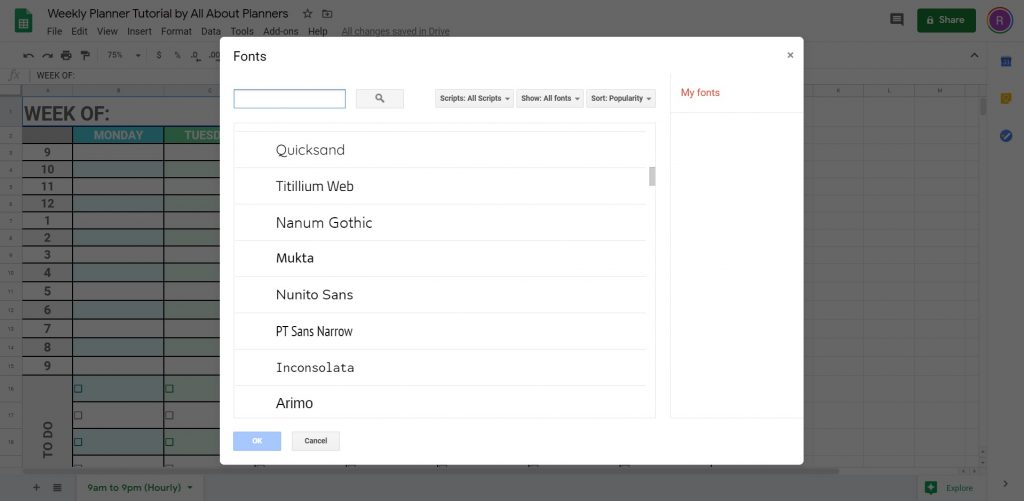
If you don’t like the fonts in Google Sheets you can choose a custom font by selecting ‘More Fonts’
And search the name of the font you want to use
Create a copy of your template
You can make a copy of your template by right clicking on the tab and selecting ‘duplicate’. I like to keep a master template.. just in case
If you want to make calendars for each month of the year, look at an annual overview calendar and you’ll notice that some months have the 1st day of the month starting on the same day. E.g. September 2021 starts on Wednesday and so does December 2021.
Portrait or landscape page orientation
You can use the same template and just change the column widths to switch between portrait or landscape page orientation.
Printing your planner
You can either print directly from Google Sheets by going to File > Print
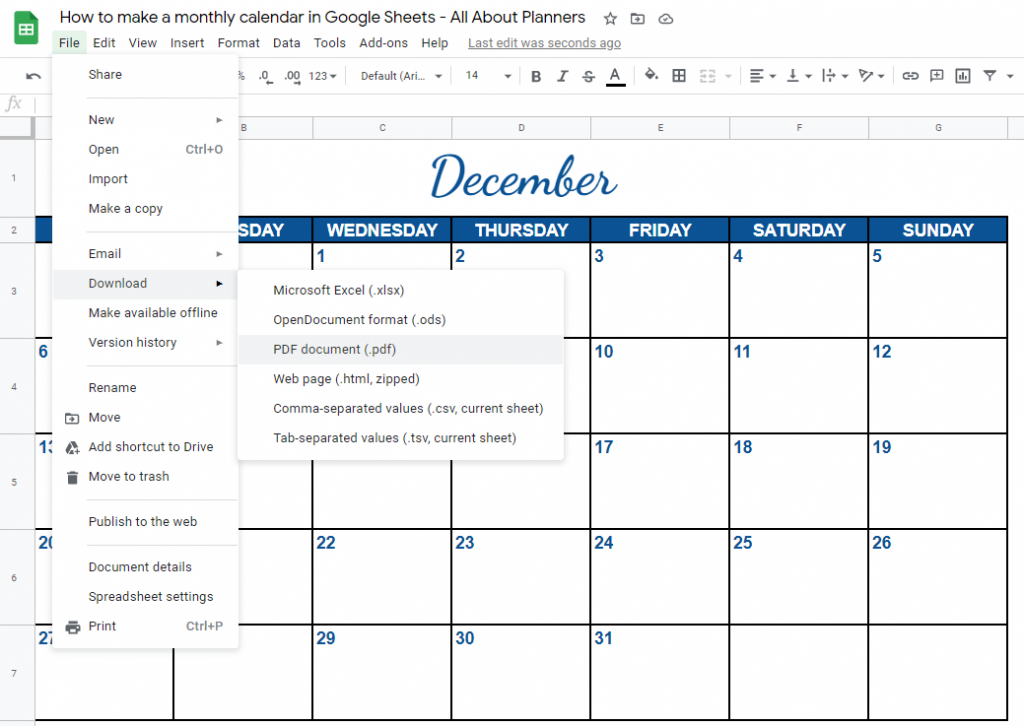
Or you can download the template to PDF by going to File > Download > PDF document
For printing tips, see these posts:
- How to print any printable at any page size
- 7 Ways to make colors POP when printing using an Inkjet printer
- Don’t own a printer? Here are 5 companies that will print and ship printables to your door
- How to get rid of a white border when printing printable (borderless, no bleed, no scaling step by step video tutorial)
- How to Choose a Printer (Including the best printer for printing printables and planner stickers)
- Best Paper for Printing Printables
- How to clean your printer (prevent smudging, streaks and make the colors POP!)
- How to print any printable in black and white (greyscale) using your home printer
- How to easily print printables double sided (duplex printing tutorial)
Using the planner you’ve made in Google Sheets
Since Google Sheets is a free online tool, you can access it from multiple devices – your computer, iPad, tablet, phone etc. Any changes you make will be saved when you move between devices. So if you make a change on your iPad, you’ll see that change when you open that same file on your computer.
Download the template made in this tutorial
Download the Google Sheets template I made in the video by entering your details below. Existing subscribers can login and download the file here.
The easiest way for me to share this template is for me to export the Google Sheets template as a Microsoft Excel spreadsheet. You can import it into Google Sheets by clicking the plus sign from the Google Sheets home screen which will open up a new blank Google Sheets file.
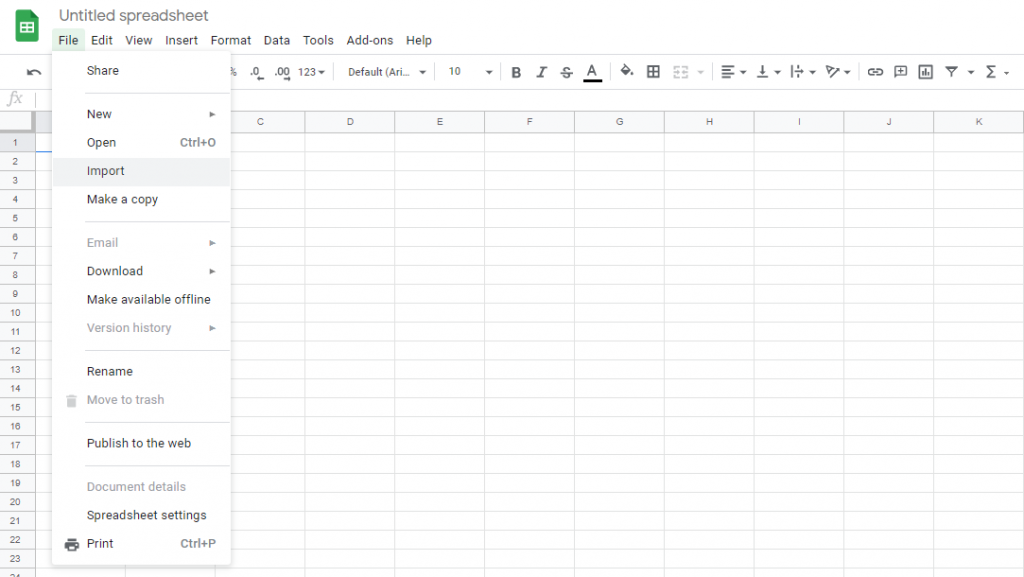
Go to File > Import
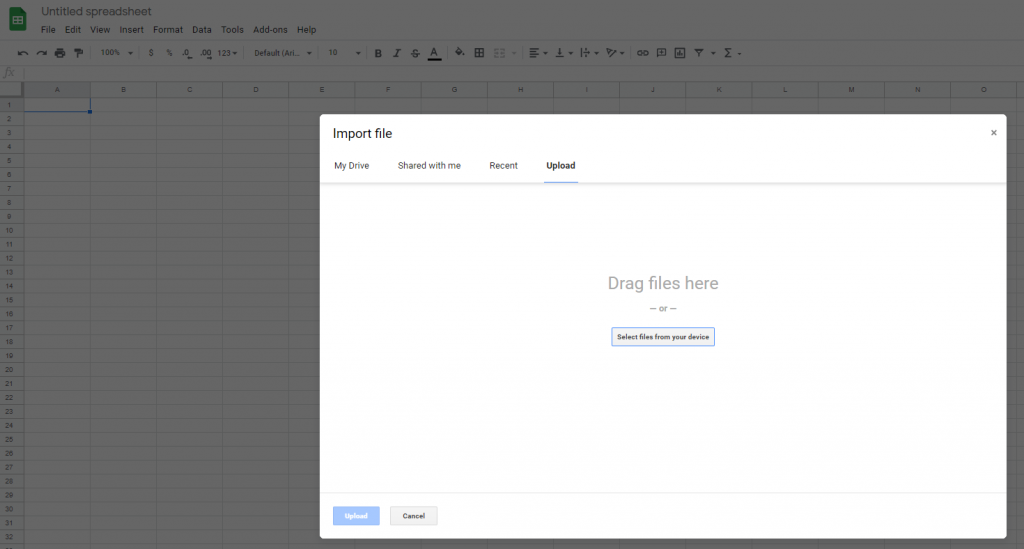
Locate the file from the downloads folder of your computer
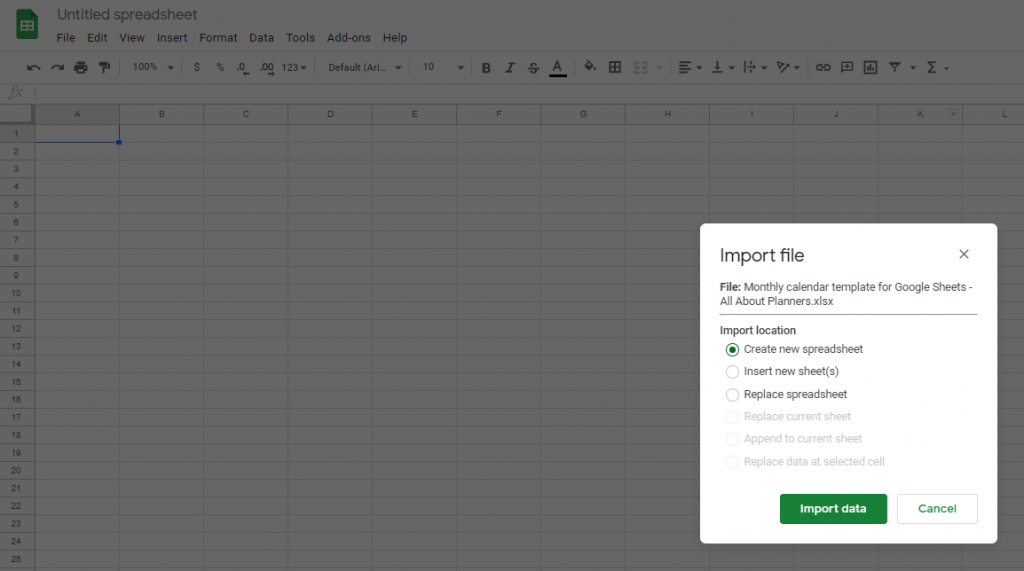
Then choose ‘create new spreadsheet’
Now you can use the spreadsheet in your own Google Sheets account.
Pros of Google Sheets
- Free
- Online tool you can access from anywhere, you just need a Google account (if you use Gmail, it’s the same login)
- Can easily duplicate a template once you’ve made it, to make a lot of printables in a short amount of time
- Quick
- Simple & easy to use
- Great color tools menu (can use whatever color you like!)
- Can do much the same things that you can do in Microsoft Excel
Cons of Google Sheets
- Similar tools to Microsoft Excel but Google Sheets’ menu is a bit clunky to use with many sub-menu’s
- The tools menu is compressed and there are less images – I find it takes longer to find the tool I’m looking for
- Takes longer to draw / add shapes than in Excel
- Difficult to make your printables look unique
- My favorite keyboard shortcuts CTRL and + which I use to zoom in and out in MIcrosoft Excel, doesn’t work in Google Sheets
Ready to upgrade to Microsoft Excel? Enrol in my ecourse – all of the details are here.
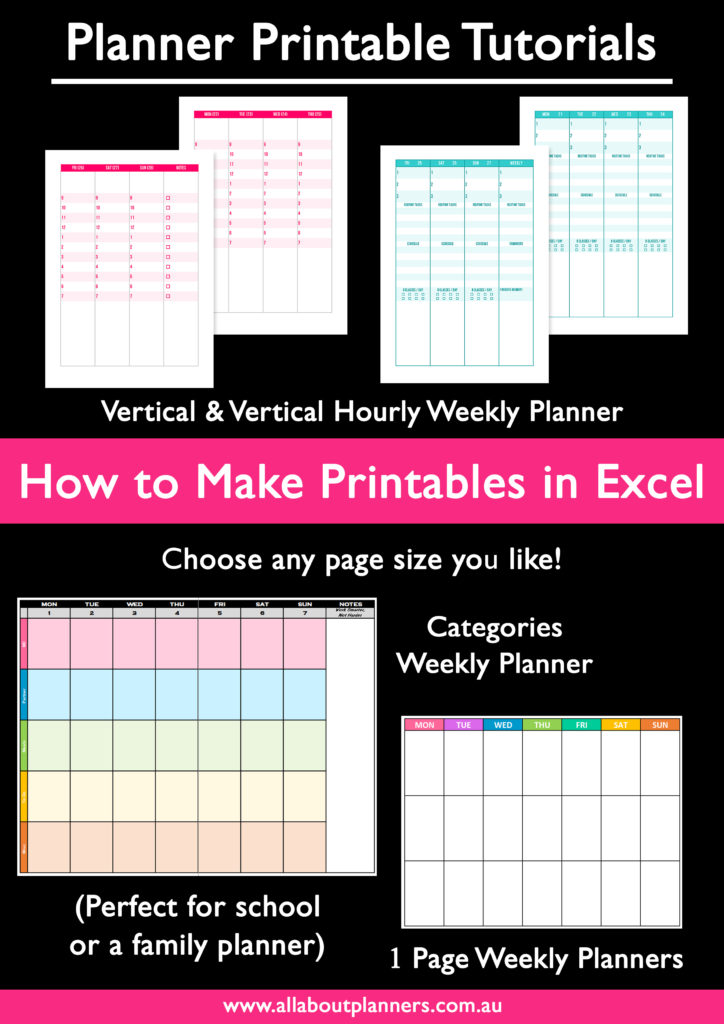
Found this post helpful? Pin it!

Request for template, thank you for sharing your ideas.
Hi Alicia,
Here is the link to the sign up page where you’ll be able to access the Google sheets template (and the 50+ other resources in the library): https://crimson-leaf-3588.ck.page/77a5d2d0c9
I hope you find the template helpful!
Kind Regards,
Rachael